Create User
Users in AIV represent individuals who have access to the platform. Creating a user account allows you to securely manage who can log in, what dashboards they can view, and the specific permissions they have within your organization.
This guide walks you through the process of creating a new user using the Universal Auth Administration panel.
Steps to Create a New User
-
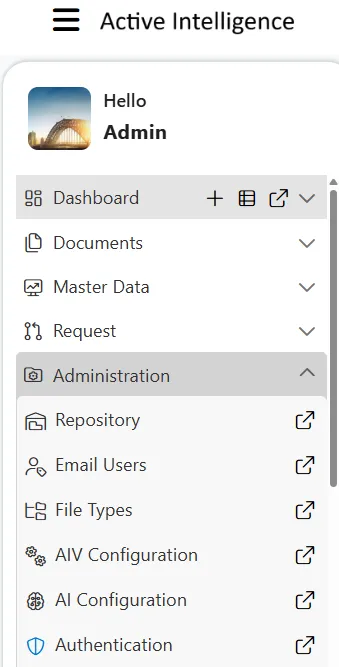
Click on the Hamburger menu (three horizontal lines) in the top left corner of the screen.
-
Navigate to the Administration section and click on Authentication.
-
The Universal Auth Administration page will open. From the left-hand directory menu, select Users.

-
On the Users page, click on the Create user button located on the right side.
-
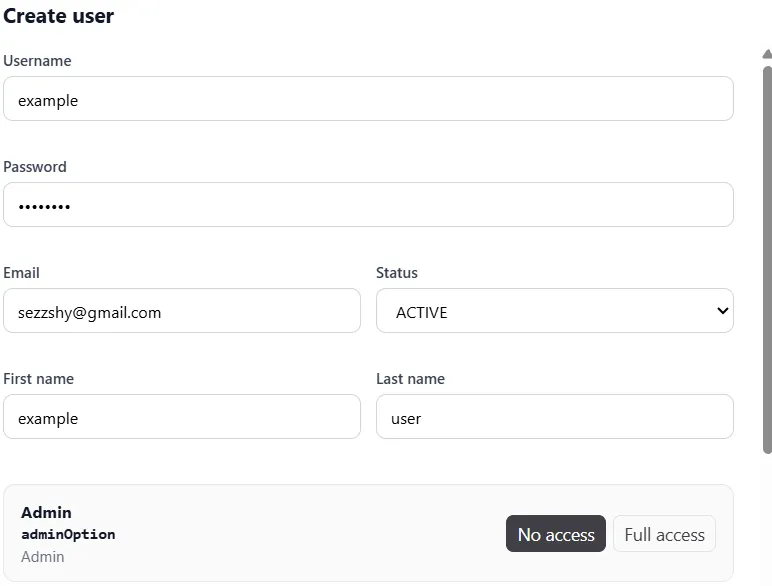
The Create user form will appear. Fill in the following details:
-
Username: Enter a unique username (e.g.,
example). -
Password: Enter a secure password.
-
Email: Enter a valid email address (e.g.,
sezzshy@gmail.com). -
Status: Ensure this is set to ACTIVE.
-
First name: Enter the user’s first name (e.g.,
example). -
Last name: Enter the user’s last name (e.g.,
user). -
Admin: Select the appropriate access level (e.g., No access or Full access).
-
-
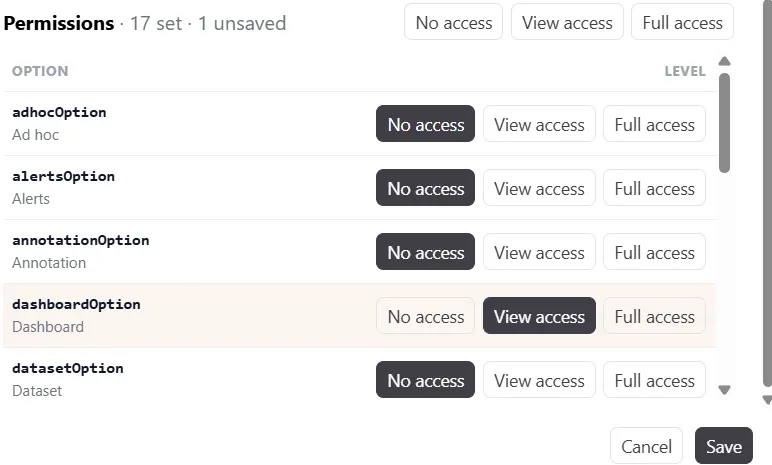
Scroll down to configure the Permissions for the user. Set the appropriate access levels (e.g., No access, View access, Full access) for various options such as Ad hoc, Alerts, Dashboard, Dataset, etc.
-
Click on the Save button to create the new user.
-
A success message “User Created Successfully” will appear in the top right corner.

Logging in as the New User
To verify that the user was created correctly and has the appropriate access, follow these steps:
-
Log out of your current session or open an incognito/private browsing window.
-
Navigate to your AIV login page.
-
Enter the newly created Username (e.g.,
example) and Password.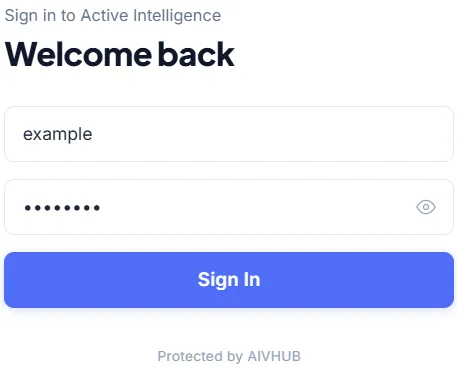
-
Click the Sign In button.
-
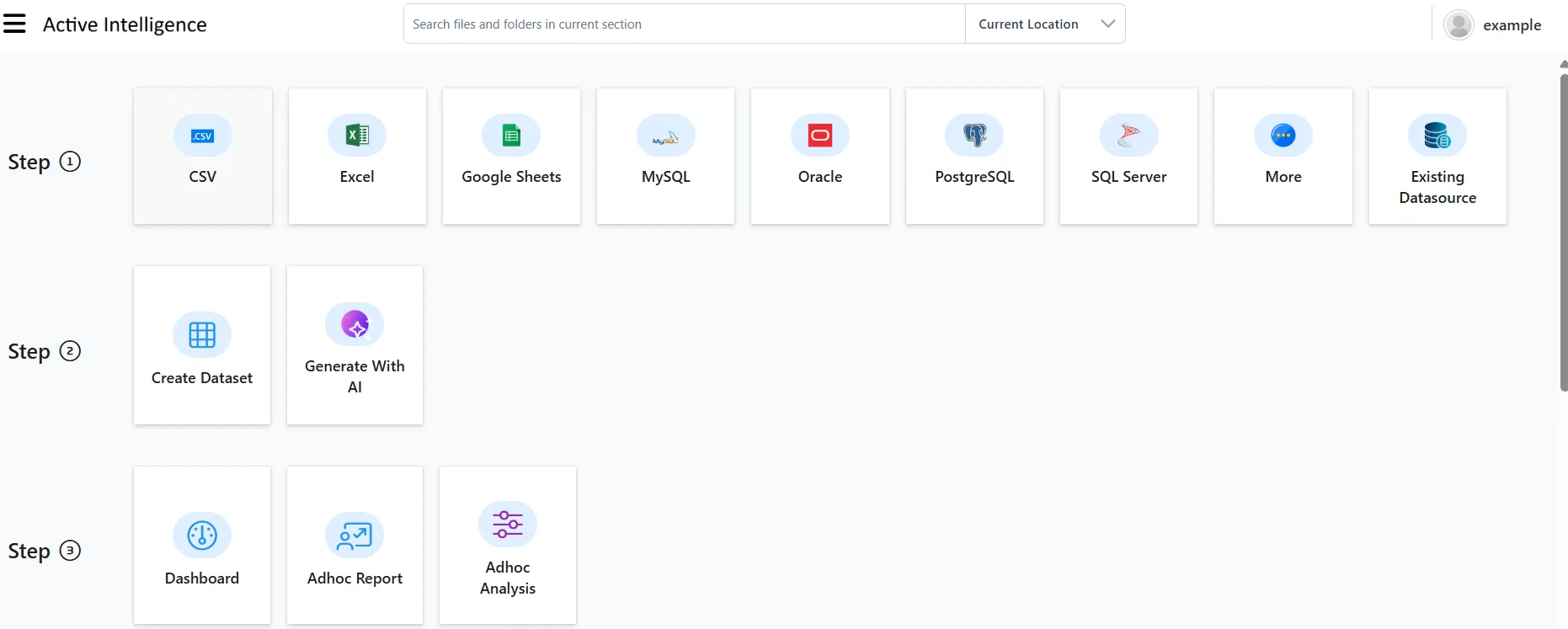
Upon logging in, you will be directed to the Active Intelligence landing page. You should be able to see the options and features that match the permissions granted during user creation.