AWS Cognito
Follow these steps to configure Amazon Cognito as an authentication provider for your application:
1. Create a User Pool in AWS
-
Log in to your AWS Management Console.
-
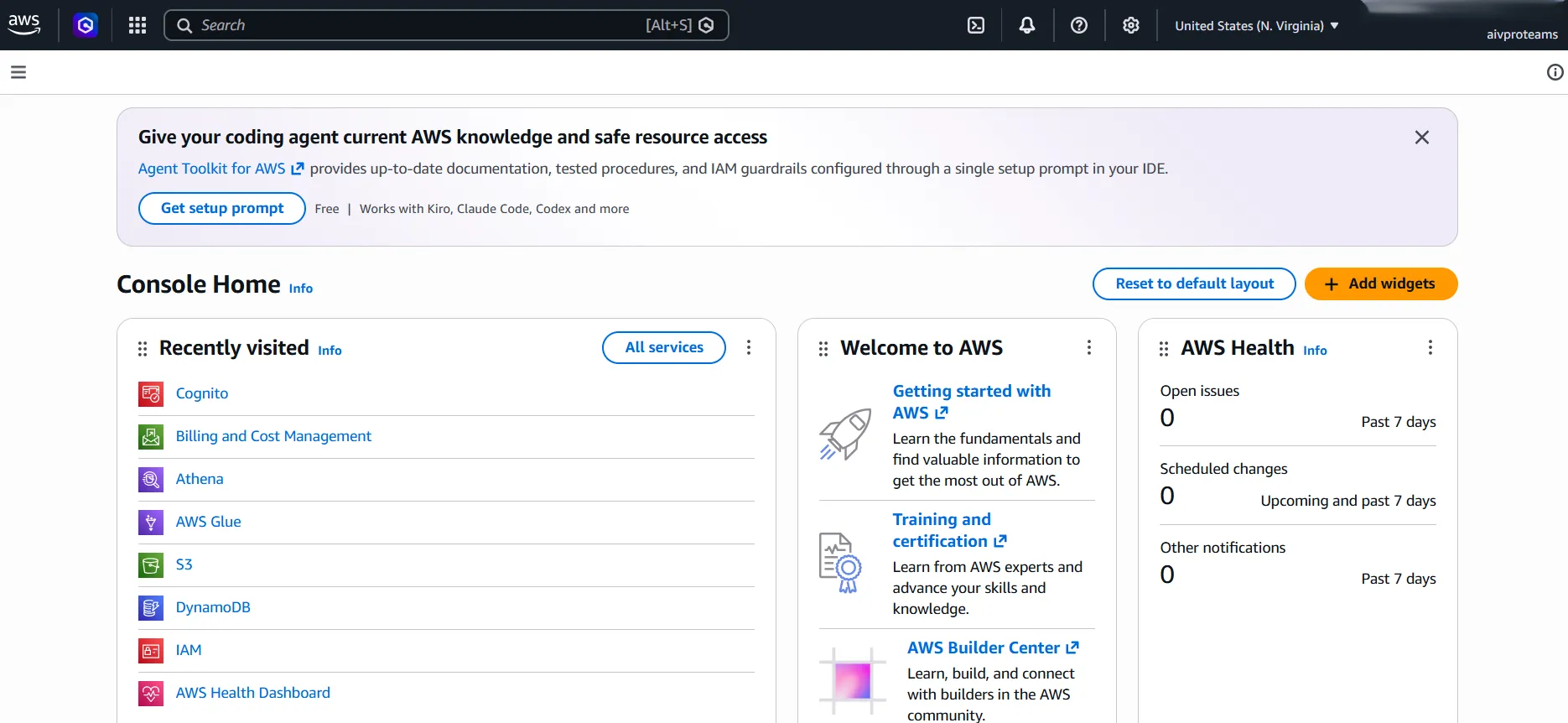
In the top search bar, search for Cognito or click on Cognito if it’s in your recently visited services.
-
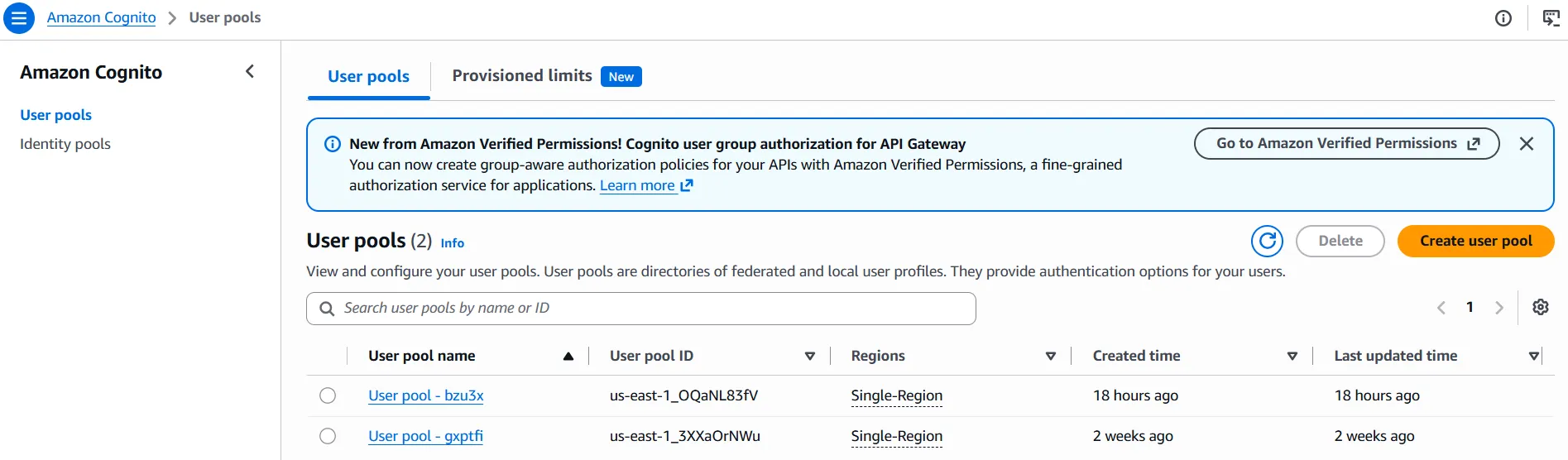
On the Amazon Cognito dashboard, select User pools from the left-hand menu and click on the Create user pool button.
-
On the Set up resources for your application page, configure the following under the Define your application section:
-
Application type: Select Traditional web application.
-
Name your application: Enter a name for your application (e.g.,
My web app - bzu3x).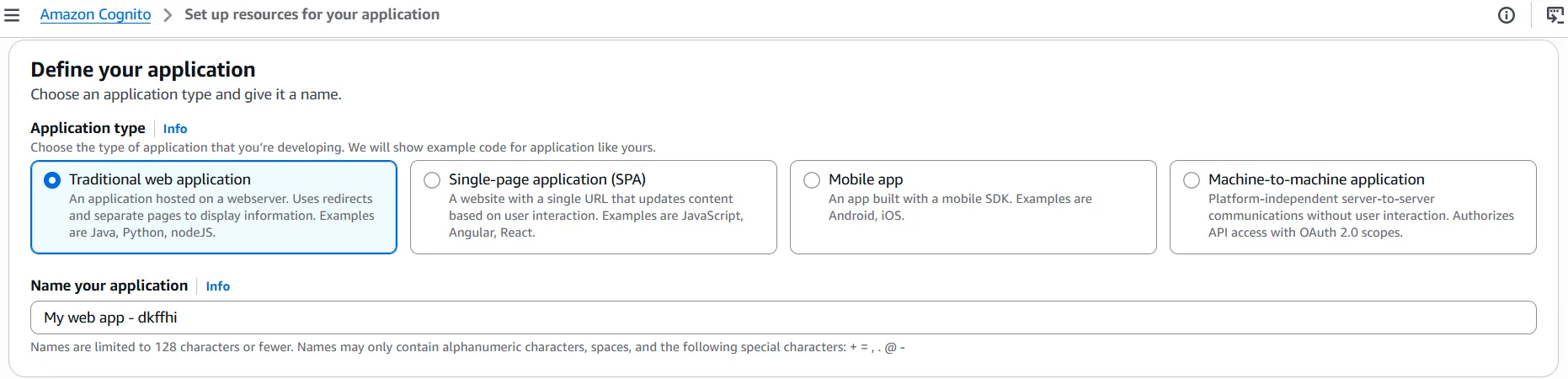
-
-
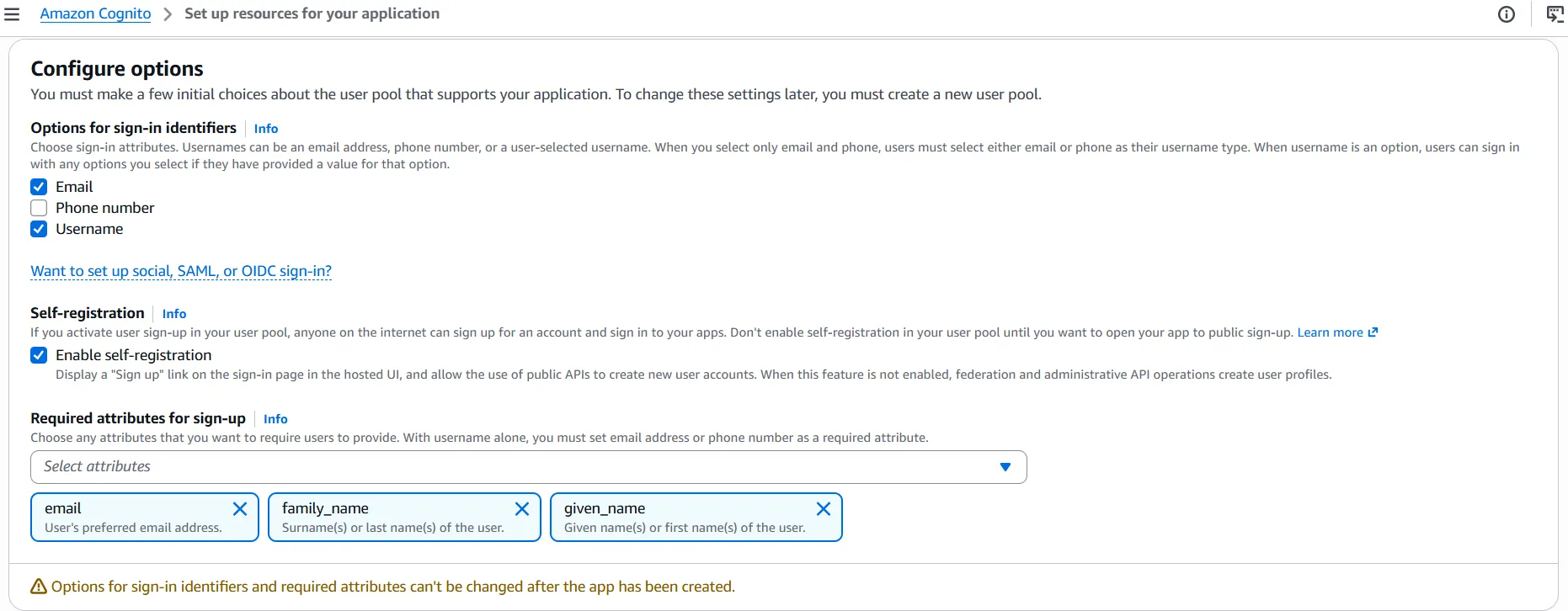
Under the Configure options section, for Options for sign-in identifiers, check the boxes for Email and Username.
-
Scroll down to the Self-registration section and ensure Enable self-registration is checked.
-
For Required attributes for sign-up, select email, family_name, and given_name from the dropdown menu.
-
In the Add a return URL - optional section, enter your AIV application’s callback URL in the Return URL field (e.g.,
https://<your_domain_name>/oauth/callback/cognito). -
Click on the Create user directory button to finish creating the user pool.

-
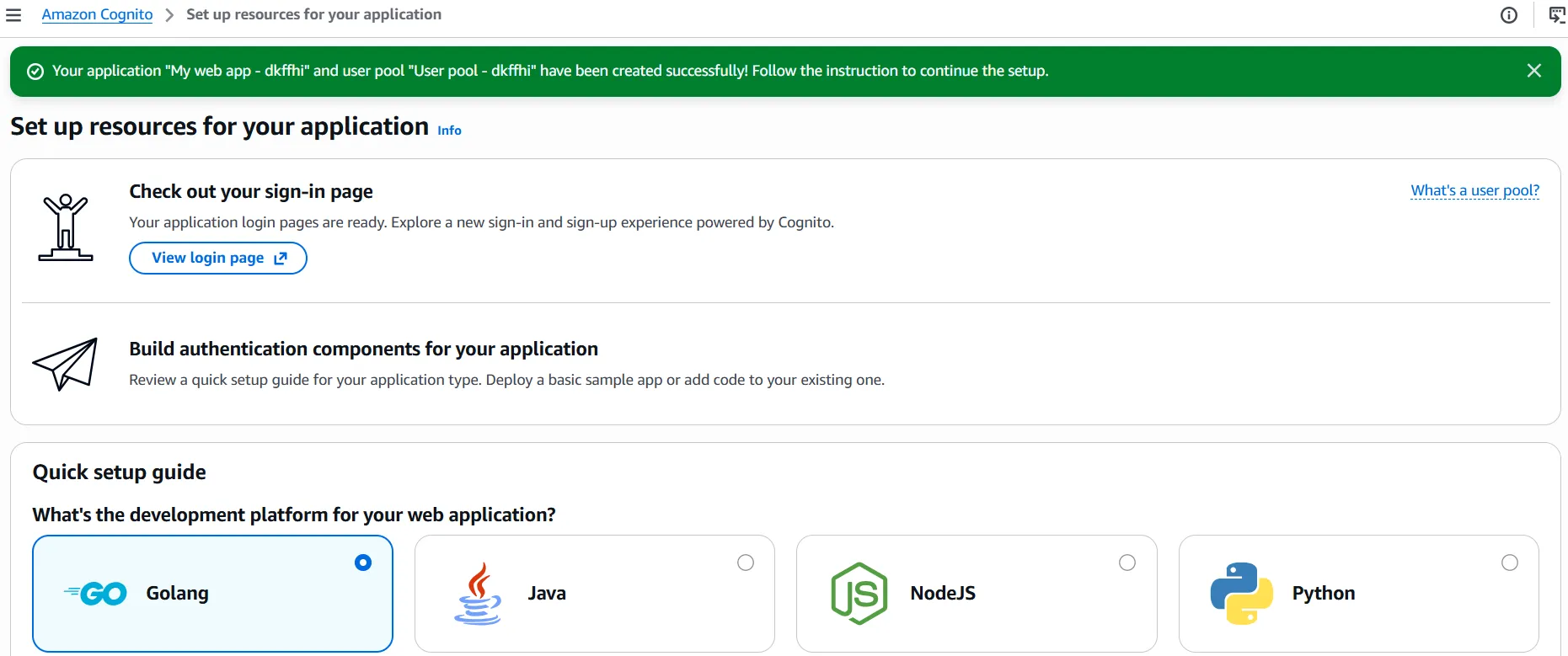
Upon successful creation, you will see a green success message at the top of the screen indicating that your application and user pool have been created successfully.
2. Obtain Client ID and Client Secret
-
From the Amazon Cognito dashboard, select User pools from the left-hand menu.
-
Click on the name of the user pool you just created (e.g.,
User pool - dkffhi).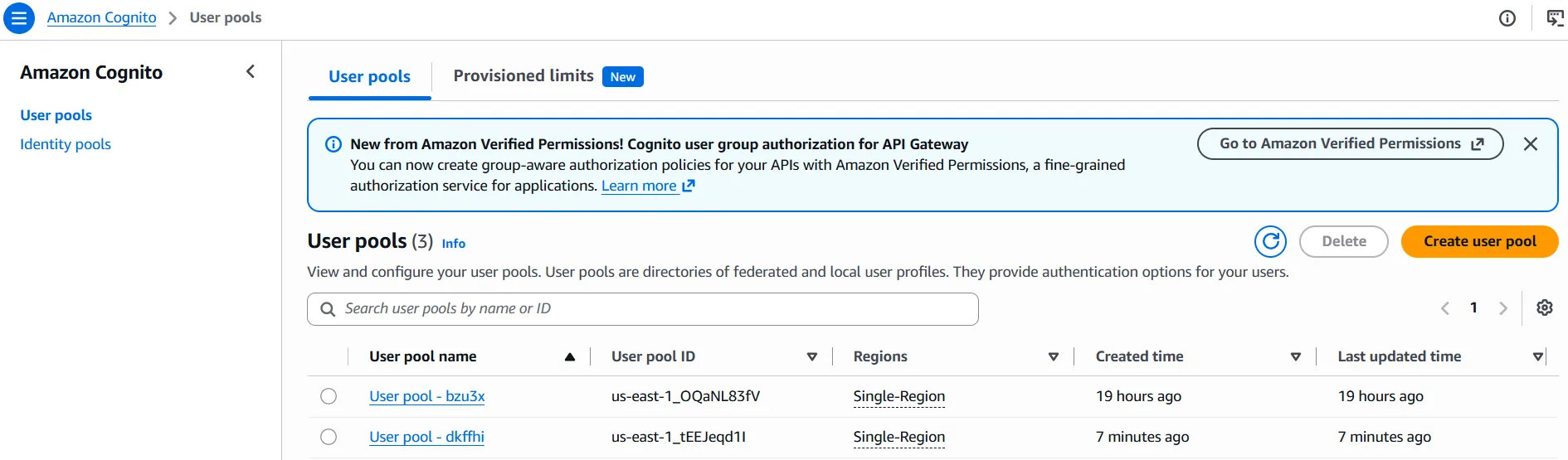
-
On the User pool overview page, navigate to the Applications tab in the left-hand sidebar and select App clients.
-
You will see your application listed under App clients. Click on your application name (e.g.,
My web app - dkffhi).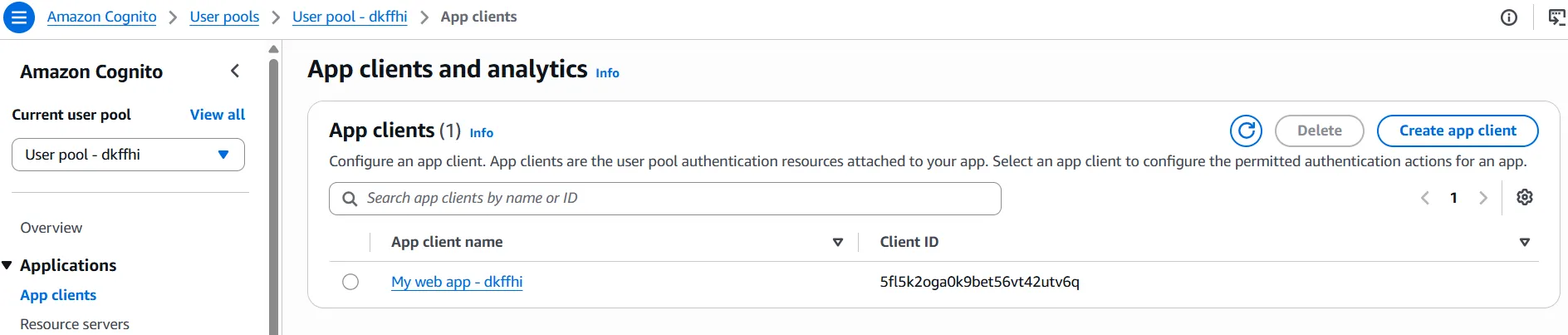
-
On the App client page, you will find your Client ID under the App client information section.
-
Right below the Client ID, you will find the Client secret. You can toggle the Show client secret button to view and copy it.
-
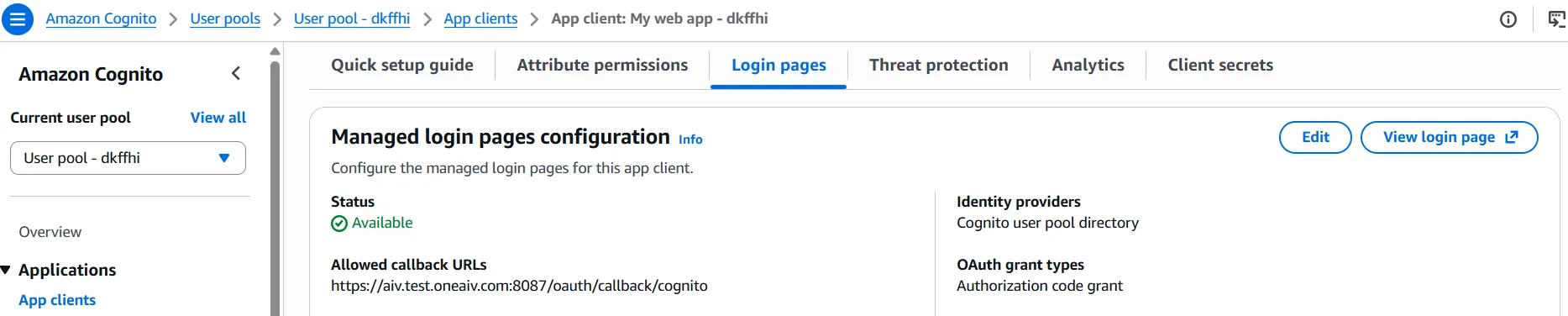
On the same page, select the Login pages tab and click on the Edit button in the Managed login pages configuration section.
-
Scroll down to the OpenID Connect scopes section. Ensure that OpenID and Profile are selected from the dropdown menu (adding phone number is optional).
-
Click to Save Changes.

3. Create a Test User
-
In the Amazon Cognito dashboard, navigate to your User pool (e.g.,
User pool - dkffhi). -
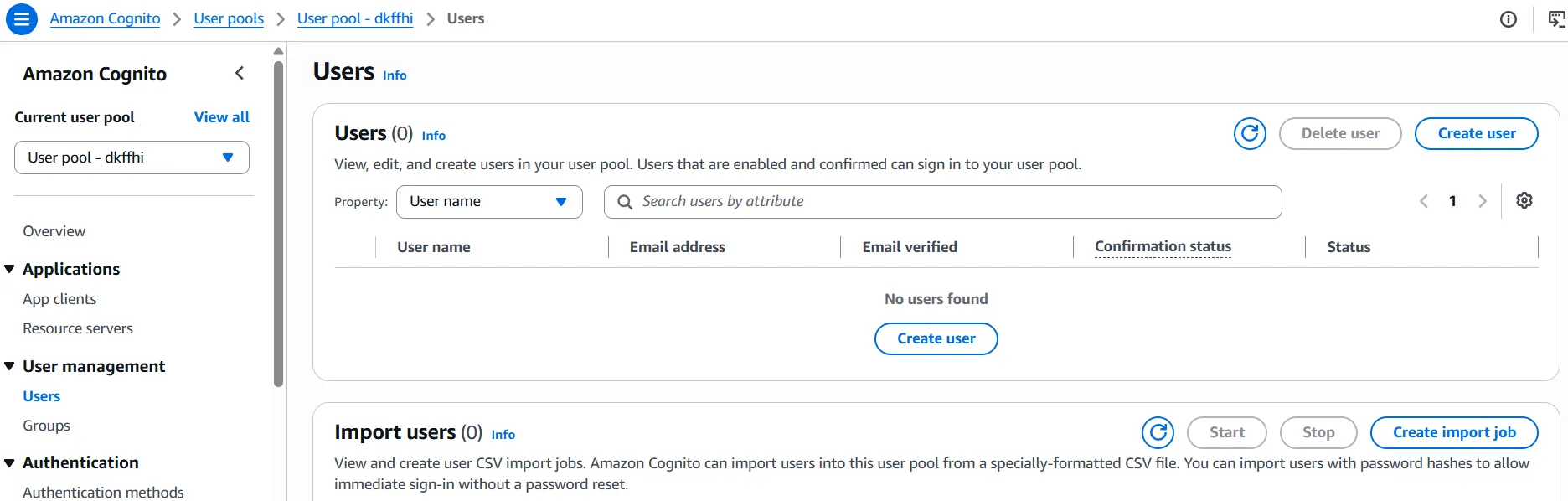
From the left-hand menu, under User management, select Users.
-
Click on the Create user button.
-
On the Create user page, configure the following:
-
Under Invitation message, select Don’t send an invitation.
-
Under User name, enter a username (e.g.,
aivtestuser). -
Under Email address, enter an email address (e.g.,
aivtestuser@gmail.com) and ensure the Mark email address as verified checkbox is checked.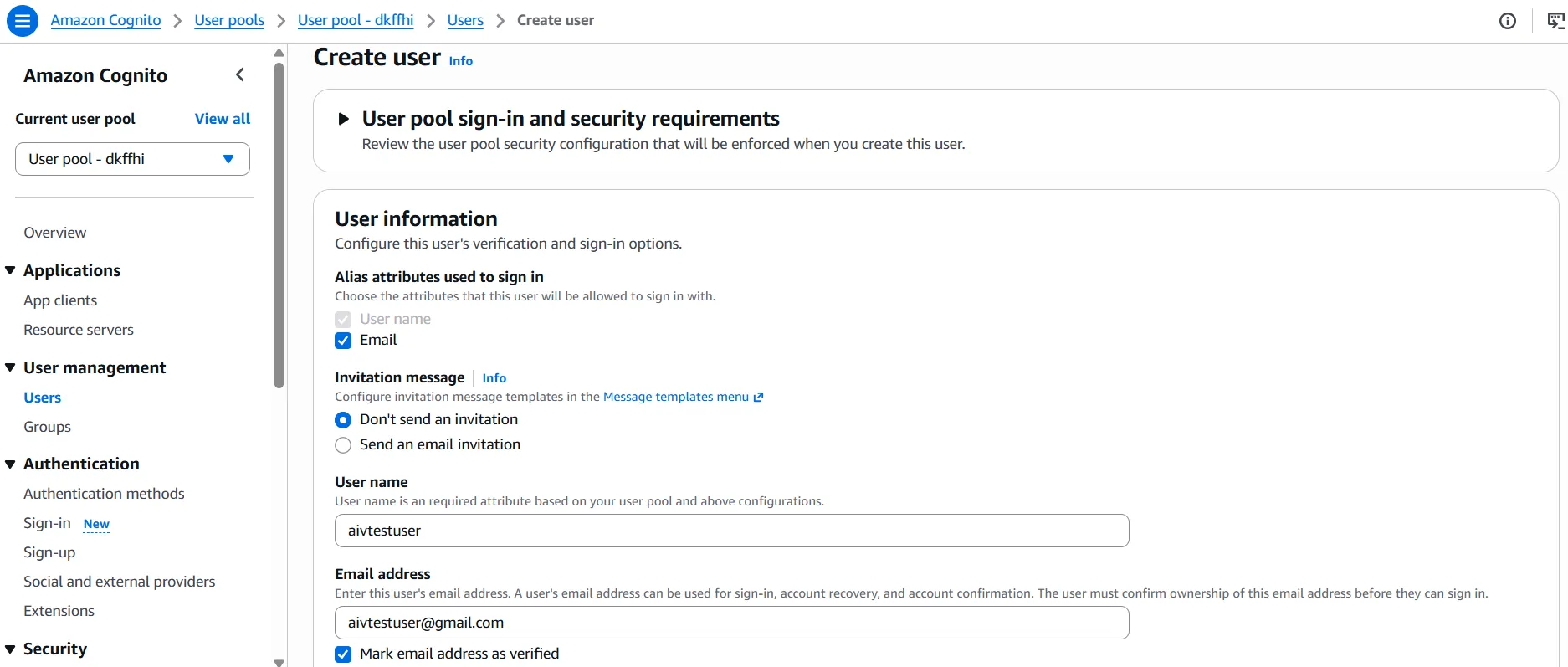
-
-
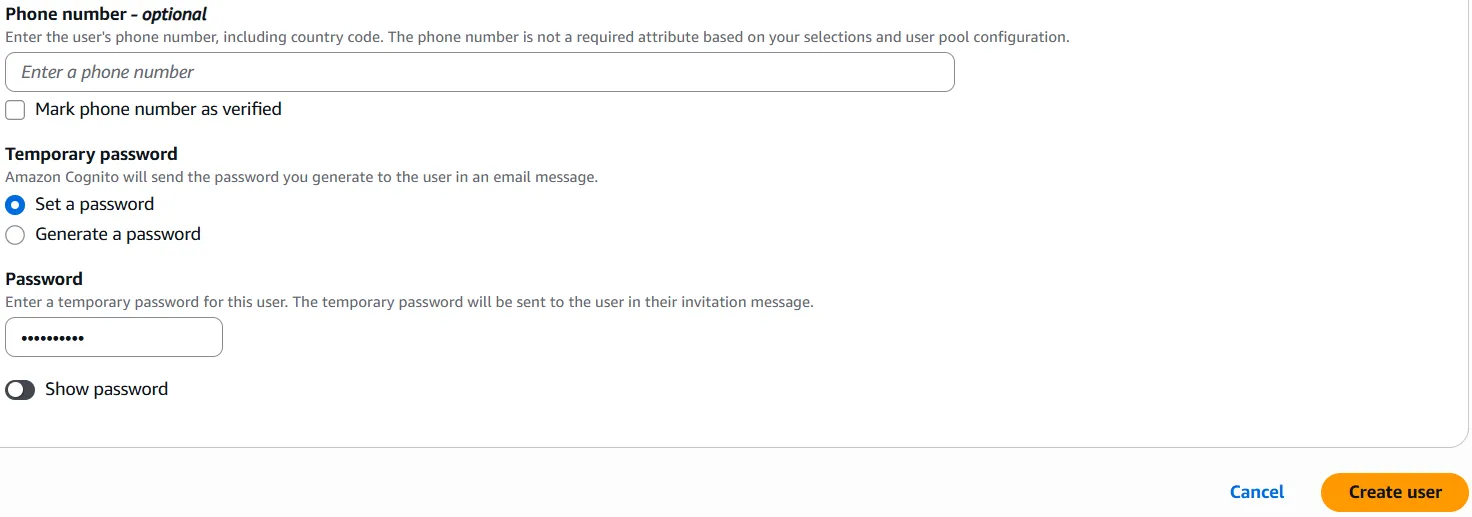
Scroll down to the Temporary password section:
- Select Set a password.
- Enter a secure password in the Password field.
-
Click the Create user button at the bottom of the page.
-
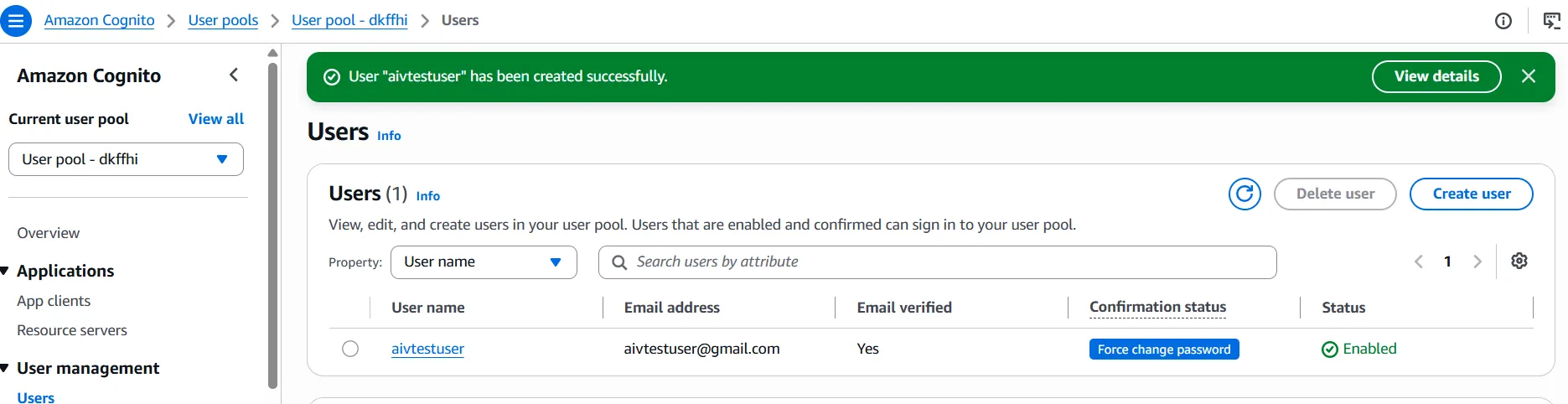
Upon successful creation, you will see a green success message, and the new user will appear in the Users list.
4. Configure Authentication in AIV
-
Log in to your AIV application.
-
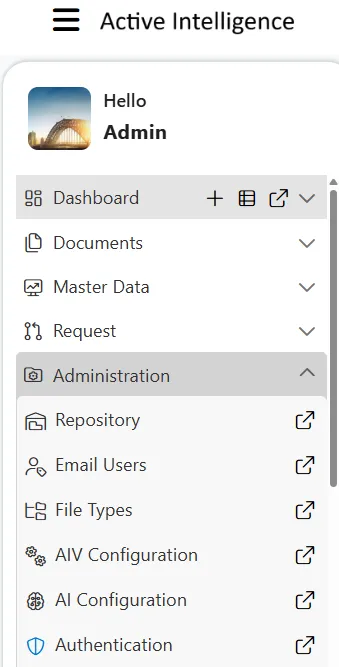
Click on the Hamburger menu (three horizontal lines) in the top-left corner to open the sidebar.
-
Expand the Administration section and click on Authentication.
-
The Universal Auth Administration page will open. From the left-hand directory menu, select Providers.
-
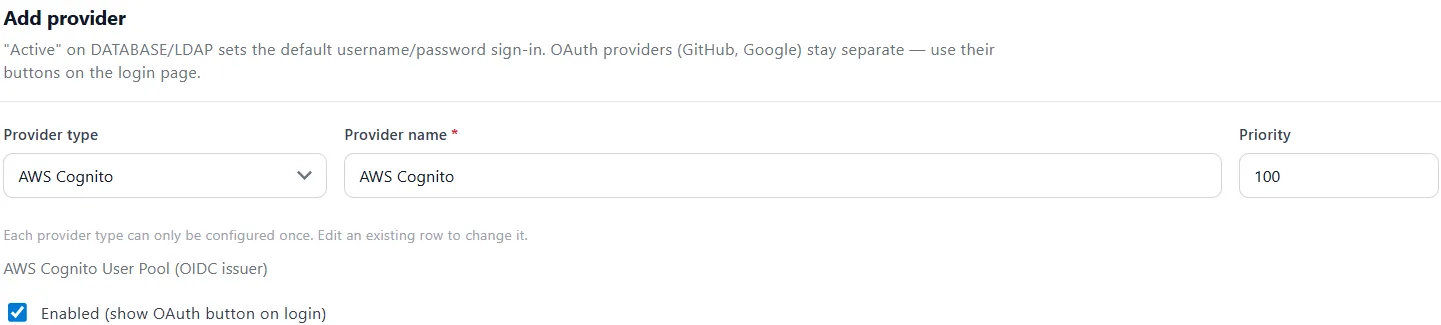
Under the Add provider section, locate the Provider type dropdown. By default, it will be set to Database (already configured).
-
Click the dropdown and select AWS Cognito.
-
Fill in the following details for the new provider:
-
Provider name:
AWS Cognito -
Make sure to check the box for Enabled (show OAuth button on login).
-
-
Scroll down to the OpenID Connect section and fill in the following details:
-
Issuer URL: Enter the OpenID Connect configuration URL found in your User Pool Overview (e.g.,
https://cognito-idp.us-east-1.amazonaws.com/<pool-id>). -
Client ID: Enter the Client ID you copied from your App client settings.
-
Client secret: Paste the Client Secret from your App client settings.
-
Redirect URI: Enter the callback URL for your AIV instance (e.g.,
https://<your_domain_name>/oauth/callback/cognito).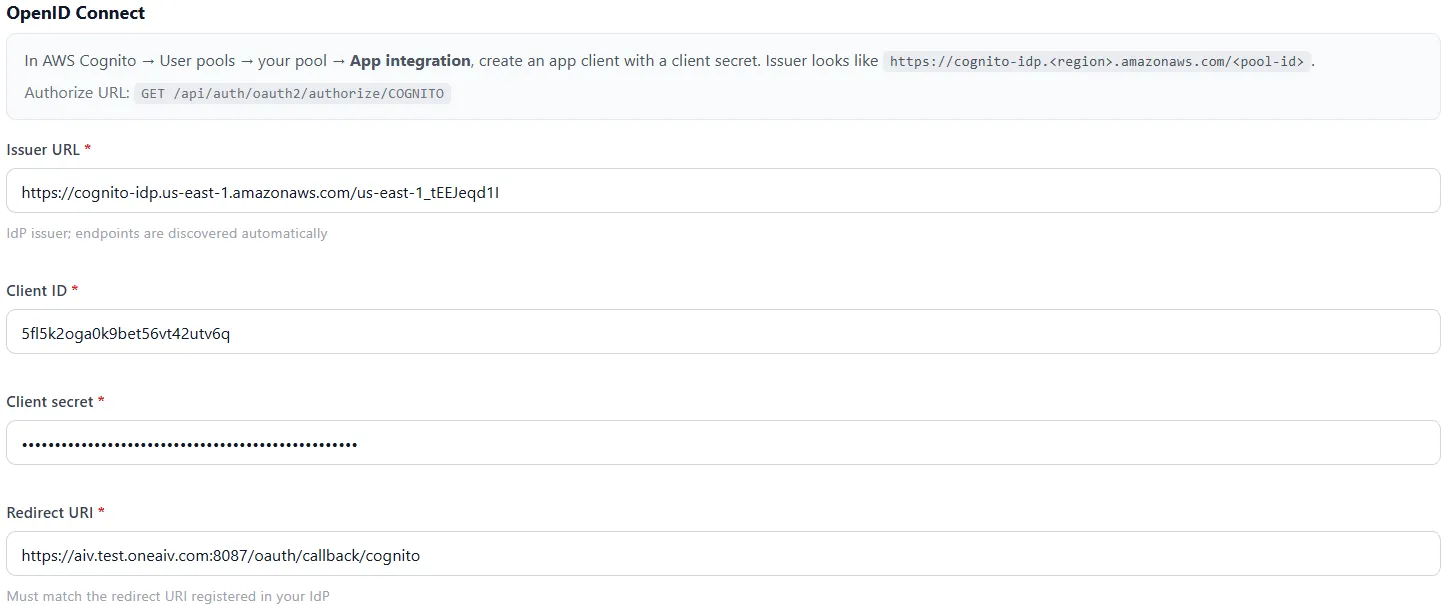
-
-
Click on the Add provider button to save.
-
A success popup message will appear, and you will now see your newly created AWS Cognito authentication provider listed as Active in the Provider configuration list.

5. Test AWS Cognito Authentication
-
Log out of your AIV application.
-
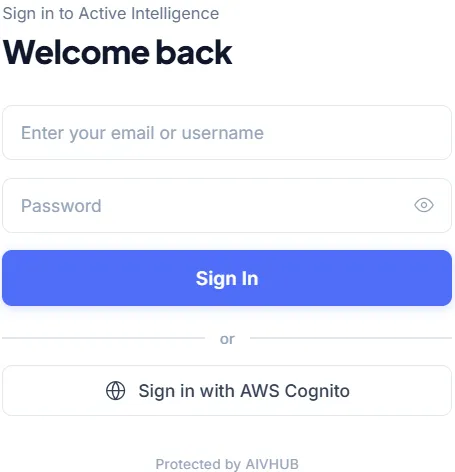
Navigate to the AIV login screen. You will now see a Sign in with AWS Cognito button.
-
Click on the button to securely sign in.
-
You will be redirected to the AWS Cognito sign-in page. Enter the username you created earlier (e.g.,
aivtestuser) and click Next.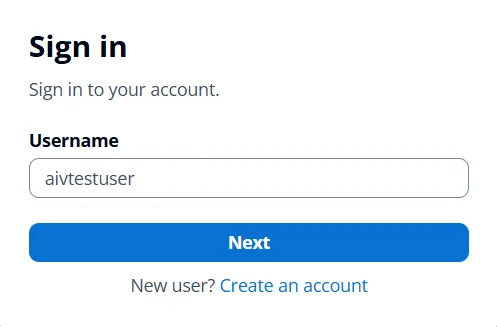
-
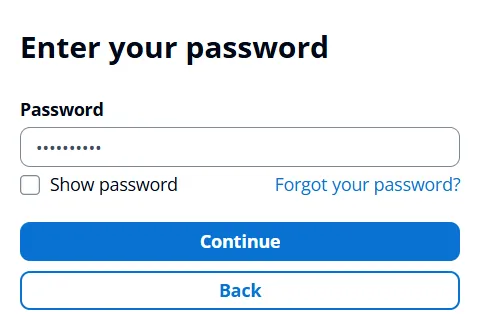
Enter the temporary password you set for the user and click Continue.
-
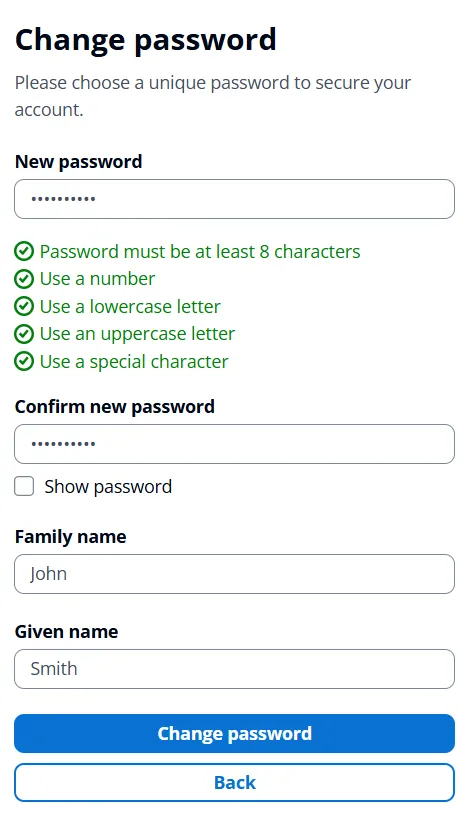
Since this is the first login, you will be prompted to change your password. Enter a new password, confirm it, and fill in the required attributes (e.g., Family name and Given name). Then click Change password.
-
Upon successful authentication, you will be redirected back to the AIV dashboard.
Manage Role Synchronization
By default, users logging in via AWS Cognito are successfully authenticated but will not have any specific permissions within AIV.
Role synchronization allows you to map groups created in your AWS Cognito User Pool directly to roles in AIV. When this is configured, AIV will read the user’s Cognito group during login and automatically grant them the corresponding AIV role (and its associated permissions). This eliminates the need for an administrator to manually assign roles to new users inside AIV.
If you want to enable this automated role mapping, follow the steps below:
1. Create Groups in AWS Cognito
To begin, you must create groups in your AWS Cognito User pool that match the roles you plan to use in AIV.
-
In the Amazon Cognito dashboard, navigate to your User pool.
-
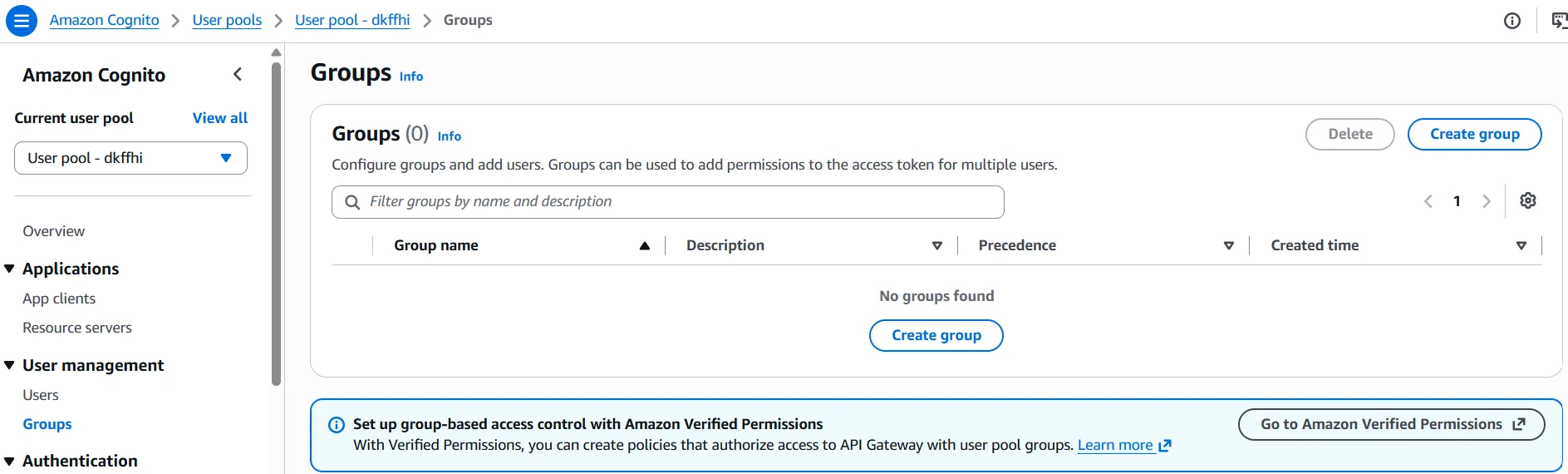
From the left-hand menu, under User management, select Groups.
-
Click on the Create group button.
-
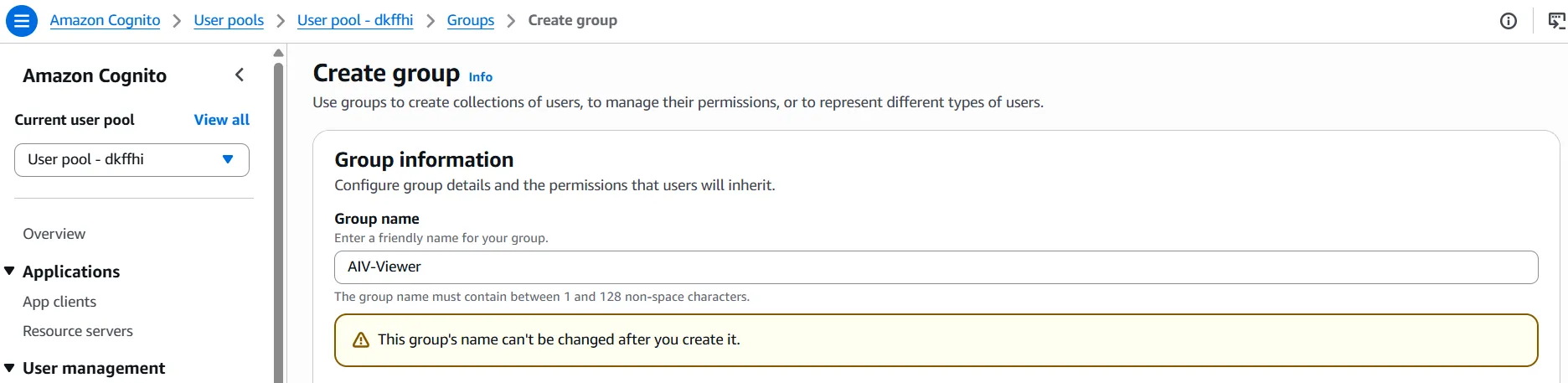
On the Create group page, configure the following:
- Group name: Enter the name of the group you want to create (e.g.,
AIV-Viewer). - Leave the rest of the settings as default.
- Group name: Enter the name of the group you want to create (e.g.,
-
Click on the Create group button to finish.
-
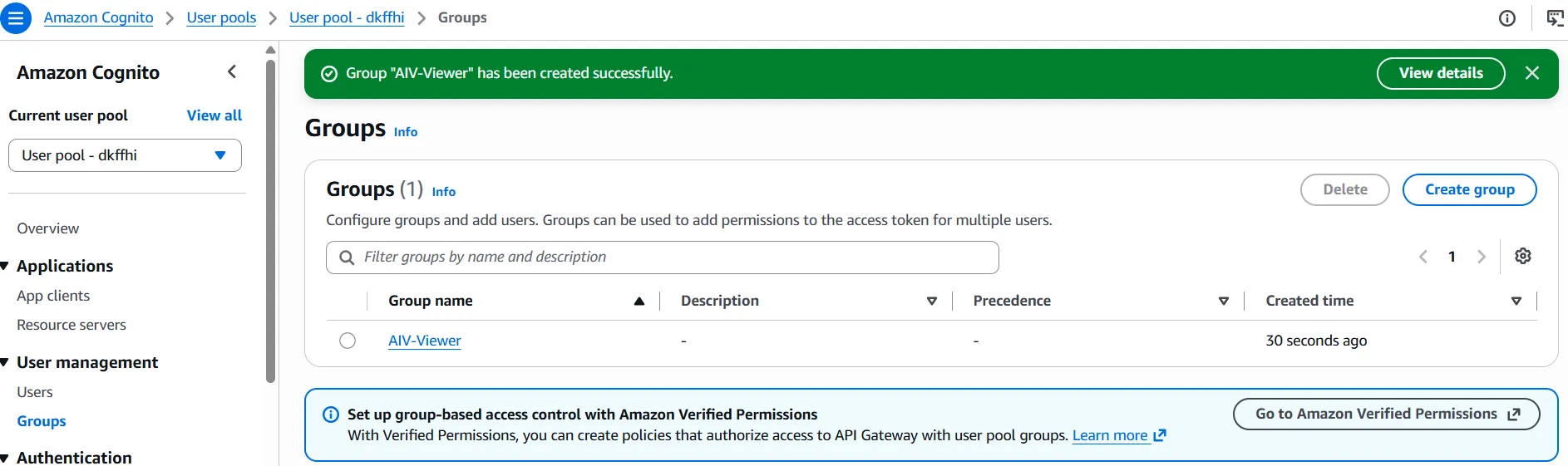
A success message will appear at the top, and your newly created group will be listed in the Groups table.
-
To assign a user to this group, navigate back to Users under User management on the left-hand menu.
-
Click on the username of your test user (e.g.,
aivtestuser). -
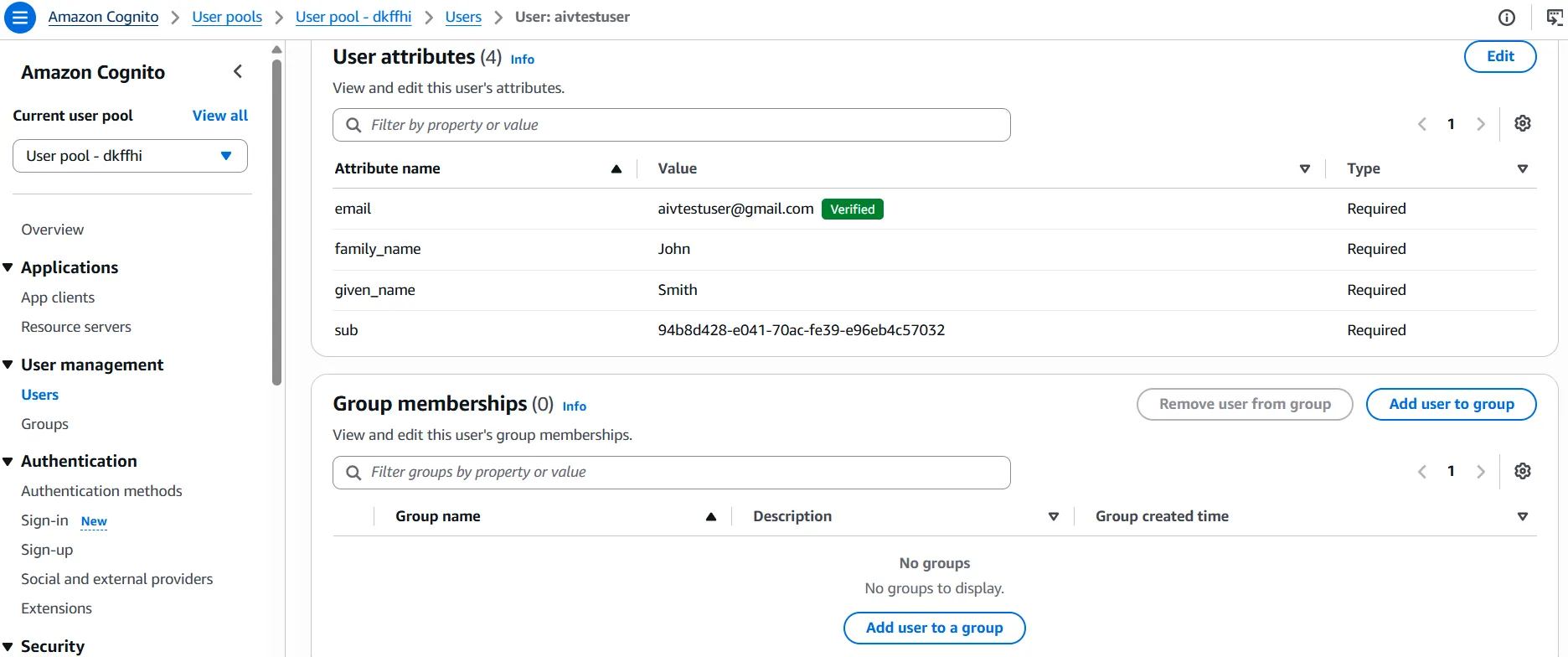
On the User details page, scroll down to the Group memberships section.
-
Click on the Add user to group button to assign the user to the newly created group.
-
A popup window will appear. Select the group you created (e.g.,
AIV-Viewer) from the list and click Add.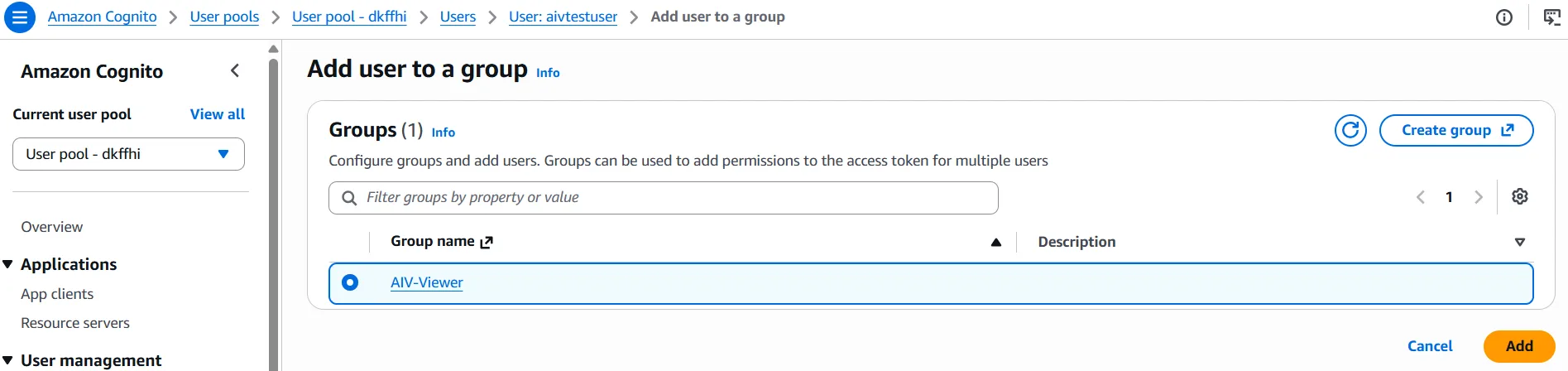
-
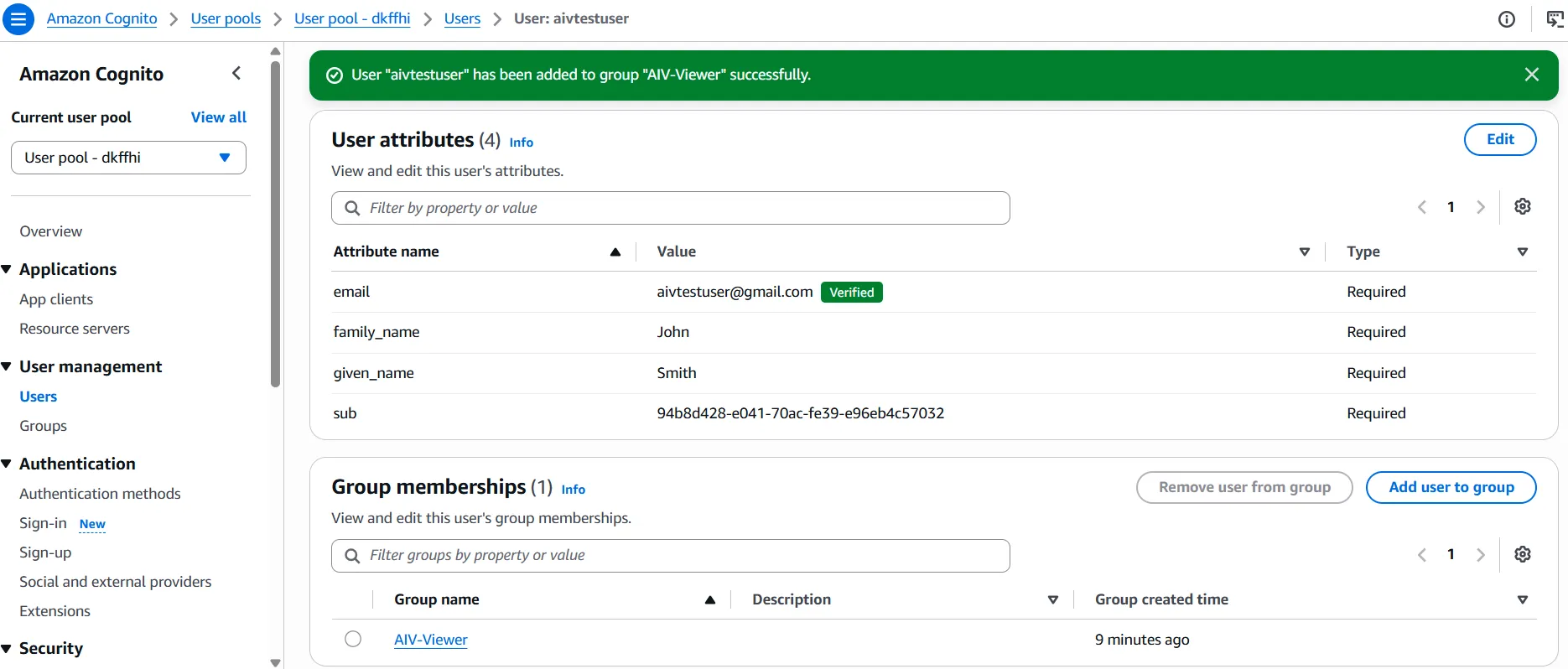
You will see a success message indicating the user has been added to the group, and the group will now be listed under the user’s Group memberships.
2. Create Role in AIV
Before verifying the role mapping, ensure that a role with the exact same name exists in AIV.
-
Ensure you are logged into your AIV application as a user with Universal Auth access.
-
Open the Hamburger menu (three horizontal lines) in the top-left corner.
-
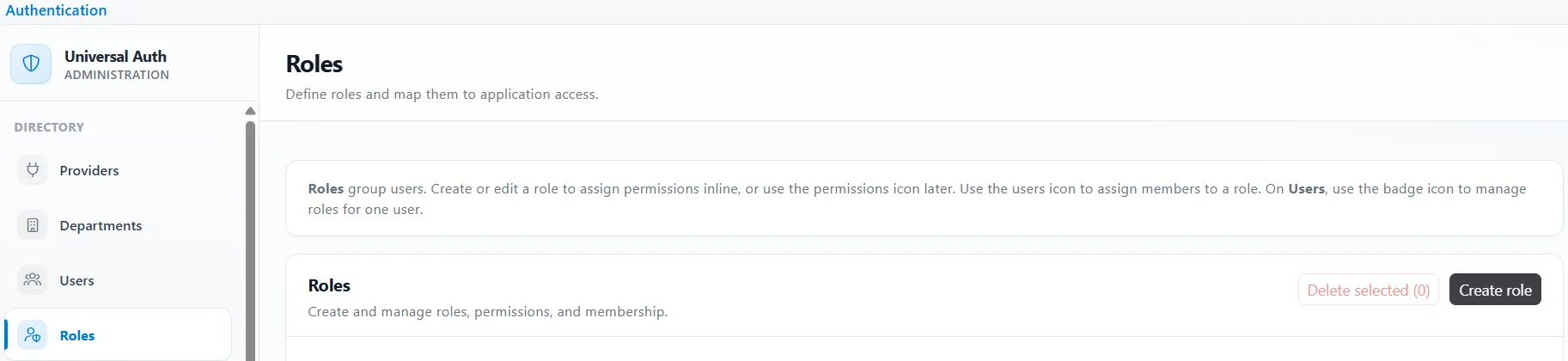
Expand the Administration section, click on Authentication, and then click on Roles.
-
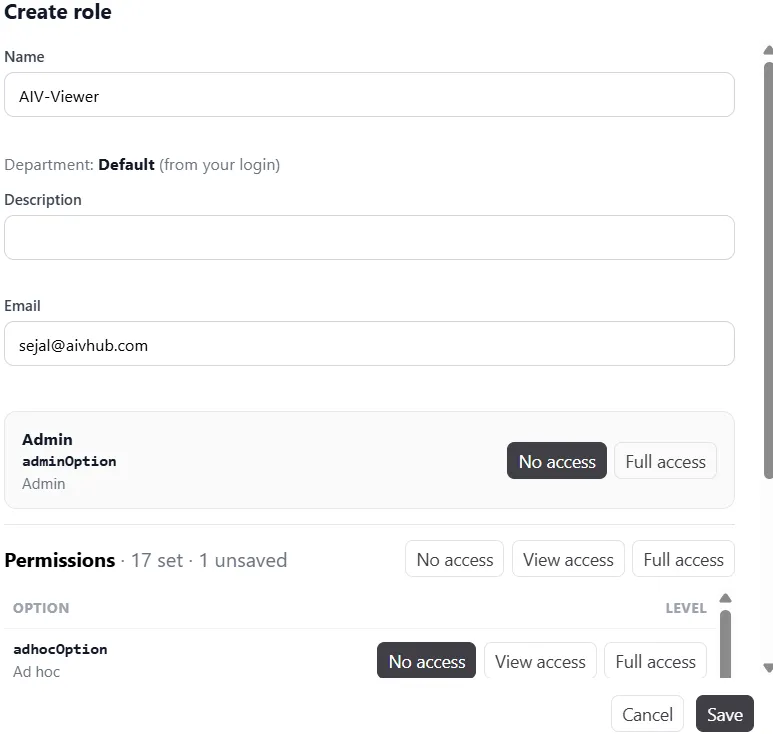
Click on the Create role button.
-
In the Name field, enter AIV-Viewer to match the group created in AWS Cognito.
-
Provide any necessary permissions or descriptions, and click Save.
3. Enable Role Sync in AIV Provider Settings
-
Navigate back to Administration > Authentication > Providers in the AIV application.
-
Click on the Edit icon next to your active AWS Cognito provider.
-
Scroll down to the Role sync on login section.
-
Check the box for Roles come from this provider.
-
In the Roles attribute / claim name field, enter
cognito:groups(or the specific claim your Cognito configuration uses to pass group info). -
Click Save changes to finalize your setup.

4. Verify Role in AIV
-
Log out of your AIV application.
-
Log in again using the AWS Cognito provider.
-
Upon logging in, the AIV-Viewer role assigned in AWS Cognito will be automatically mapped to the user in AIV.
-
Open the Hamburger menu, expand the Administration section, click on Authentication, and then click on Roles.
-
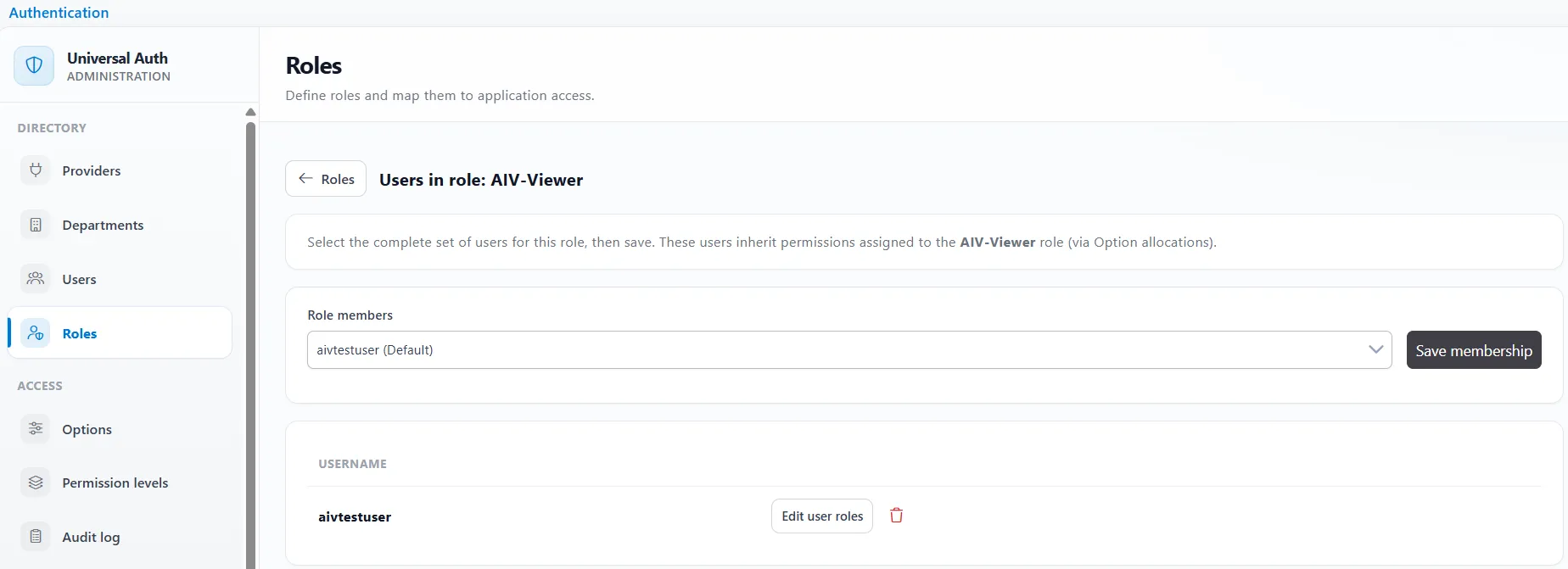
In the Roles list, locate the AIV-Viewer role and click on the Assign users icon next to it.
-
On the Users in role: AIV-Viewer screen, you will be able to see that your logged-in user is successfully assigned to the AIV-Viewer role.