Google OAuth2
Follow these steps to configure Google Cloud Platform (GCP) as an authentication provider for your application:
1. Create a New Project
-
Go to the Google Cloud Console and log in with your Google account.
-
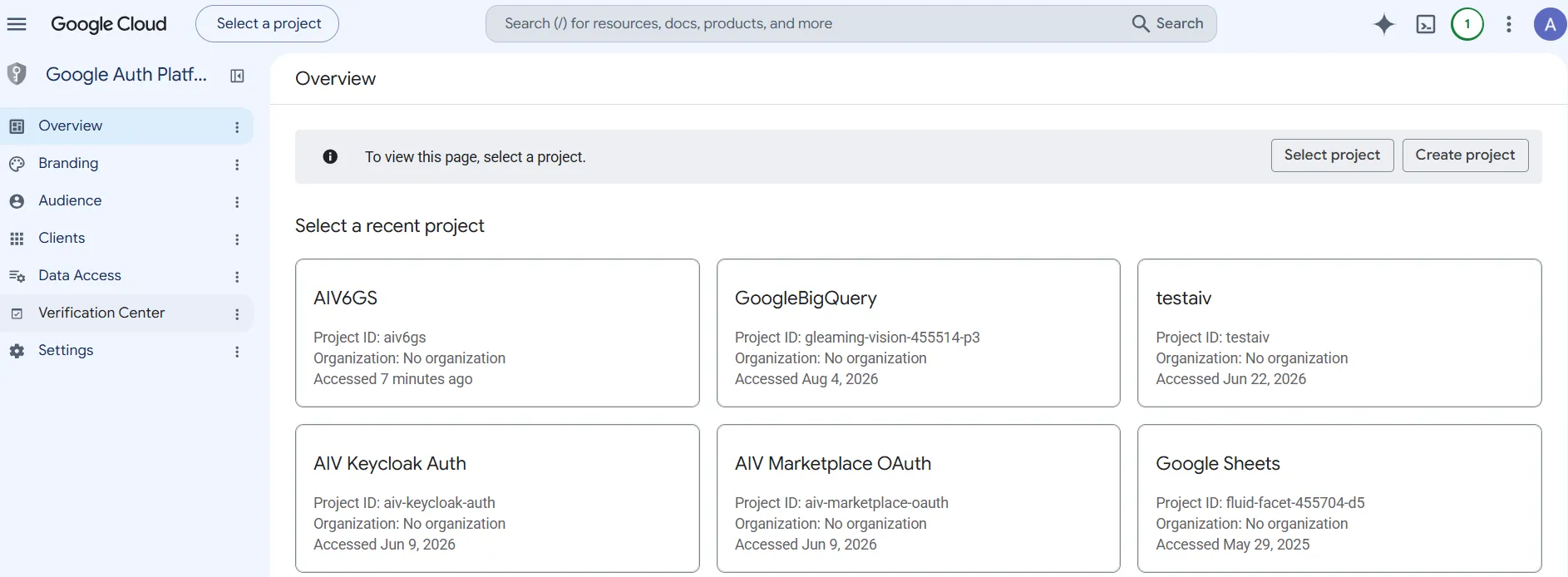
In the top navigation bar, click on Select a project.
-
In the “Select a project” modal, click on the New project button located at the top right.

-
On the “New Project” page, enter a Project name (e.g.,
AIV Google Provider).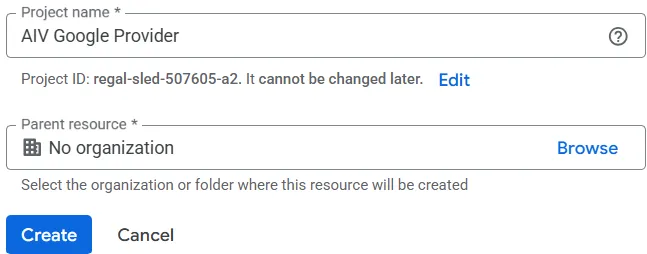
-
Click on the Create button.
2. Configure the OAuth Consent Screen
-
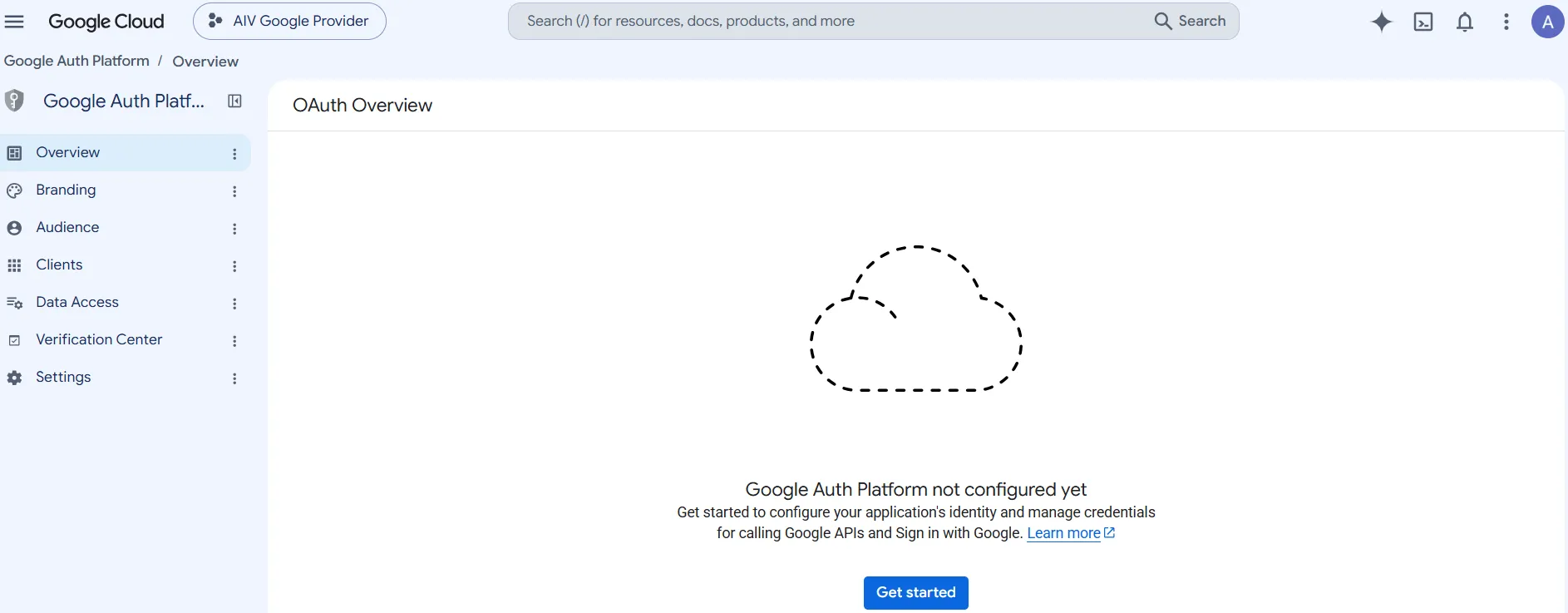
Once your project is created and selected, navigate to the Google Auth Platform or APIs & Services > Credentials from the left-hand menu.
-
If this is your first time configuring the consent screen for this project, you will see a “Google Auth Platform not configured yet” message. Click on the Get started button.
-
In the Project configuration > App Information section, provide the following details:
-
App name: Enter a name for your application (e.g.,
AIV Google Provider Test). This is the name users will see when they are asked to grant permissions. -
User support email: Select a support email address from the dropdown list.
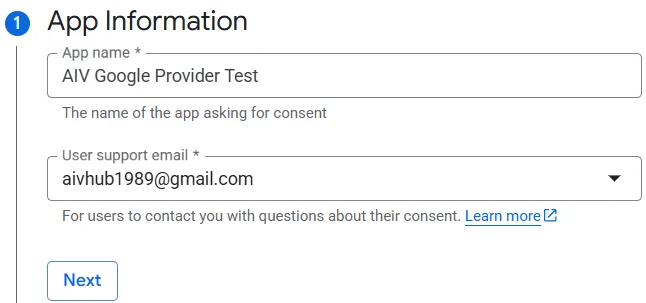
-
-
Click on the Next button to proceed to the Audience step.
-
In the Audience step, select External and click on the Next button.
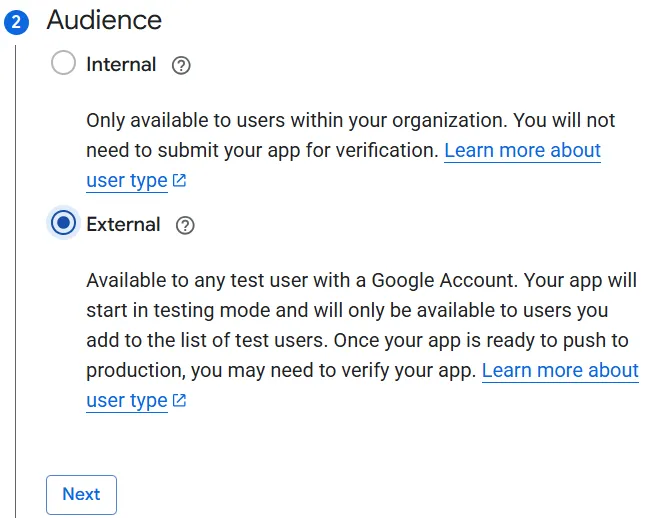
-
In the Contact Information step, enter an email address (e.g.,
aivhub1989@gmail.com) for Google to notify you about any changes to your project, then click Next.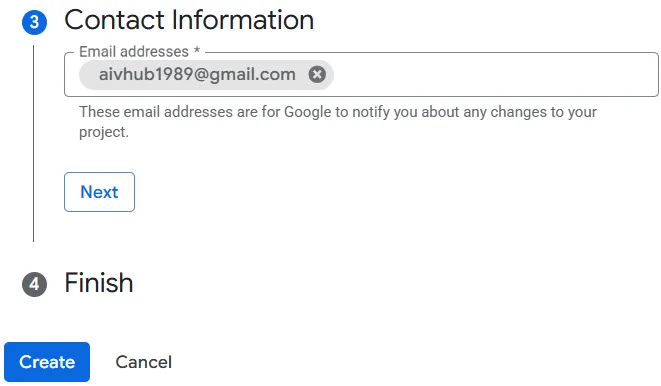
-
In the Finish step, check the box to agree to the Google API Services: User Data Policy, click Continue, and then click on the Create button.
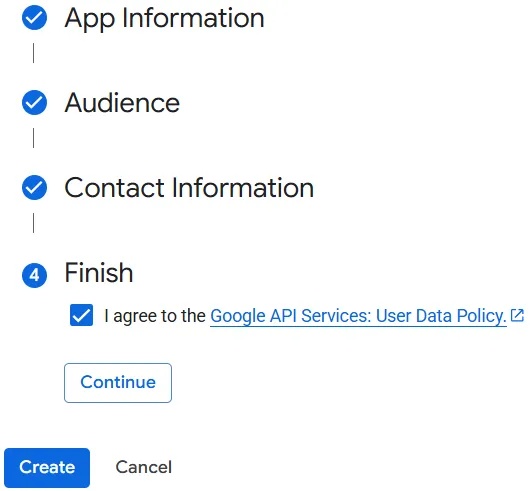
-
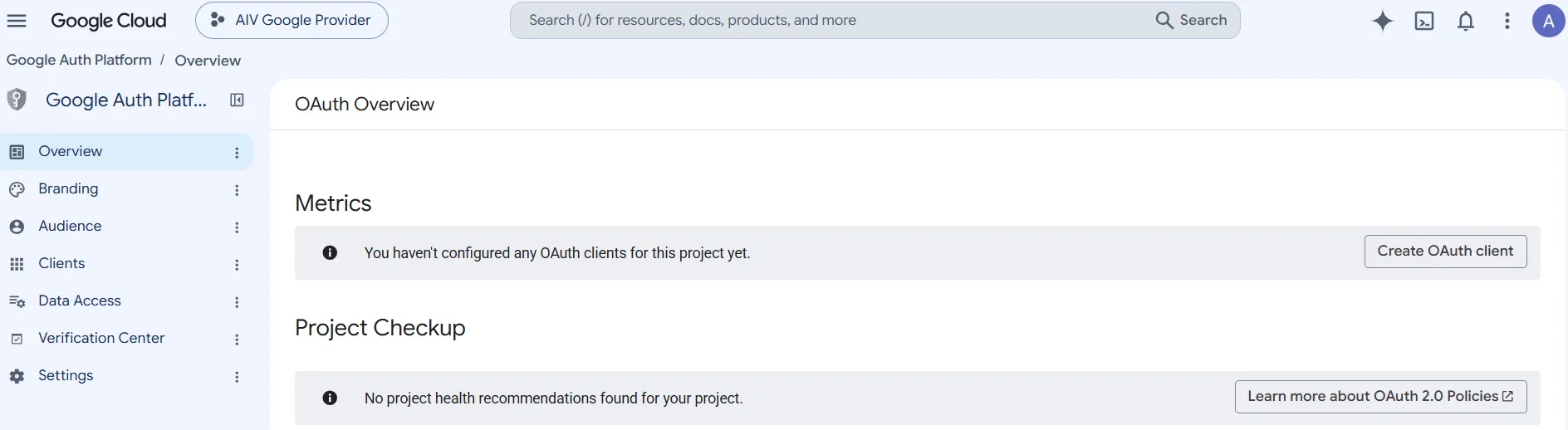
You will be redirected to the OAuth Overview page, where you should see a success message indicating the OAuth configuration is created.
3. Create OAuth Client
-
On the OAuth Overview page, click on the Create OAuth client button.
-
On the Create OAuth client ID page, configure the following:
-
Application type: Select Web application from the dropdown.
-
Name: Enter a name for the client (e.g.,
AIV Google Provider Web Client).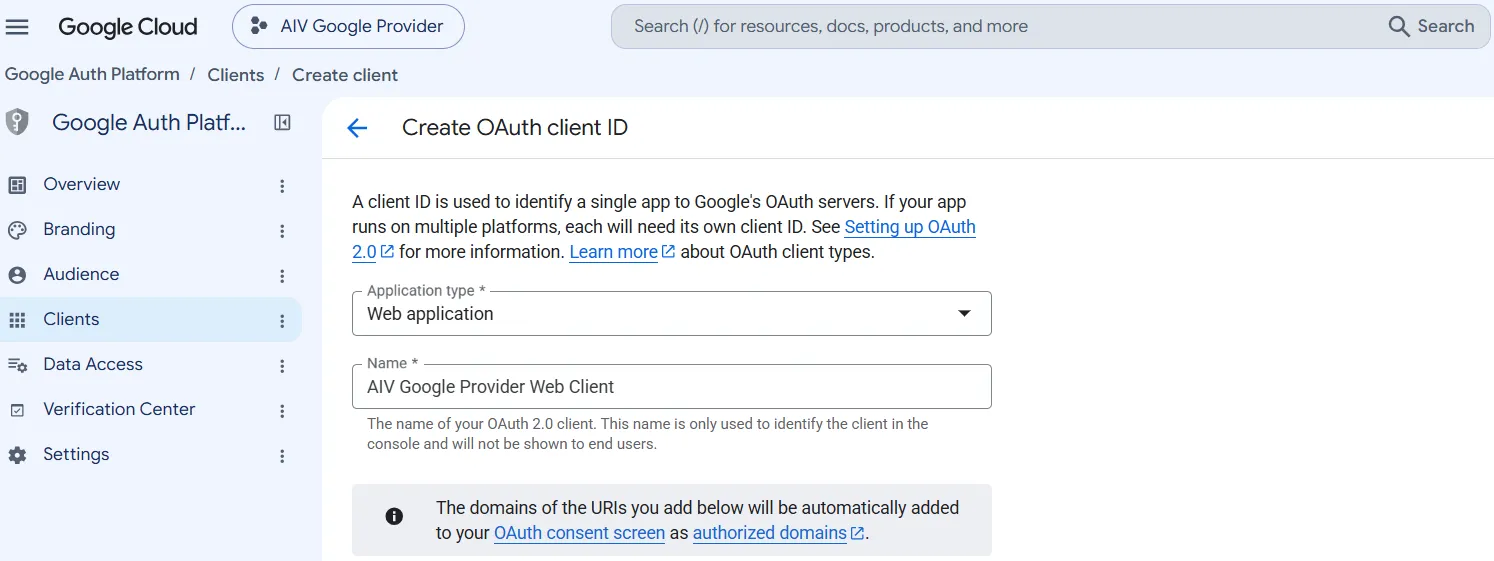
-
-
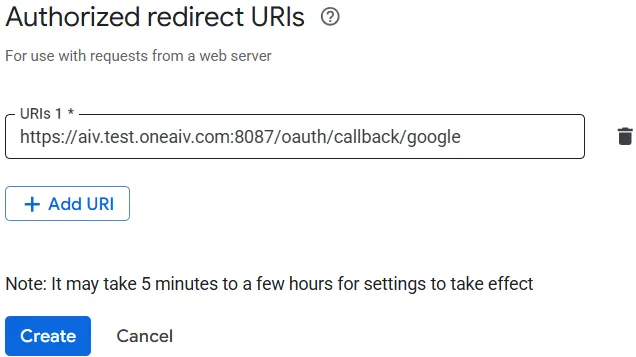
Scroll down to the Authorized redirect URIs section.
-
Click on the + Add URI button.
-
Enter the callback URL for your AIV instance (e.g.,
http(s)://<your_domain_name>/oauth/callback/google). -
Click on the Create button at the bottom of the page to finalize the creation of your OAuth client.
-
A dialog will appear confirming the OAuth client was created. It displays your Client ID and Client secret. Make sure to copy and securely store the Client secret now, as you will not be able to view it again after closing this dialog. Click OK to close the dialog.
-
After closing the dialog, you will be taken to the Clients tab where you can see your newly created OAuth 2.0 Client ID listed.

4. Configure Authentication in AIV
-
Log in to your AIV application.
-
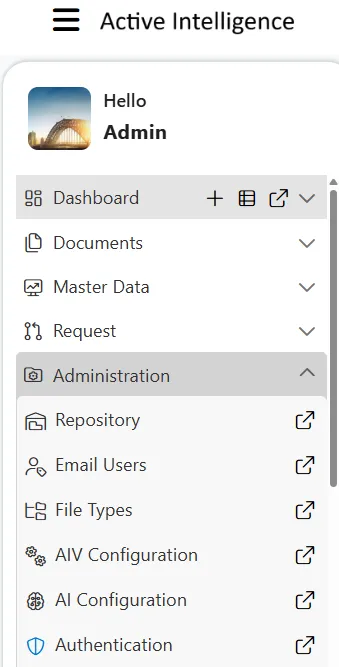
Click on the Hamburger menu (three horizontal lines) in the top-left corner to open the sidebar.
-
Expand the Administration section and click on Authentication.
-
The Universal Auth Administration page will open. From the left-hand directory menu, select Providers.
-
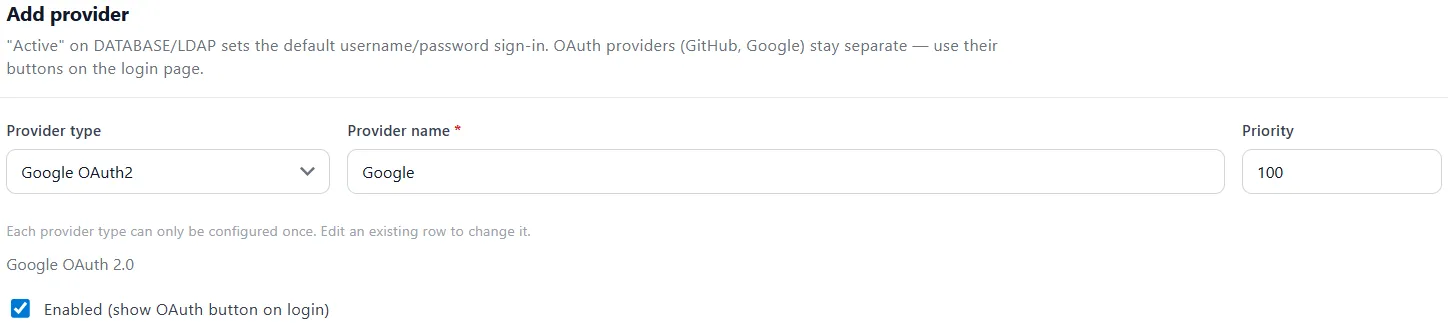
Under the Add provider section, locate the Provider type dropdown. By default, it will be set to Database (already configured).
-
Click the dropdown and select Google OAuth2.
-
Fill in the following details for the new provider:
-
Provider name:
Google(or your preferred name) -
Make sure to check the box for Enabled (show OAuth button on login).
-
-
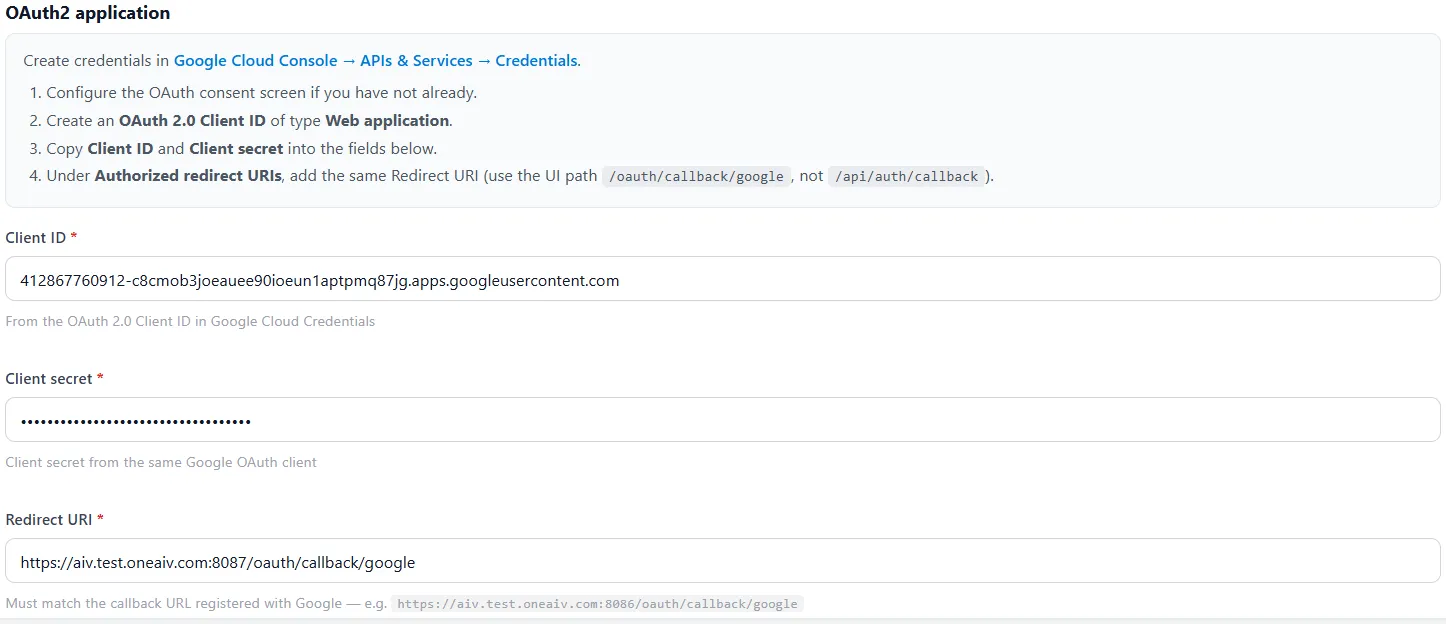
Scroll down to the OAuth2 application section and fill in the following details:
- Client ID: Paste the Client ID generated from your Google OAuth client.
- Client secret: Paste the Client Secret you securely stored earlier.
- Redirect URI: Enter the callback URL for your AIV instance (e.g.,
http(s)://<your_domain_name>/oauth/callback/google).-
Note: This must exactly match the Authorized redirect URI you added in the Google Cloud Console.
-
-
Click on the Add Provider button.
-
A success popup message will appear, and you will now see your newly created Google authentication provider listed as Active in the Provider configuration list.

5. Test Google Authentication
-
Log out of your AIV application.
-
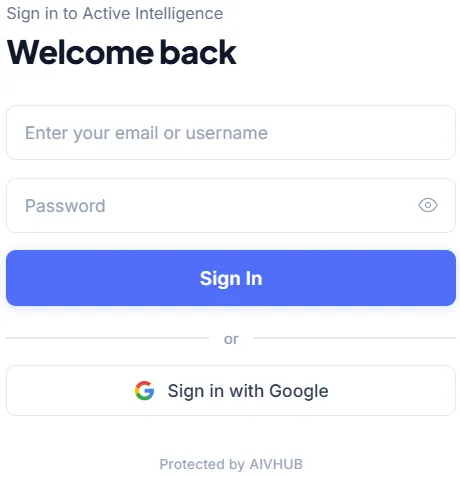
Navigate to the AIV login screen. You will now see a Sign in with Google button.
-
Click on the button to initiate the sign-in process via Google.
-
You will be redirected to the Google sign-in page. Choose your Google account to continue.
-
Review the permissions on the consent screen and click Continue.
-
Upon successful authentication, you will be redirected back to the AIV dashboard.