SAML
Follow these steps to configure Okta SAML 2.0 for your application:
1. Sign Up for an Okta Developer Account
- Navigate to the Okta Developer Signup page: developer.okta.com/signup/.
- Fill out your details (First Name, Last Name, Work Email, Country/Region).
- Complete the reCAPTCHA and click on Sign up.
2. Verify Your Email Address
- After signing up, Okta will send a verification email to the address you provided.
- Check your inbox, open the email from Okta, and follow the link to verify your account to continue.
3. Set Up Security Methods
-
Once your email is verified, you will be directed to set up security methods for your account.
-
First, you need to set up a Password. Click on the Set up button under the Password section.
-
Next, you will be required to set up Okta Verify. Click on the Set up button under the Okta Verify section.
-
Download the Okta Verify app on your mobile device (iOS or Android).
-
Open the app, follow the instructions to add an account, and scan the QR code displayed on your screen.
-
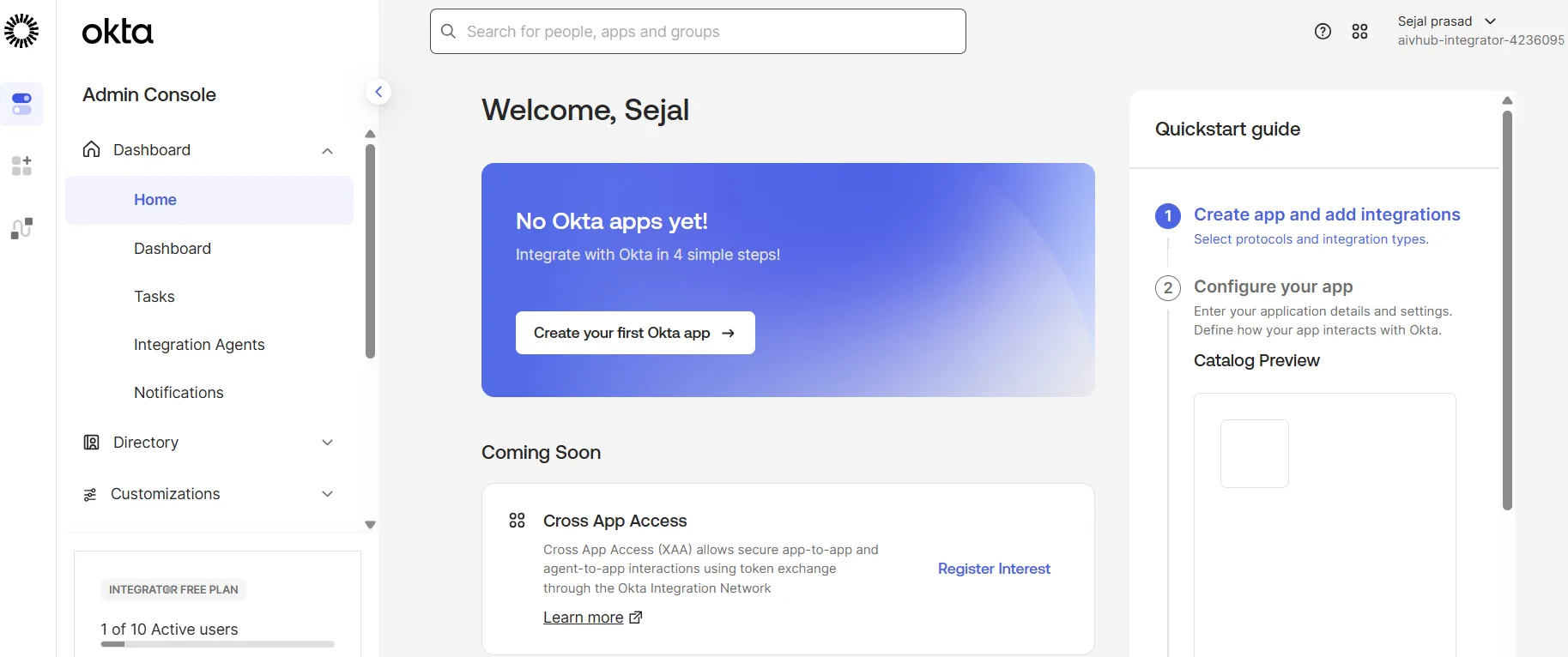
Once configured, it will take you to your Okta Admin Console, e.g., integrator-4236095.okta.com.
4. Create App Integration
-
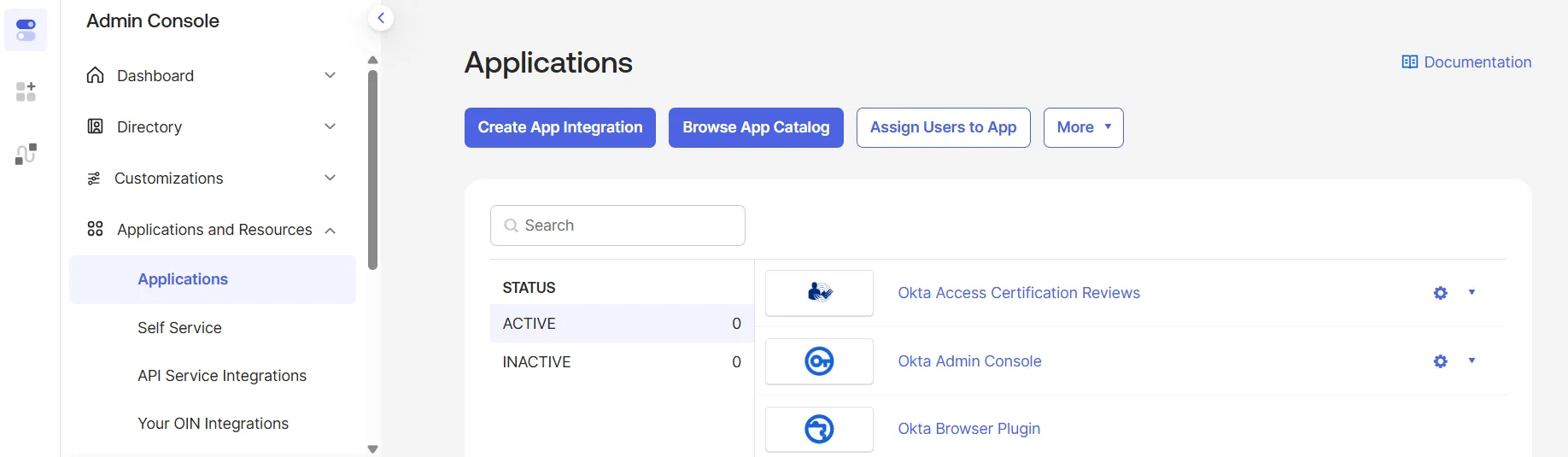
In the Okta Admin Console, navigate to Applications and Resources > Applications from the left sidebar.
-
Click on the Create App Integration button.
-
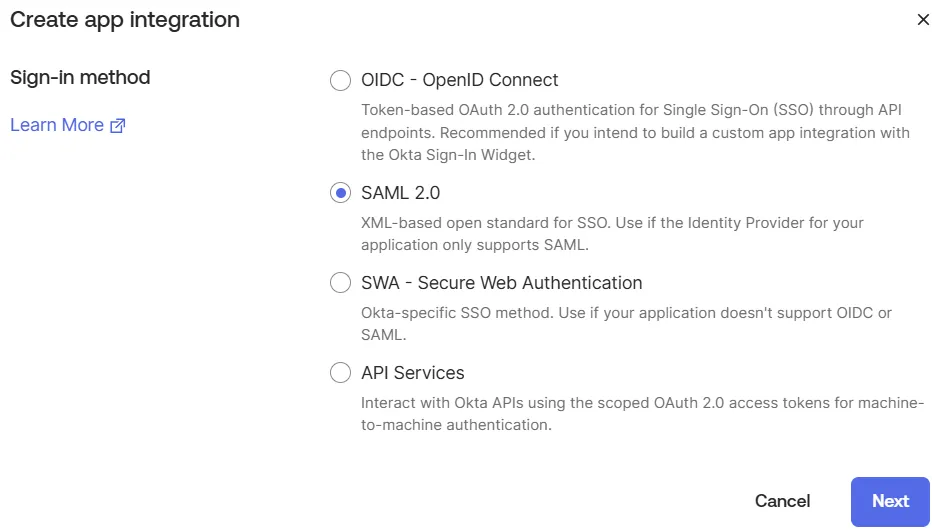
In the Create a new app integration dialog:
-
Select SAML 2.0 as the Sign-in method.
-
Click Next.
-
-
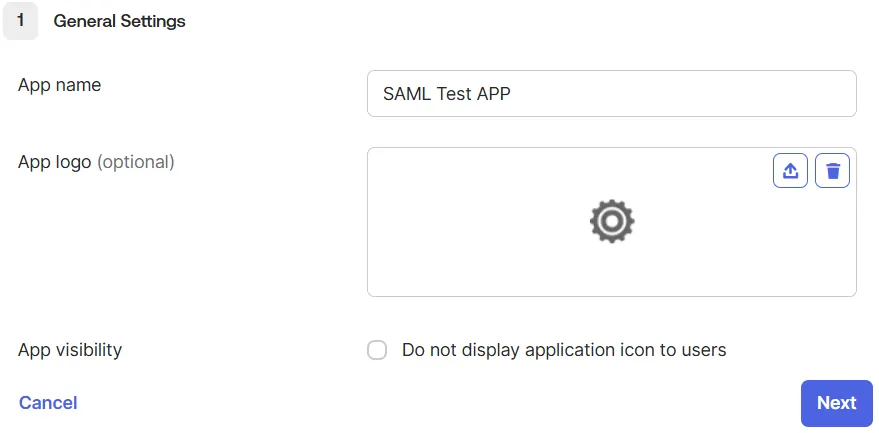
On the Create SAML Integration page under General Settings:
-
Enter an App name (e.g.,
SAML Test APP). -
Click Next.
-
-
Under the Configure SAML section, fill in the SAML Settings:
-
Single sign-on URL: Enter your callback URL (e.g.,
https://<your_domain_name>/login/saml2/sso/okta) and ensure Use this for Recipient URL and Destination URL is checked. -
Audience URI (SP Entity ID): Enter
urn:universalauth:sp.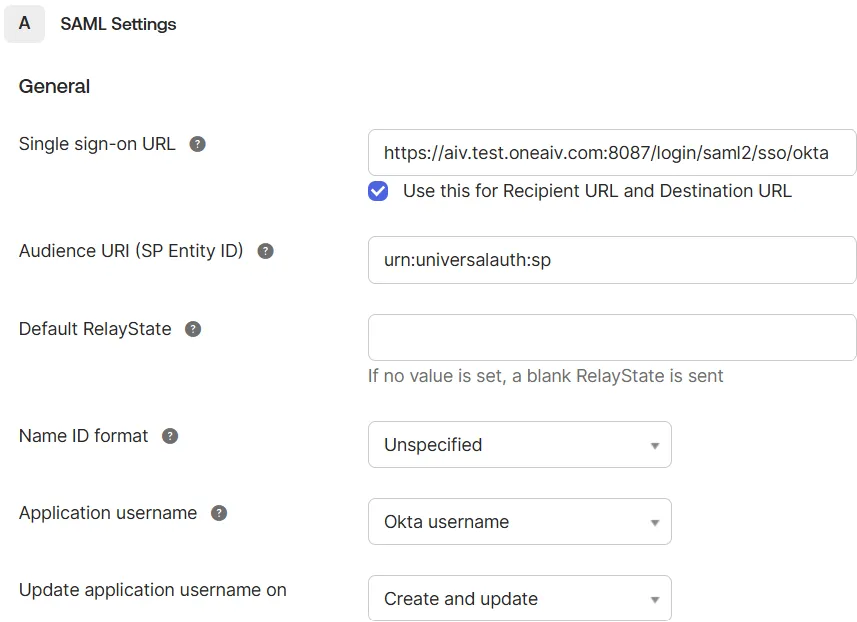
-
Keep all other settings by default, scroll down, and click on Next.
-
-
In the Feedback section, just click on Finish.
5. Configure Attribute Statements
-
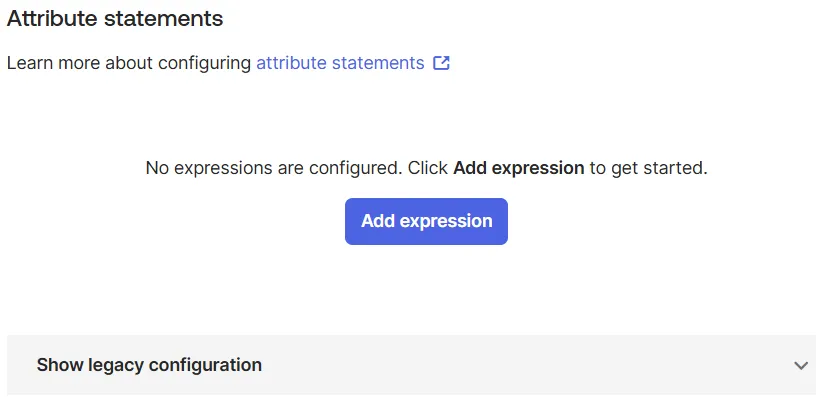
Navigate to the Sign On tab of your application.
-
Click on Show legacy configuration to expand it.
-
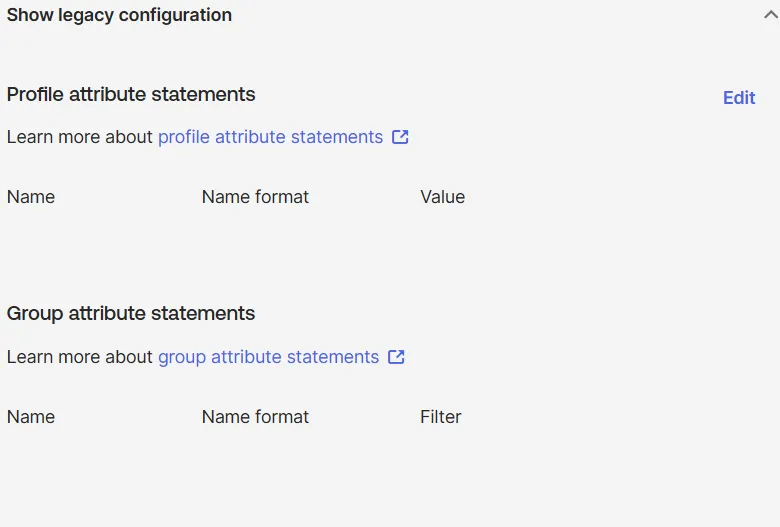
Under Profile attribute statements, click on the Edit button.
-
Add the following attributes:
-
email:
user.email -
firstName:
user.firstName -
lastName:
user.lastName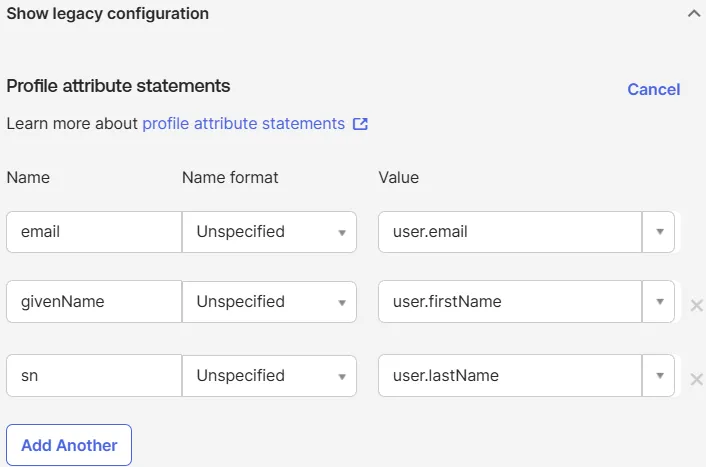
-
-
Click Save.
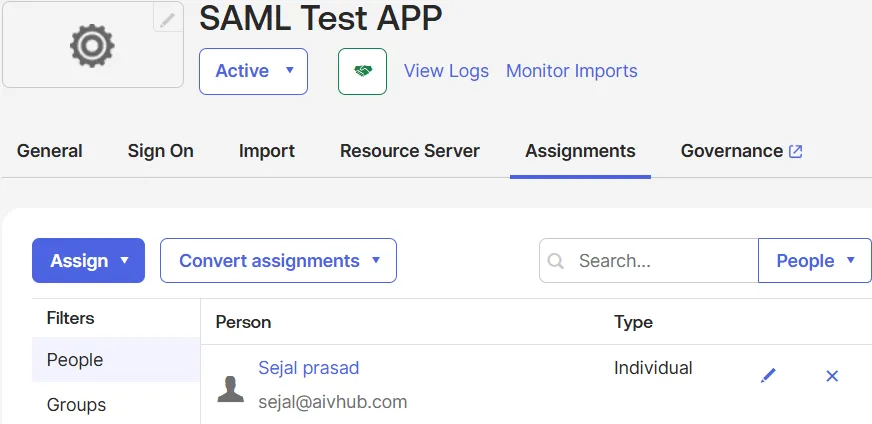
6. Assign Users
-
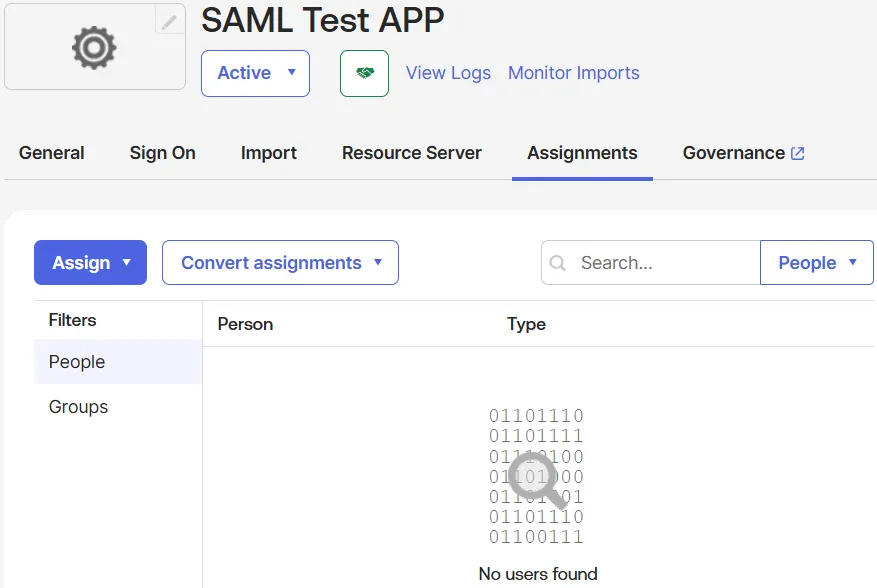
Go to the Assignments tab of your application.
-
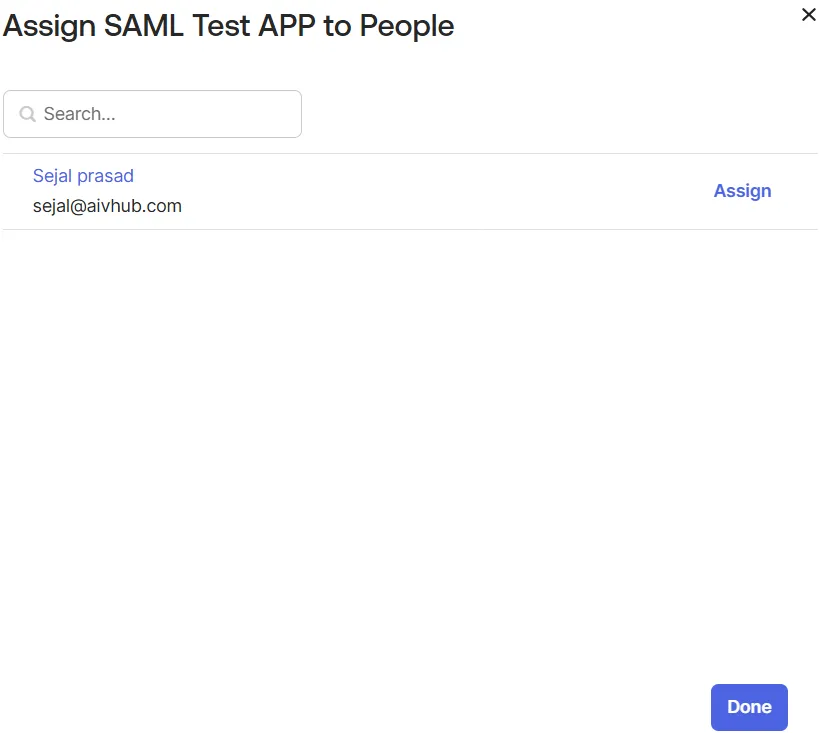
Click on Assign > Assign to People.
-
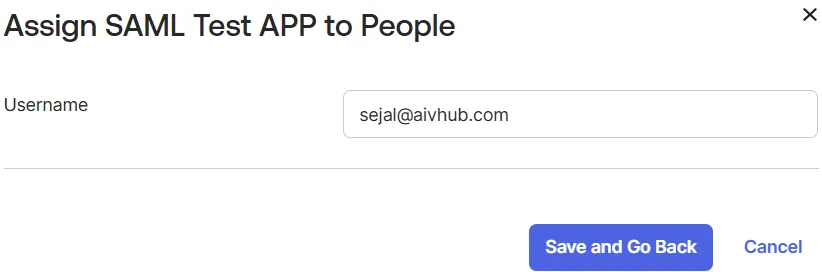
Click Assign next to the user you wish to add.
-
Click Save and Go Back.
-
Click Done.
7. Configure Authentication in AIV
-
Log in to your AIV application.
-
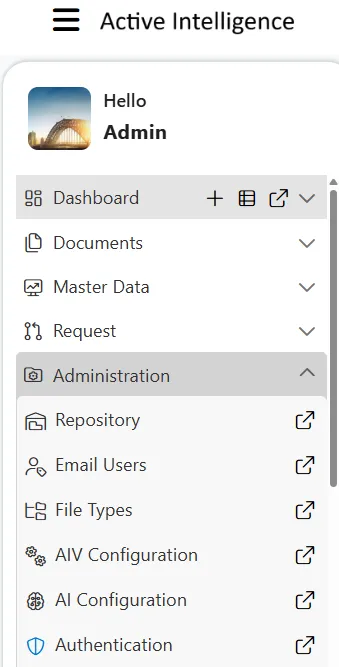
Click on the Hamburger menu (three horizontal lines) in the top-left corner to open the sidebar.
-
Expand the Administration section and click on Authentication.
-
The Universal Auth Administration page will open. From the left-hand directory menu, select Providers.
-
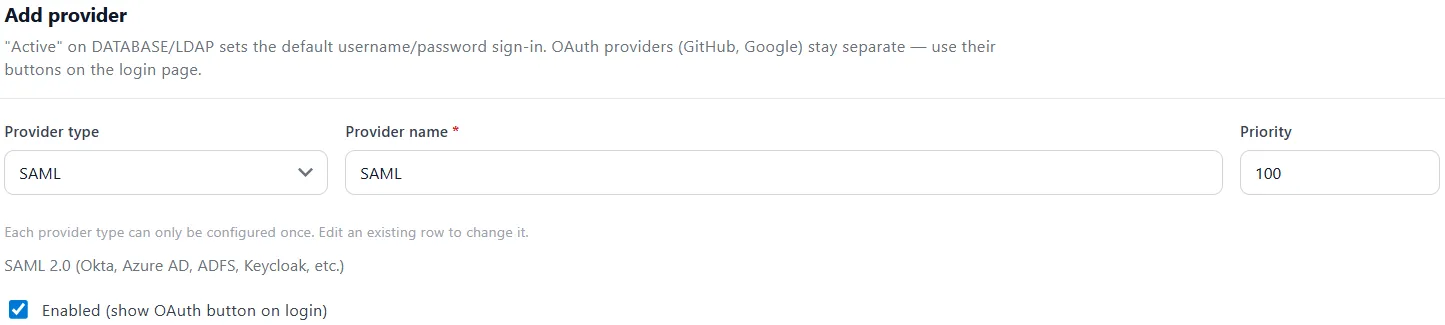
Under the Add provider section, locate the Provider type dropdown. By default, it will be set to Database (already configured).
-
Click the dropdown and select SAML.
-
Fill in the following details for the new provider:
-
Provider name:
SAML(or your preferred name) -
Make sure to check the box for Enabled (show OAuth button on login).
-
-
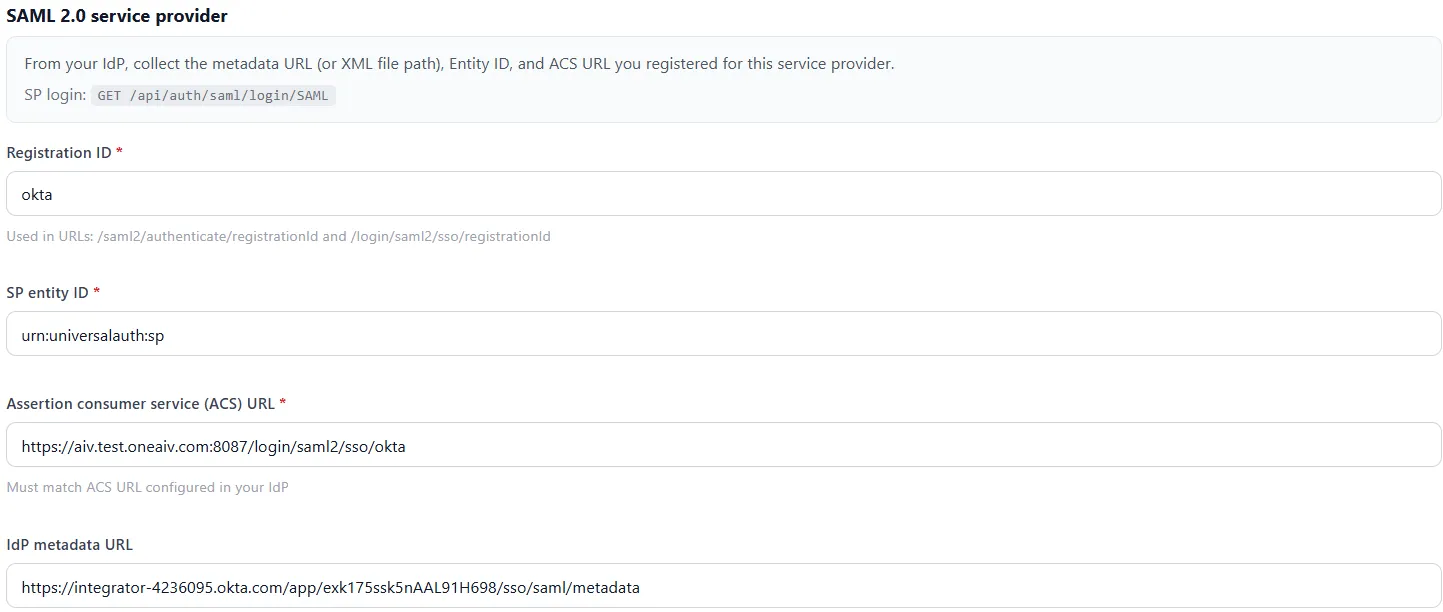
Scroll down to the SAML 2.0 service provider section and fill in the following details:
-
Registration ID: Enter
okta. -
SP entity ID: Enter
urn:universalauth:sp. -
Assertion consumer service (ACS) URL: Enter the callback URL for your AIV instance (e.g.,
https://<your_domain_name>/login/saml2/sso/okta).- How to find it: Go to your Okta application’s General tab under SAML Settings and copy the Single Sign On URL.
-
IdP metadata URL: Paste the Metadata URL provided by Okta.
-
How to find it: Go to your Okta application’s Sign On tab, scroll down to the Metadata details section, and copy the Metadata URL.
-
-
-
Click on the Add provider button to save.
-
A success popup message will appear, and you will now see your newly created SAML authentication provider listed as Active in the Provider configuration list.

8. Test SAML Authentication
-
Log out of your AIV application.
-
Navigate to the AIV login screen. You will now see a Sign in with SAML Provider button.
-
Click on the button to securely sign in using your SAML credentials.
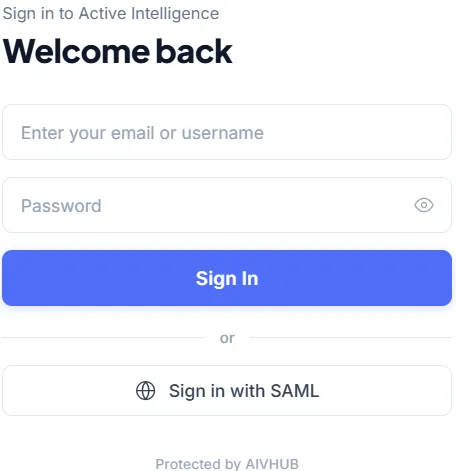
-
You will be redirected to the Okta sign-in page. Enter your Okta username and password and click Sign In.
-
Upon successful authentication, you will be redirected back to the AIV dashboard, and you will see your username displayed in the top-right corner.
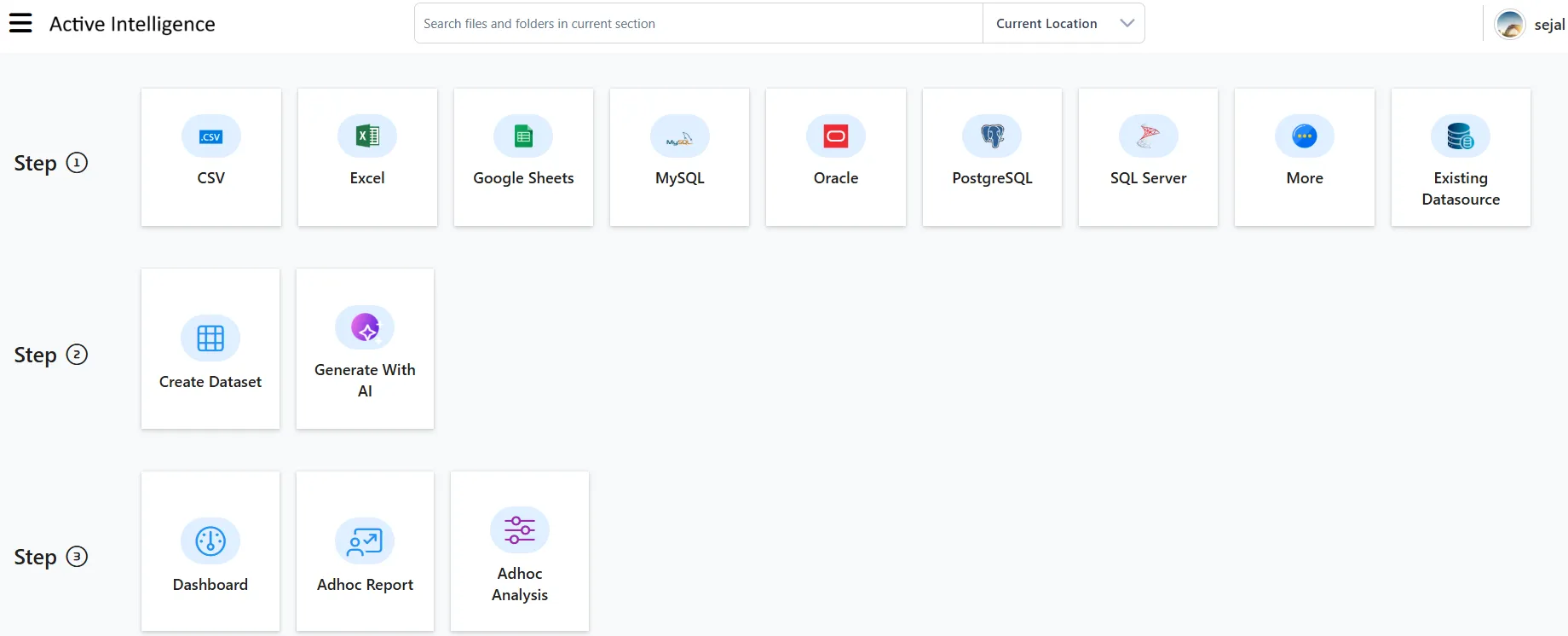
Manage Role Synchronization
By default, users logging in via Okta SAML are successfully authenticated but will not have any specific permissions within AIV.
Role synchronization allows you to map groups created in your Okta Directory directly to roles in AIV. When this is configured, AIV will read the user’s Okta group during login and automatically grant them the corresponding AIV role (and its associated permissions). This eliminates the need for an administrator to manually assign roles to new users inside AIV.
If you want to enable this automated role mapping, follow the steps below:
1. Create Groups in Okta
To begin, you must create groups in your Okta Directory that match the roles you plan to use in AIV.
-
In the Okta Admin Console, navigate to Directory from the left-hand menu, expand it, and select Groups.

-
Click on the Add group button.
-
Add the necessary details for your group (e.g.,
Financial Manager) and click Save.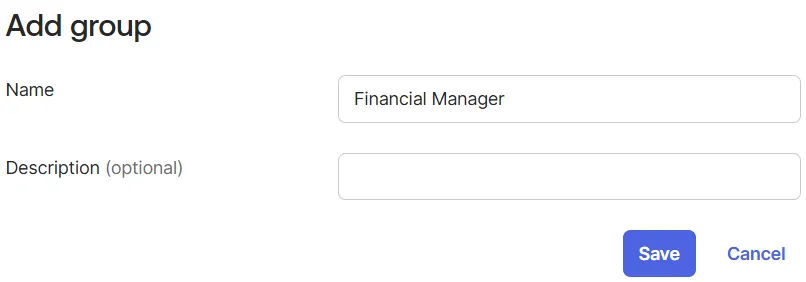
-
Once saved, your newly created group will show up in the Groups list.
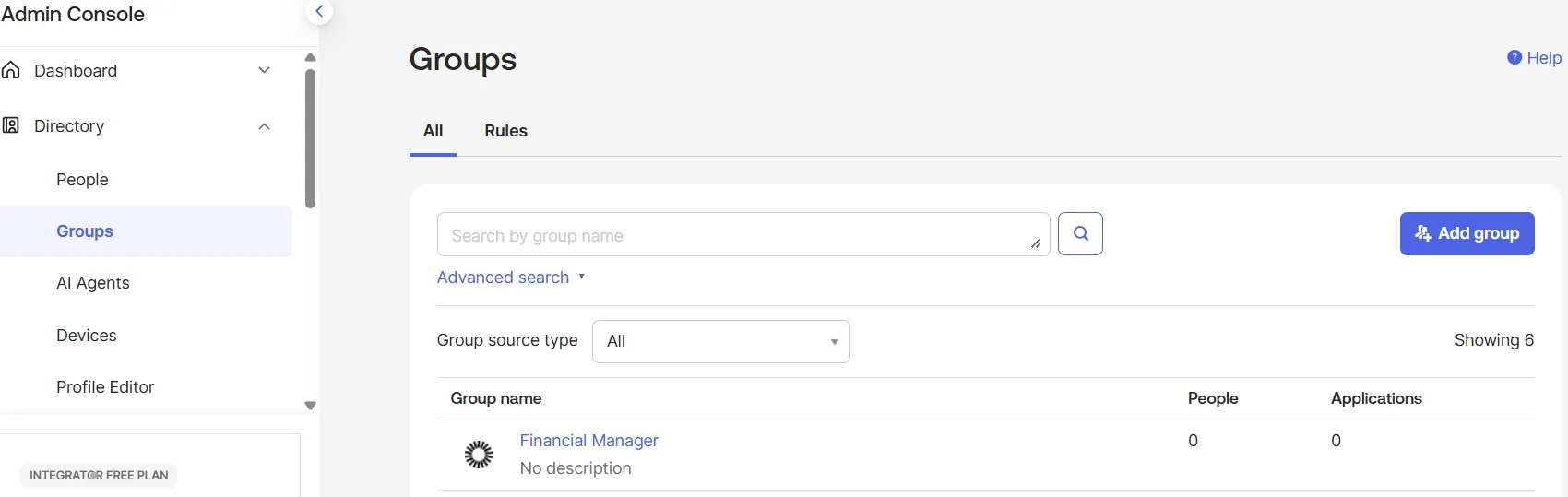
-
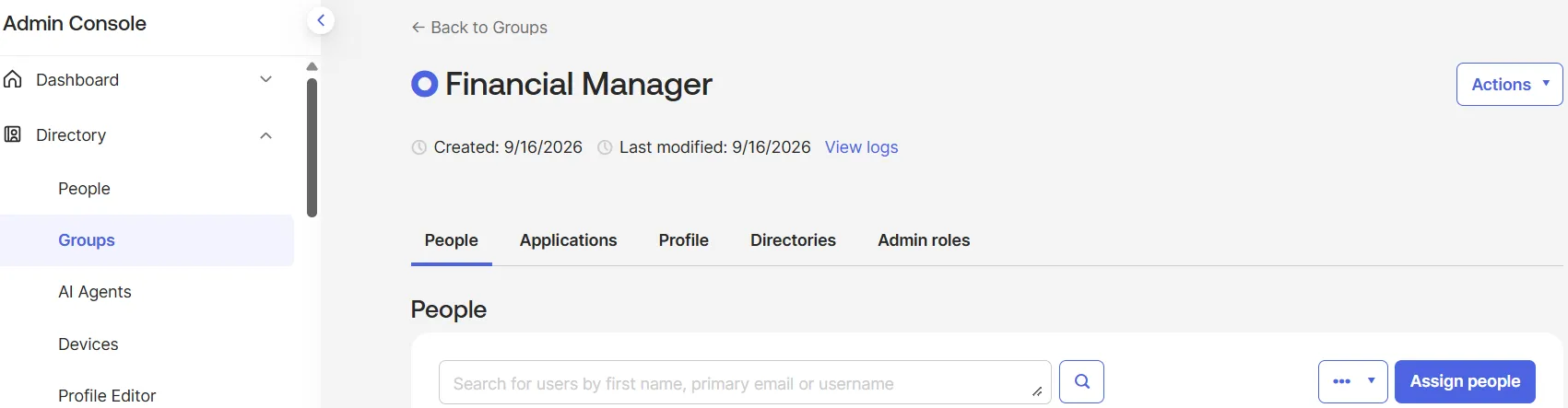
Click on the group name (e.g., Financial Manager).
-
On the Group details page, go to the People tab.
-
Click on the Assign people button.
-
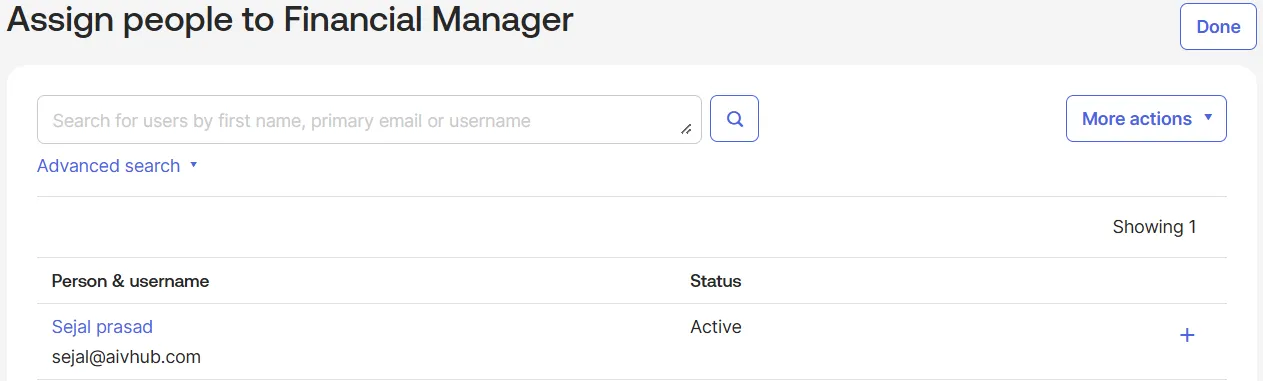
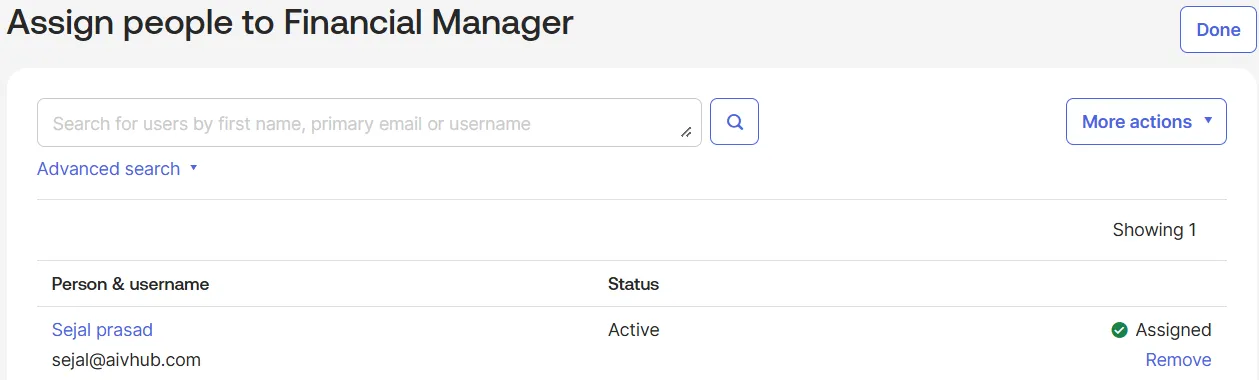
Click the + (or assign) button next to the users you want to assign to this group. Once the user shows as Assigned, click Done.
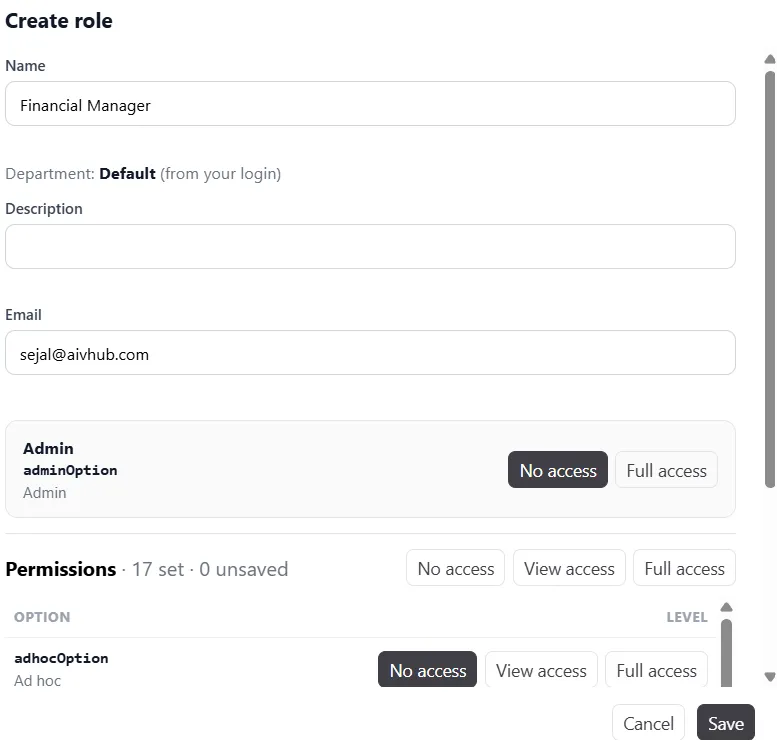
2. Create Role in AIV
Before verifying the role mapping, ensure that a role with the exact same name exists in AIV.
-
Ensure you are logged into your AIV application as a user with Universal Auth access.
-
Open the Hamburger menu (three horizontal lines) in the top-left corner.
-
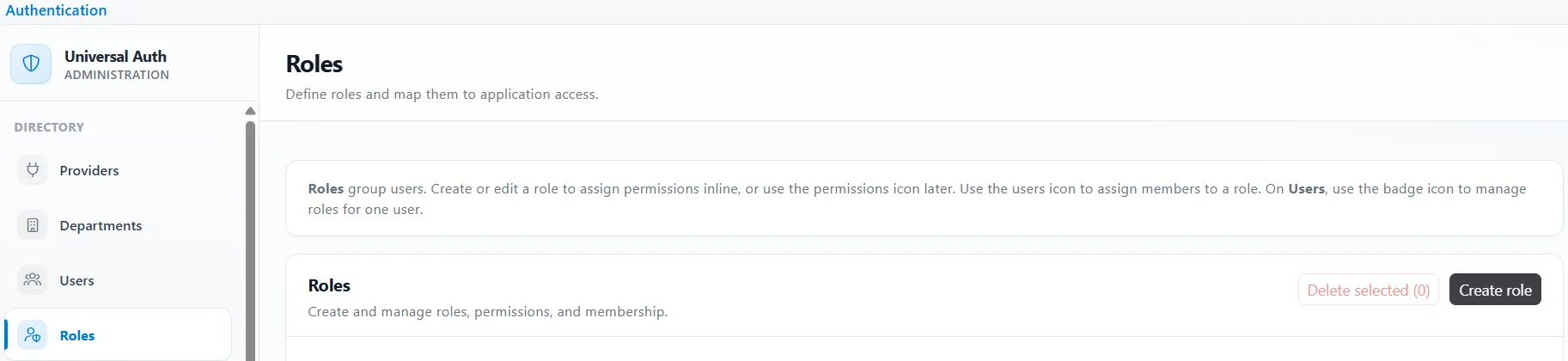
Expand the Administration section, click on Authentication, and then click on Roles.
-
Click on the Create role button.
-
In the Name field, enter Financial Manager to match the group created in Okta.
-
Provide any necessary permissions or descriptions, and click Save.
3. Enable Role Sync in AIV Provider Settings
-
Navigate back to Administration > Authentication > Providers in the AIV application.
-
Click on the Edit icon next to your active Okta SAML provider.
-
Scroll down to the Role sync on login section.
-
Check the box for Roles come from this provider.
-
In the Roles attribute / claim name field, enter
groups(or the specific claim your Okta configuration uses to pass group info).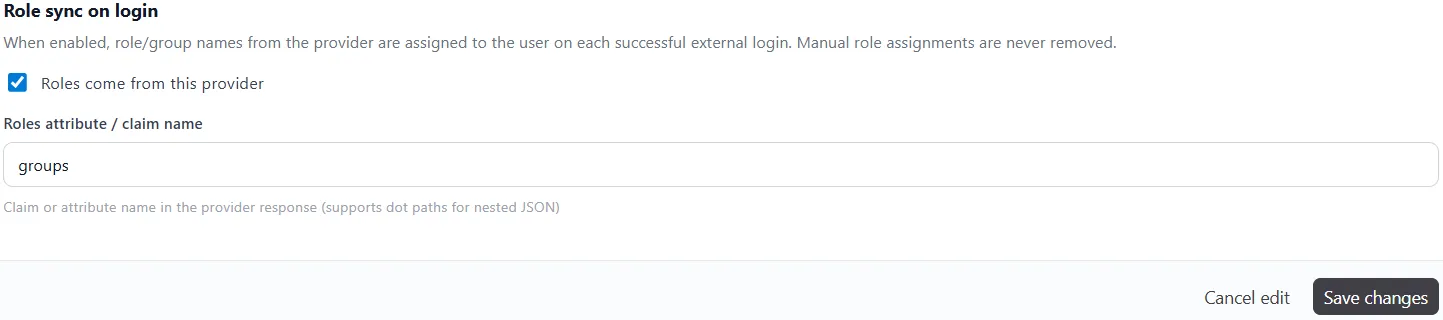
-
Click Save changes to finalize your setup.
4. Verify Role in AIV
-
Log out of your AIV application.
-
Log in again using the Okta SAML provider.
-
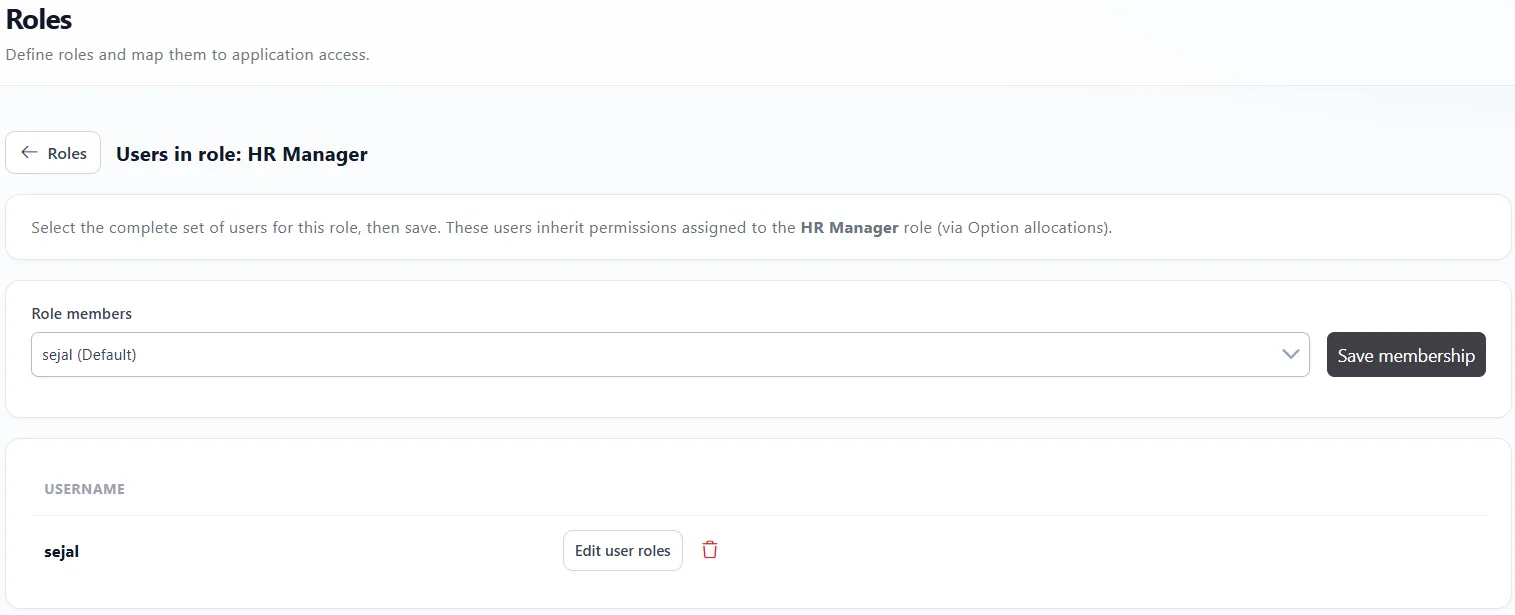
Upon logging in, the HR Manager role assigned in Okta will be automatically mapped to the user in AIV.
-
Open the Hamburger menu, expand the Administration section, click on Authentication, and then click on Roles.
-
In the Roles list, locate the HR Manager role and click on the Assign users icon next to it.
-
On the Users in role: HR Manager screen, you will be able to see that your logged-in user is successfully assigned to the HR Manager role.