Keycloak
This guide explains how to configure Keycloak as an Identity Provider (IdP) for AIV, allowing your users to log in to AIV using their Keycloak credentials via Single Sign-On (SSO).
If you are running Keycloak locally for testing, you will need to use Ngrok.
Why do we need Ngrok? Ngrok is used to securely expose your locally running Keycloak instance to the public internet. When configuring Single Sign-On (SSO), identity providers and applications (like AIV) require a publicly accessible URL to send authentication callbacks (Redirect URIs). Ngrok provides a temporary public URL that forwards external traffic directly to your local machine, allowing you to easily test and configure SSO integrations without needing to deploy Keycloak to a live server.
Follow these steps to configure Ngrok for your Keycloak application:
1. Install Ngrok
- Go to the Ngrok Windows Download Page.
- Download and extract the ngrok executable on your system.
- Sign up for an account on the ngrok website, or log in if you already have one.
2. Configure Ngrok Authtoken
-
Once logged in, go to your ngrok dashboard to find your authtoken.
-
Copy the authtoken to your clipboard.
-
Open a Command Prompt (
cmd) on your computer. -
Run the following command, replacing
<your_authtoken>with the token you just copied:ngrok config add-authtoken <your_authtoken>(This will save the authtoken to your configuration file, typically located at
C:\Users\<YourUsername>\AppData\Local\ngrok\ngrok.yml)
3. Start Ngrok Tunnel
To expose your local Keycloak instance to the internet (assuming it runs on port 8080), run the following command in the Command Prompt:
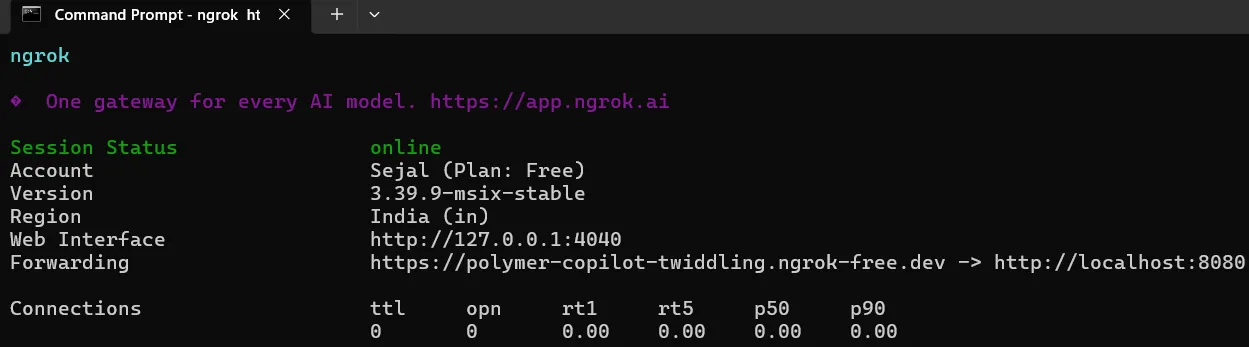
ngrok http 80804. Set Up Keycloak using Docker
-
Create a new folder on your computer (e.g.,
Keycloak) and open it. -
Inside this folder, create a new file named
docker-compose.ymland paste the following configuration:version: '3.8' services: keycloak: image: quay.io/keycloak/keycloak:25.0.2 command: start-dev environment: - KEYCLOAK_ADMIN=admin - KEYCLOAK_ADMIN_PASSWORD=admin # Replace the URL below with your current ngrok URL - KC_HOSTNAME=https://<your_domain_name> - KC_PROXY=edge - KC_HTTP_ENABLED=true ports: - "8080:8080" volumes: - ./keycloak_data:/opt/keycloak/data -
In the file above, ensure you update the
KC_HOSTNAMEvariable with the exact forwarding URL you received from the Ngrok command prompt window. -
Ensure you have Docker installed and running on your system.
-
Open a Command Prompt in the folder where you created the
docker-compose.ymlfile and run the following command to start Keycloak:docker compose up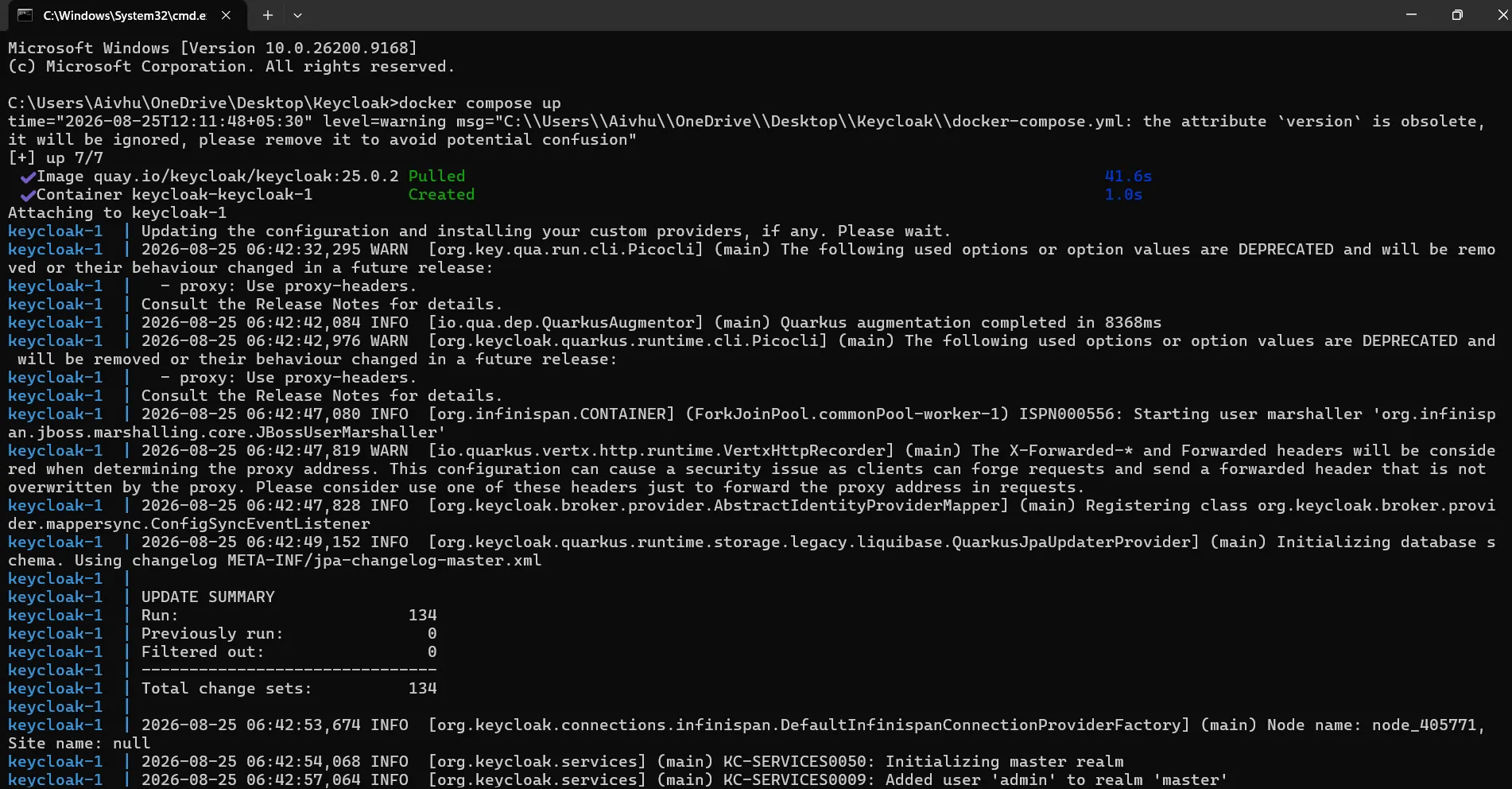
5. Access the Keycloak Administration Console
-
Open your web browser and navigate to
http://localhost:8080(or use your Ngrok URL directly). -
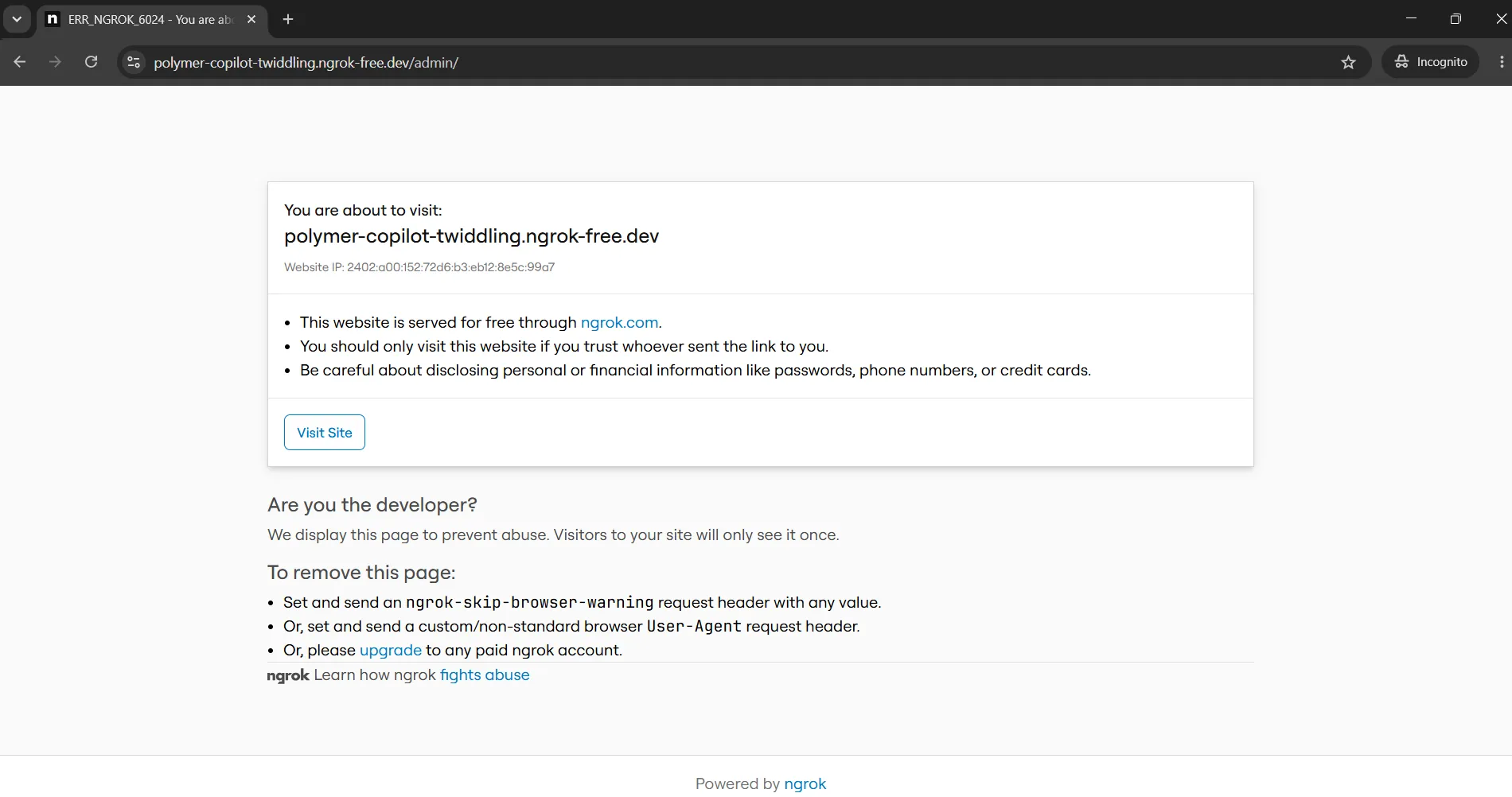
If you are using the Ngrok URL for the first time, you might see an Ngrok warning page. Click on the Visit Site button to proceed.
-
On the Keycloak sign-in page, enter your configured username and password (e.g.,
admin/admin) and click Sign In.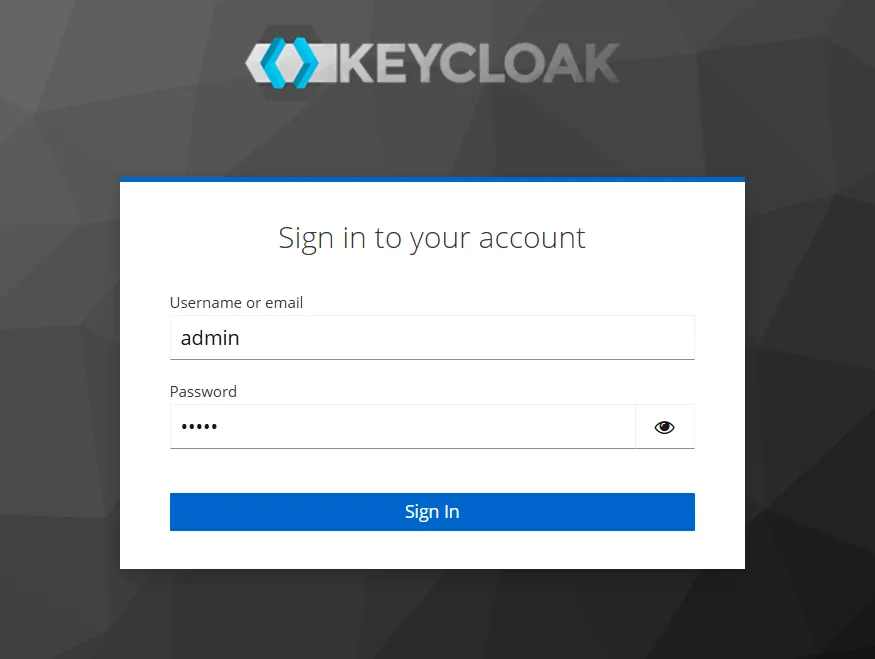
-
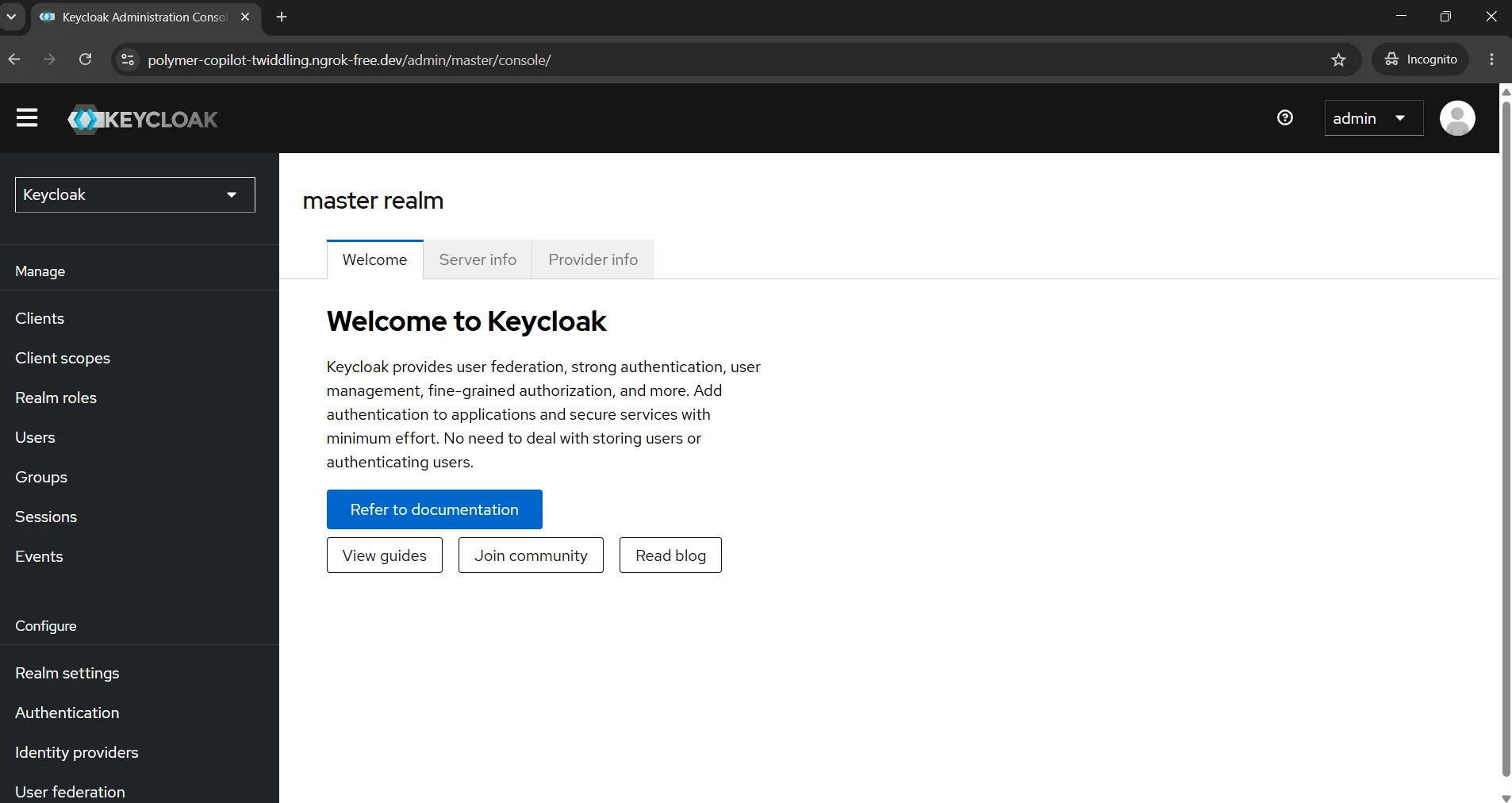
You should now be successfully logged in and redirected to the Keycloak Administration Console!
6. Create a New Realm
-
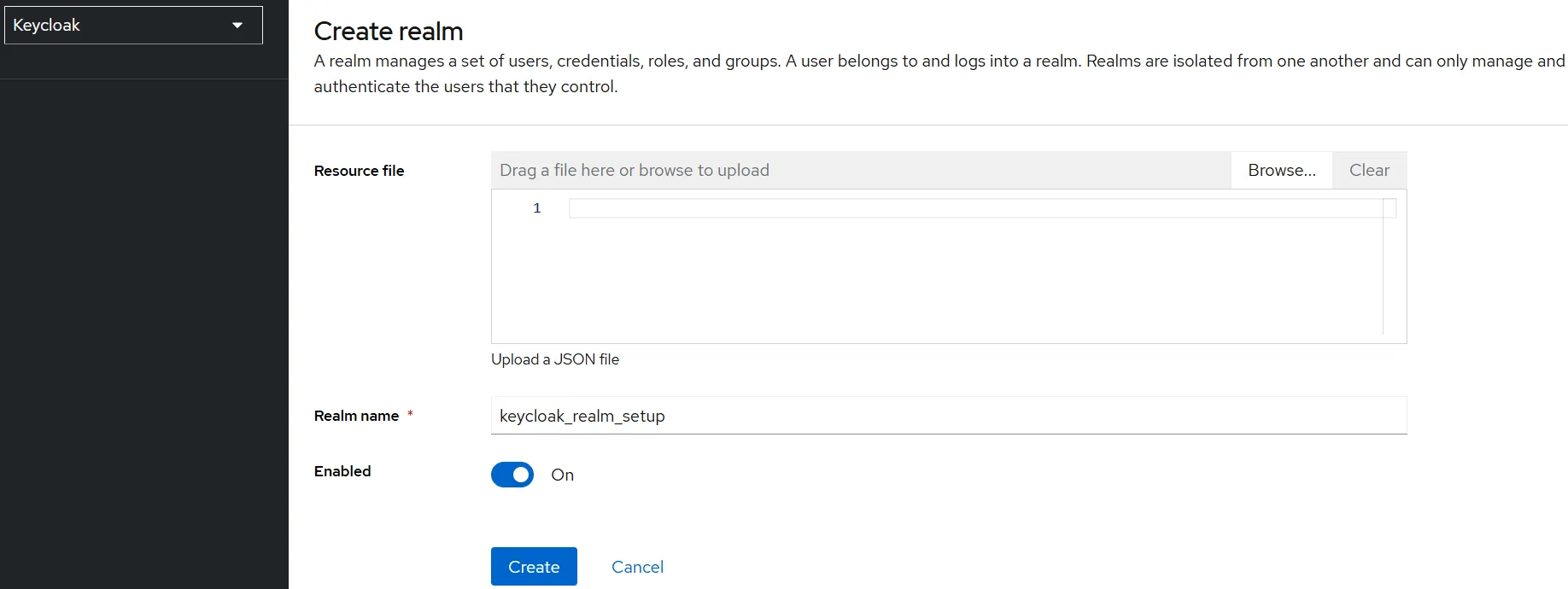
In the Keycloak Administration Console, click on the Keycloak dropdown menu located in the top-left corner.
-
Click the Create realm button.
-
On the Create realm page, provide a Realm name (e.g.,
keycloak_realm_setup). -
Ensure the Enabled toggle is turned on.
-
Click on the Create button to finish setting up your new realm.
-
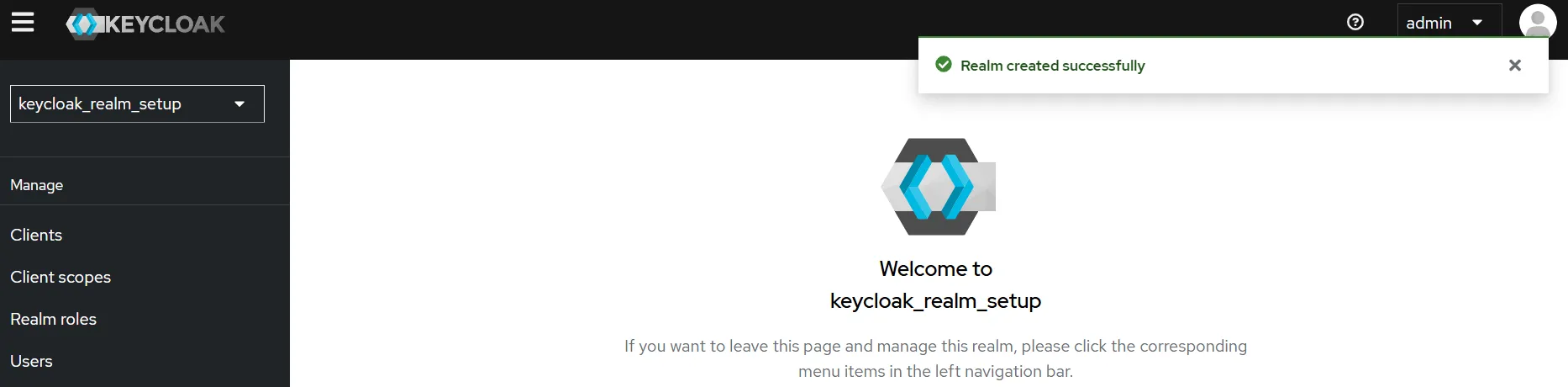
A success popup message will appear confirming the realm creation, and you will be greeted with a “Welcome to [Your Realm Name]” screen.
-
Additionally, you will see that your new realm (e.g., keycloak_realm_setup) is now automatically selected in the realm dropdown menu.
7. Create a New Client
-
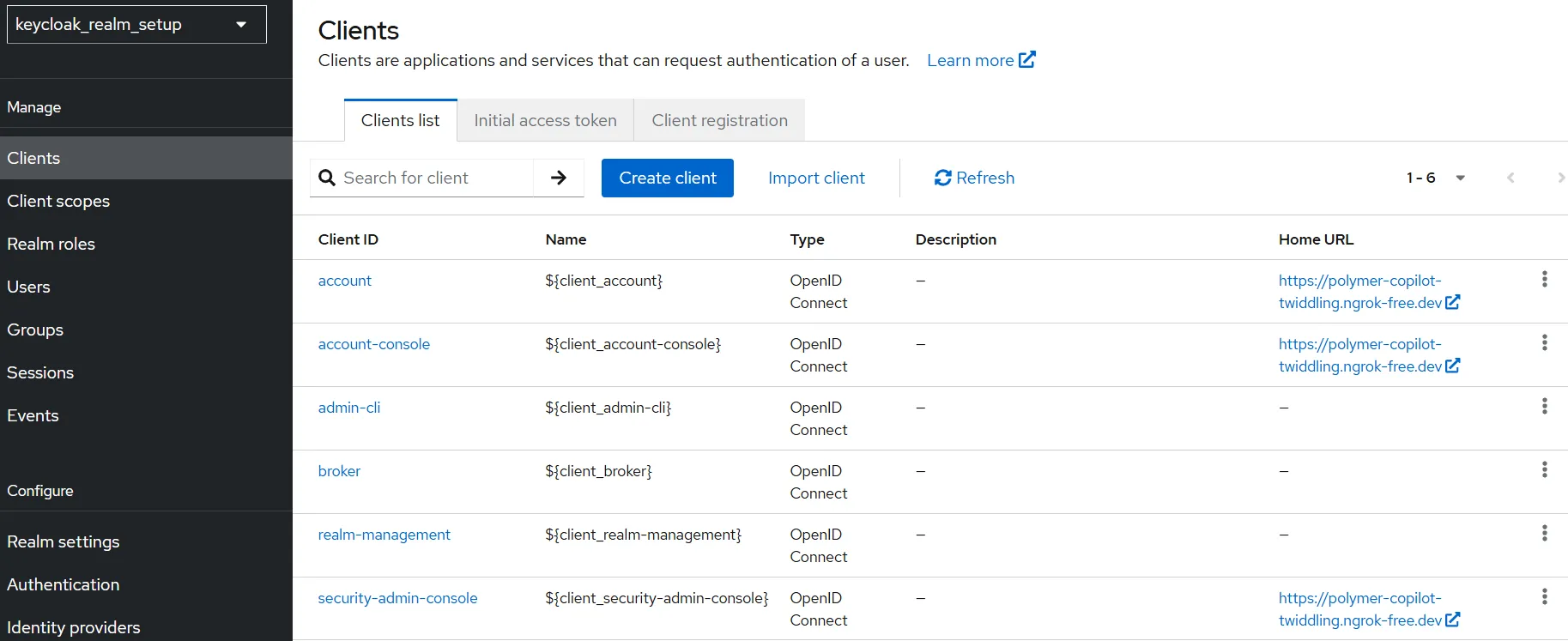
In the left-hand navigation menu of your new realm, click on Clients, then click the Create client button.
-
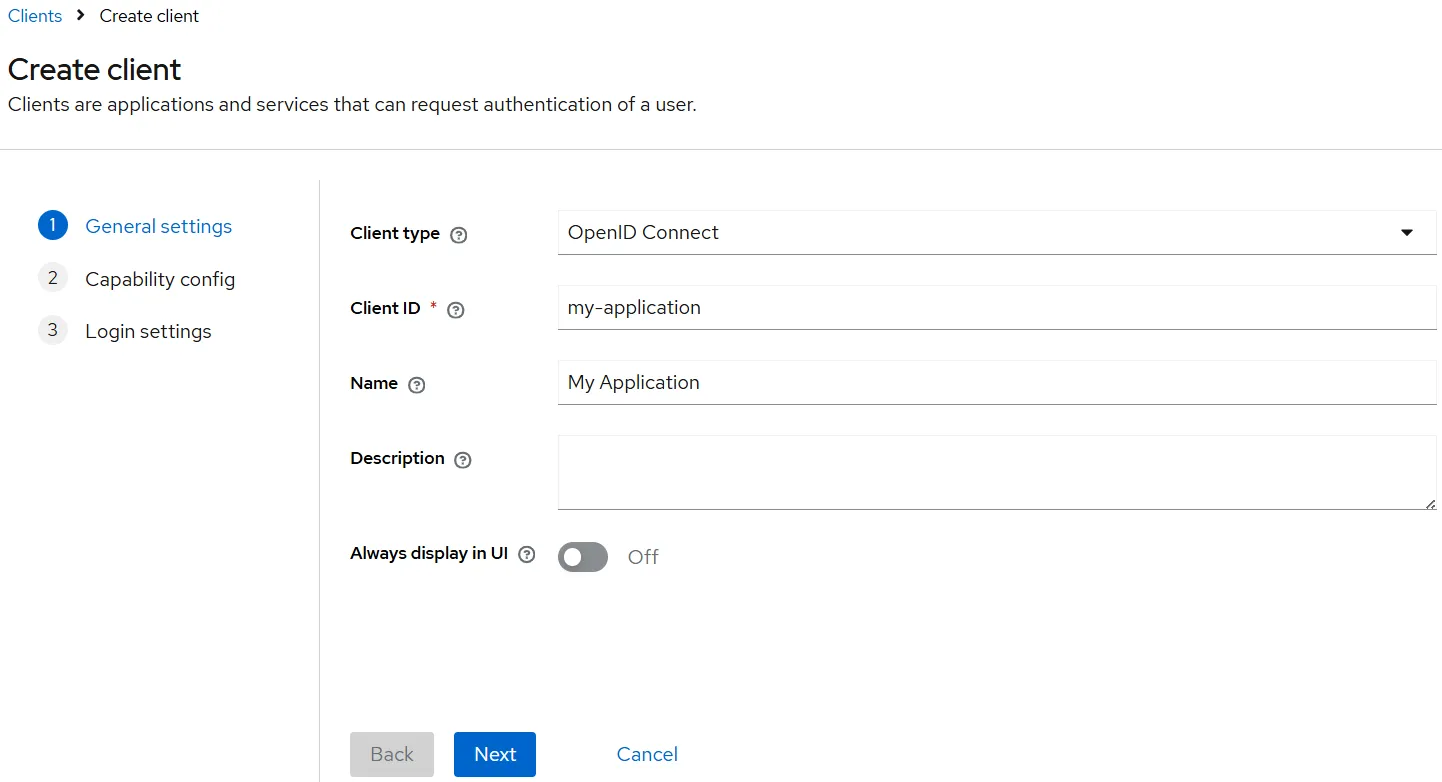
On the General settings step, configure the following:
- Client type:
OpenID Connect - Client ID:
my-application(or your preferred ID) - Name:
My Application
Once filled out, click Next.
- Client type:
-
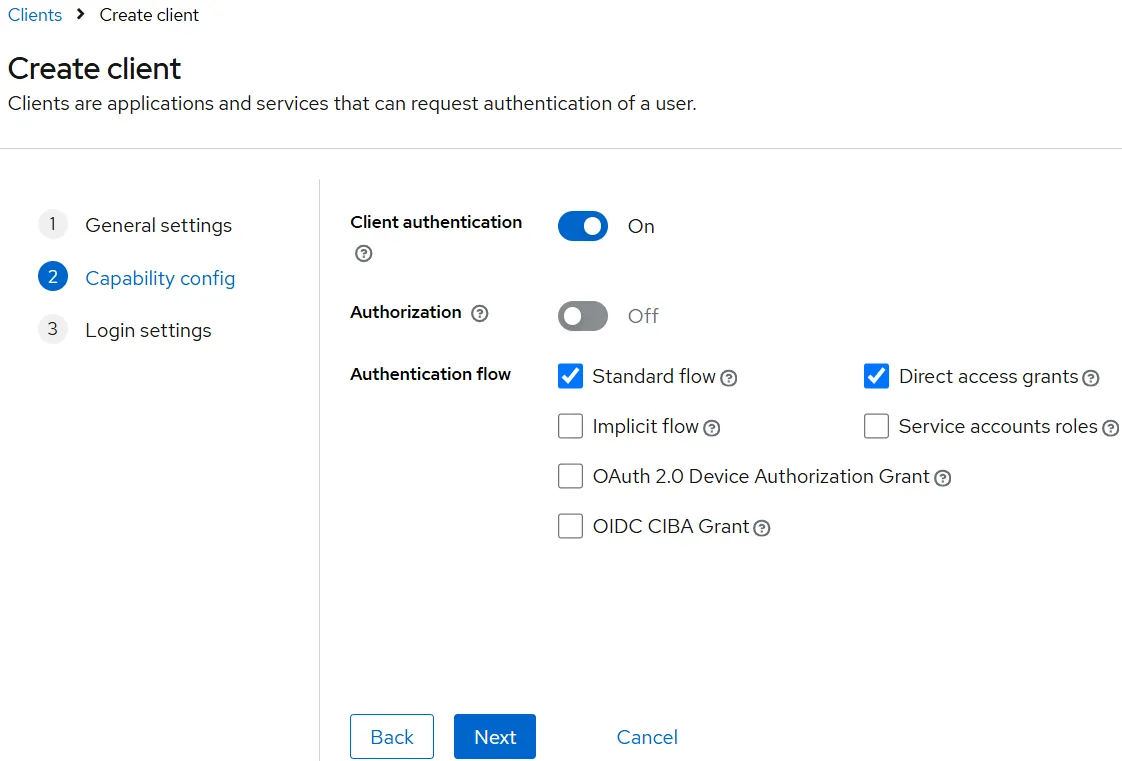
On the Capability config step, configure the following:
- Toggle Client authentication to On.
- Under Authentication flow, ensure Standard flow and Direct access grants are checked.
Once configured, click Next.
-
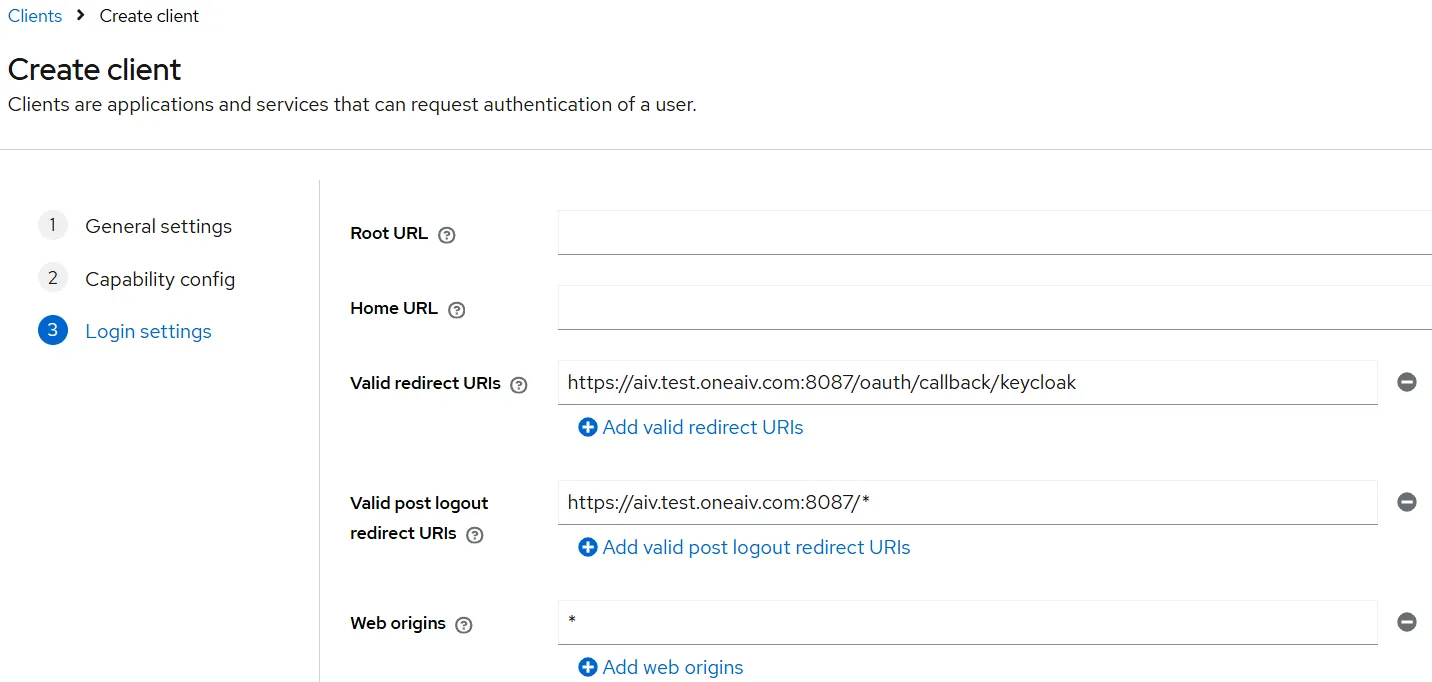
On the Login settings step, configure the following:
- Valid redirect URIs:
http(s)://<your_domain_name>/oauth/callback/keycloak - Valid post logout redirect URIs:
http(s)://<your_domain_name>/* - Web origins:
*
Click Save to complete the client creation.
- Valid redirect URIs:
-
A success popup message will appear confirming the client creation, and you will be directed to the client details page.
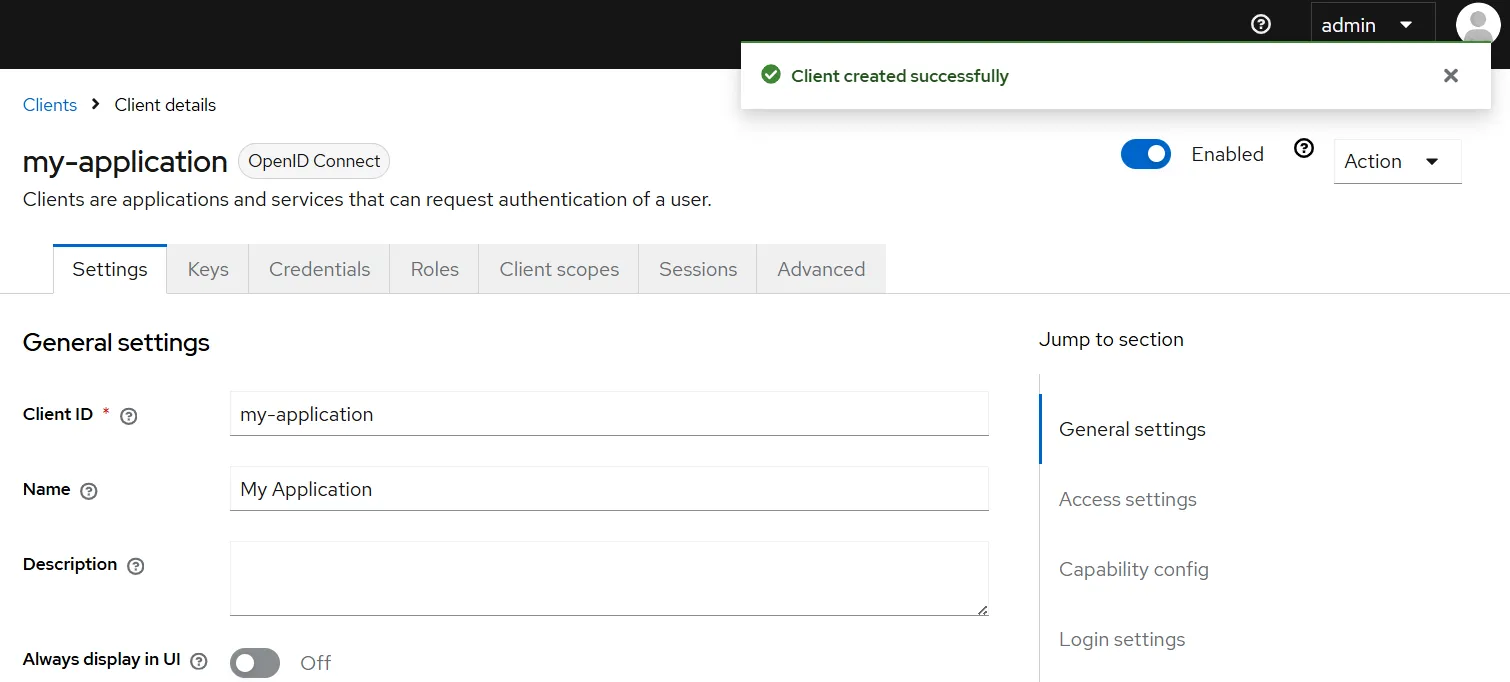
8. Create a New User
-
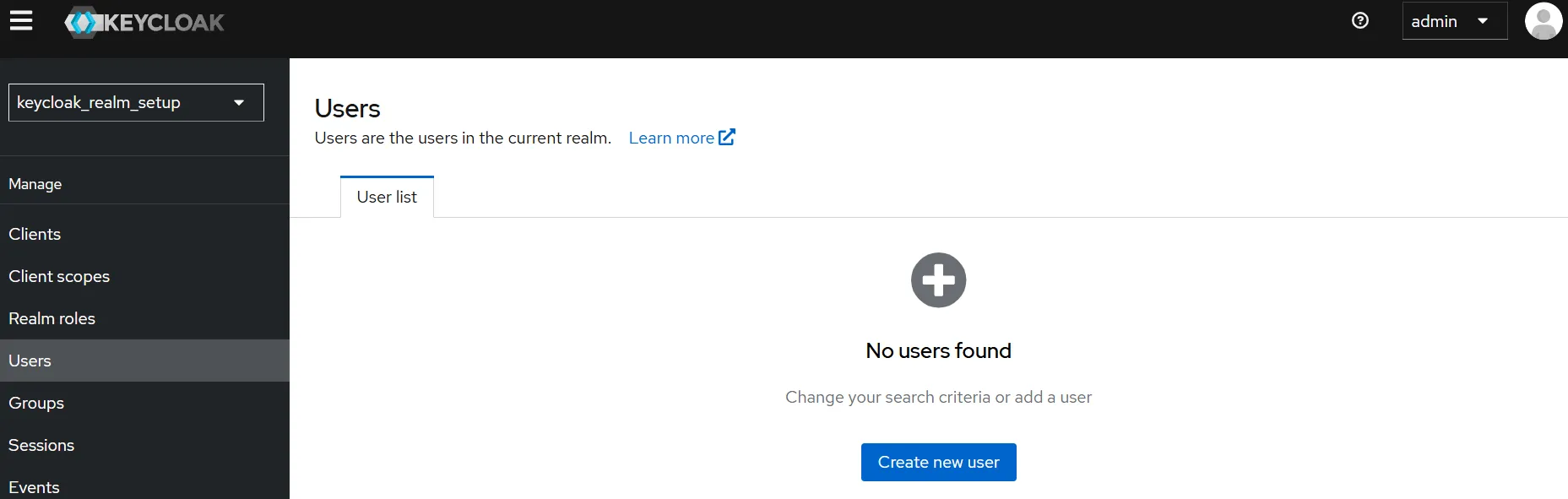
In the left-hand navigation menu, click on Users.
-
Click the Create new user button (if the list is empty, it will be located in the center of the screen).
-
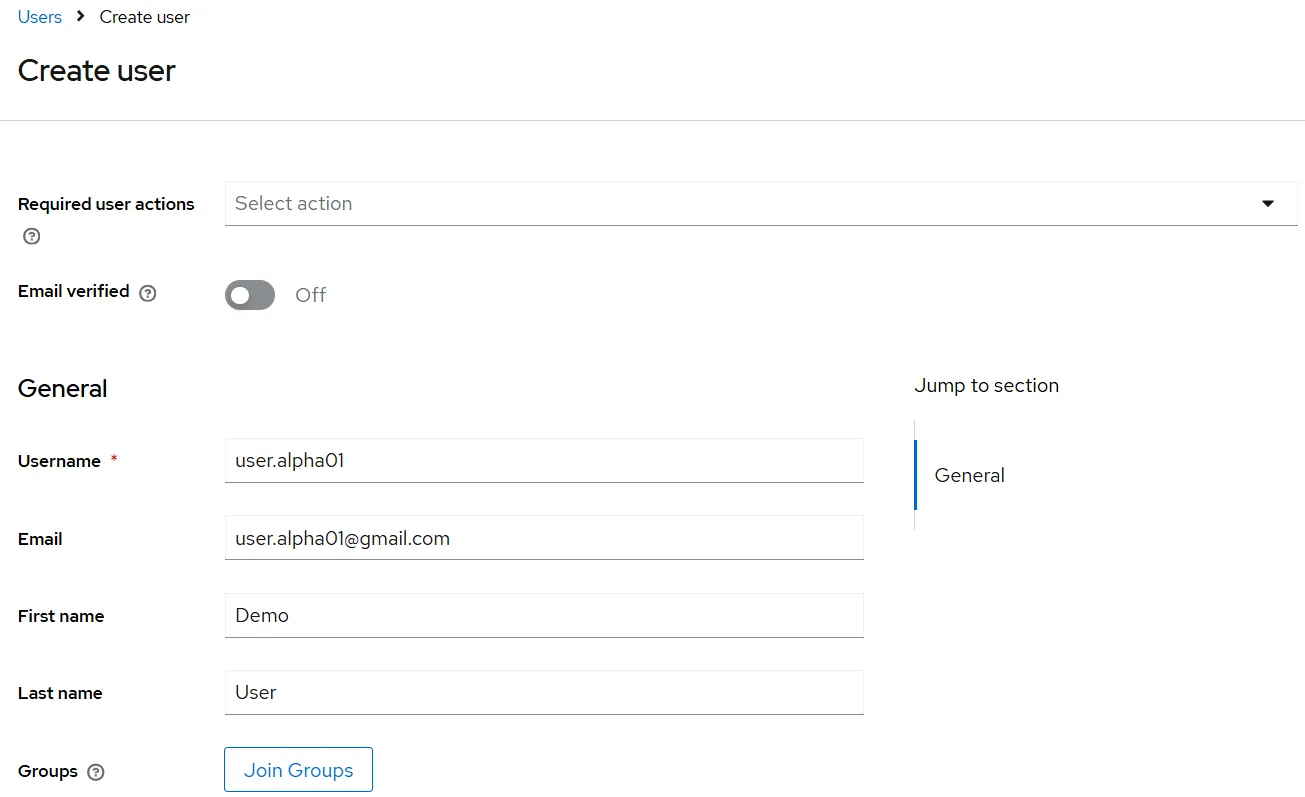
On the Create user page, fill in the user details. For example:
- Username:
user.alpha01 - Email:
user.alpha01@gmail.com - First name:
Demo - Last name:
User
- Username:
-
Click on the Create button at the bottom of the form to add the new user.
-
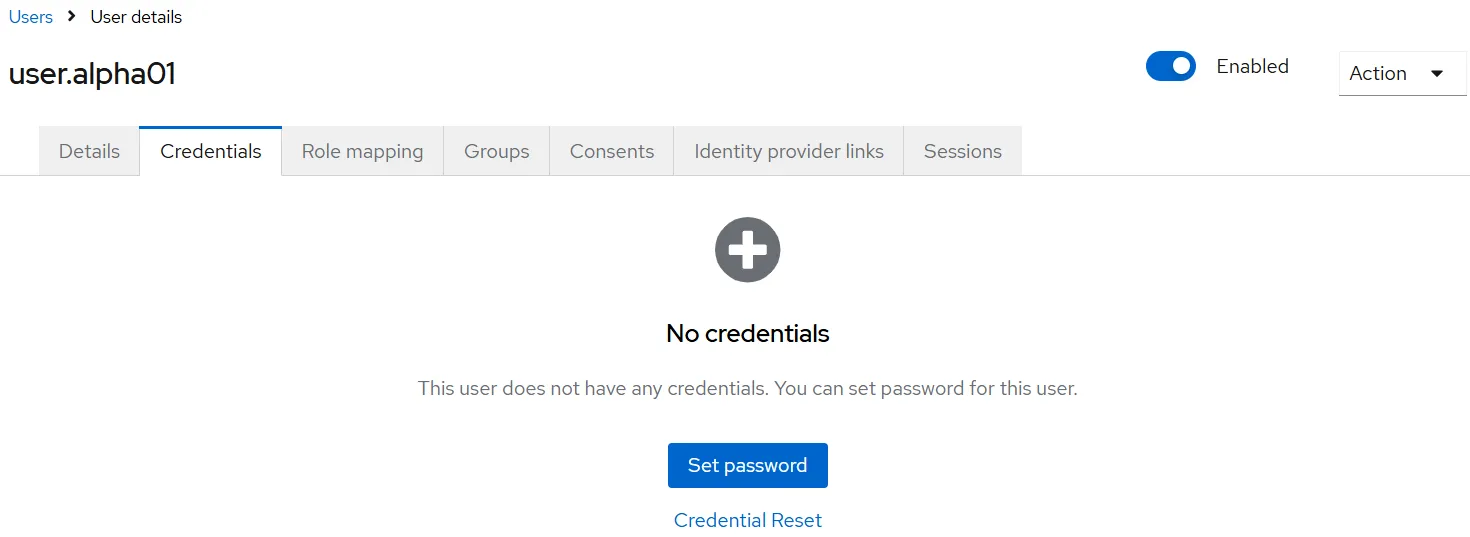
A success popup message will appear confirming the user creation, and you will see the user’s details page.

-
Click on the Credentials tab at the top of this page, then click the Set password button.
-
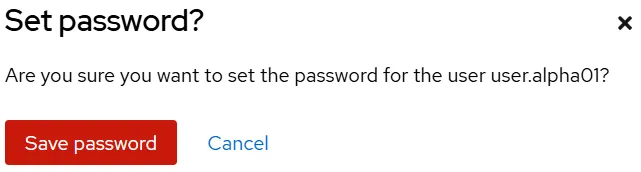
A dialog will appear to set the password. Fill out the desired password and click on the Save password button.
-
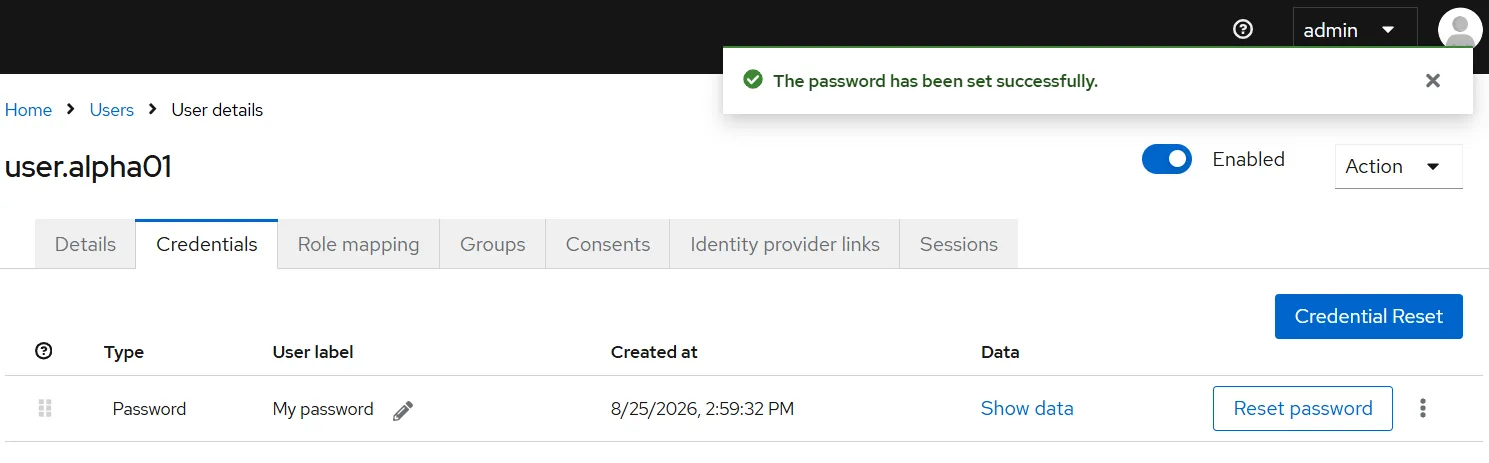
You will see a success notification at the top of the screen confirming that the password has been set successfully.
9. Configure Authentication in AIV
-
Log in to your AIV application.
-
Click on the Hamburger menu (three horizontal lines) in the top-left corner to open the sidebar.
-
Expand the Administration section and click on Authentication.
-
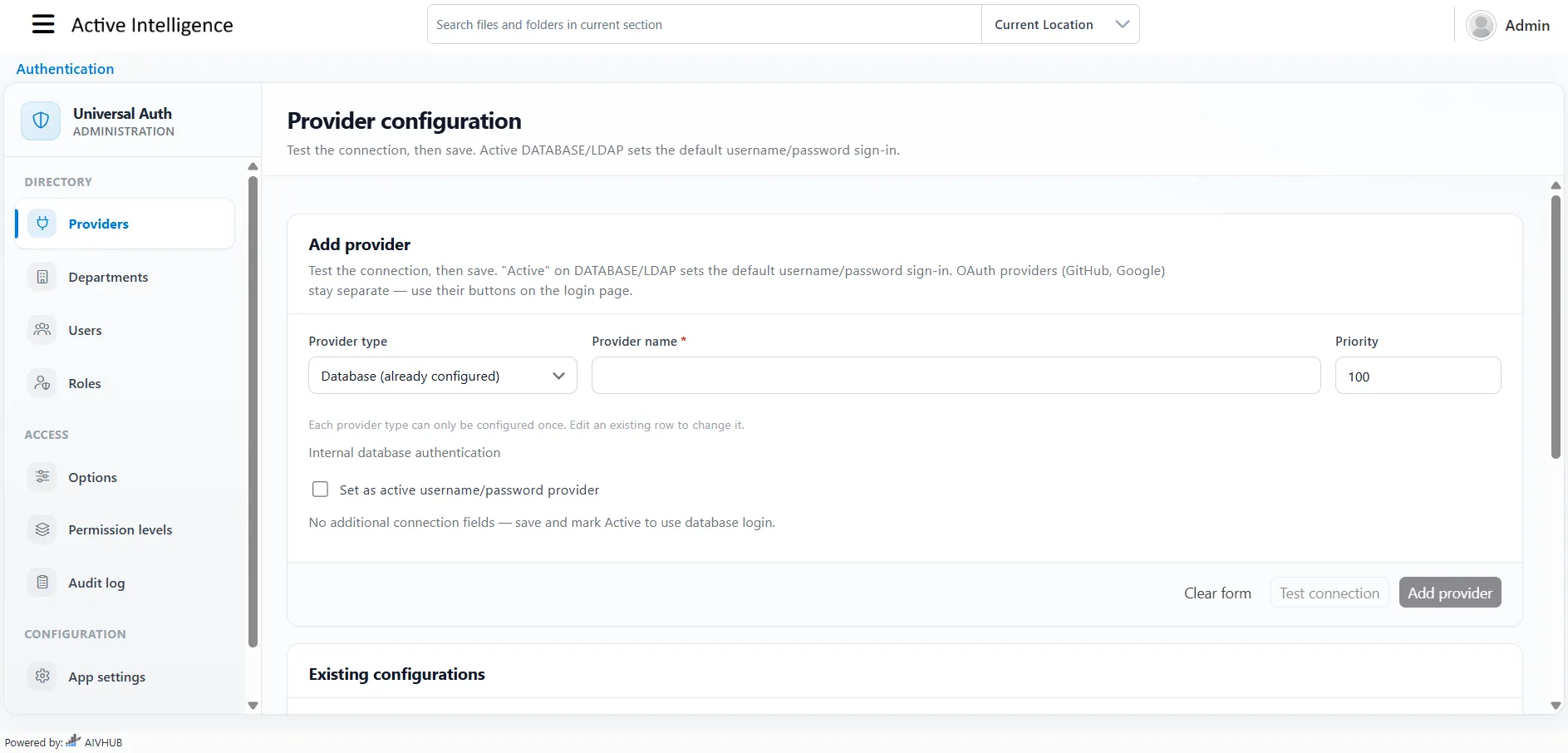
The Universal Auth Administration page will open. From the left-hand directory menu, select Providers.
-
Under the Add provider section, locate the Provider type dropdown. By default, it will be set to Database (already configured).
-
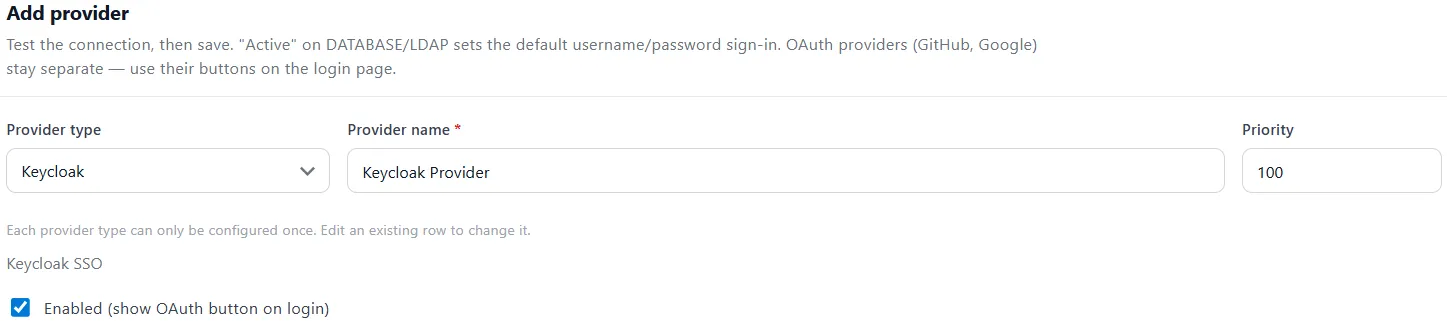
Click the dropdown and select Keycloak.
-
Fill in the following details for the new provider:
-
Provider name:
Keycloak Provider(or your preferred name) -
Make sure to check the box for Enabled (show OAuth button on login).
-
-
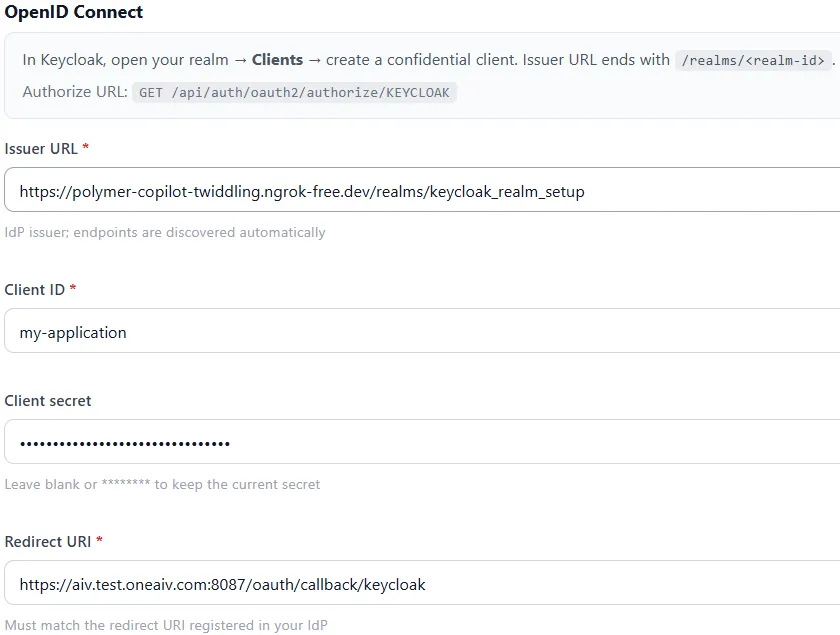
Scroll down to the OpenID Connect section and fill in the following details:
-
Issuer URL: Enter your Ngrok forwarding URL appended with
/realms/<realm-name>(e.g.,https://<your_domain_name>/realms/keycloak_realm_setup).- How to find it: You can find your base Ngrok URL in your Ngrok command prompt window. The realm name is the one you created earlier (e.g.,
keycloak_realm_setup), which you can verify from the Keycloak top-left dropdown.
- How to find it: You can find your base Ngrok URL in your Ngrok command prompt window. The realm name is the one you created earlier (e.g.,
-
Client ID: Enter the Client ID you created in Keycloak (e.g.,
keycloak_realm_setup). -
Client secret: Paste the Client Secret generated from your Keycloak client.
- How to find it: Go to your Keycloak Administration Console. Navigate to Clients, select your client (e.g.,
keycloak_realm_setup), click on the Credentials tab, and copy the Client Secret.
- How to find it: Go to your Keycloak Administration Console. Navigate to Clients, select your client (e.g.,
-
Redirect URI: Enter the callback URL for your AIV instance (e.g.,
http(s)://<your_domain_name>/oauth/callback/keycloak).-
How to find it: This is the exact same URL you entered in the Keycloak Client Valid redirect URIs setting during the client creation step.
-
-
-
Click on the Add provider button to save.
-
A success popup message will appear, and you will now see your newly created Keycloak authentication provider listed as Active in the Provider configuration list.

10. Test Keycloak Authentication
-
Log out of your AIV application.
-
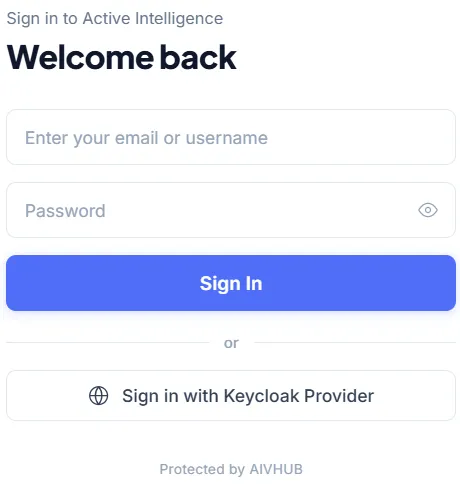
Navigate to the AIV login screen. You will now see a Sign in with Keycloak Provider button.
-
Click on the button to securely sign in using your Keycloak credentials.
-
You will be redirected to the Keycloak sign-in page for your realm. Enter the username and password you created earlier (e.g.,
user.alpha01) and click Sign In.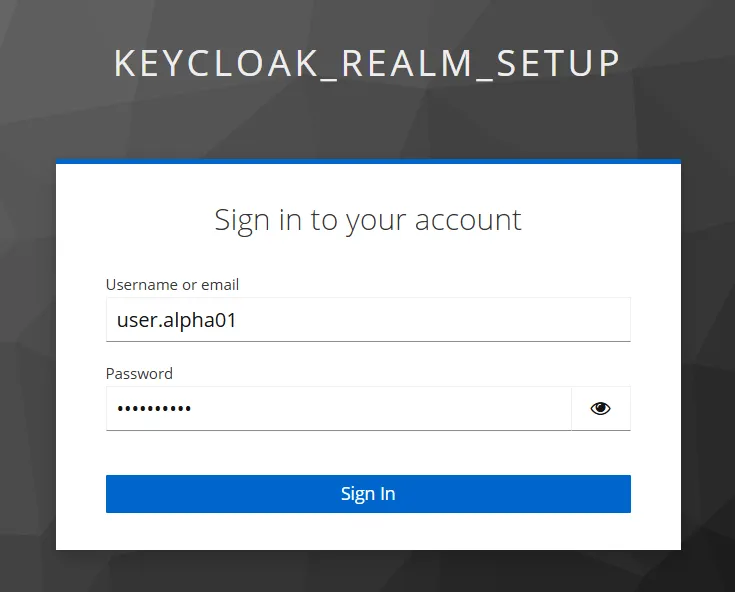
-
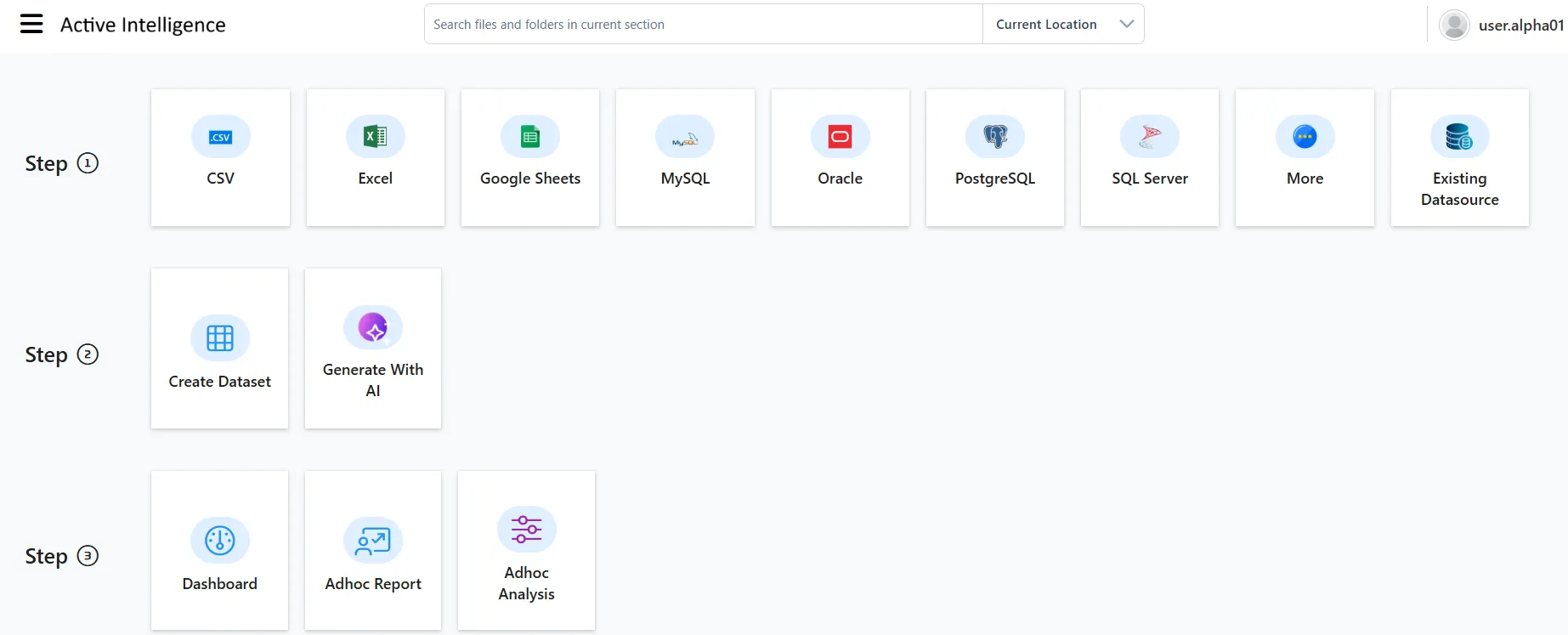
Upon successful authentication, you will be redirected back to the AIV dashboard.
Manage Role Synchronization
By default, users logging in via Keycloak are successfully authenticated but will not have any specific permissions within AIV.
Role synchronization allows you to map roles created in your Keycloak Realm directly to roles in AIV. When this is configured, AIV will read the user’s Keycloak roles during login and automatically grant them the corresponding AIV role (and its associated permissions). This eliminates the need for an administrator to manually assign roles to new users inside AIV.
If you want to enable this automated role mapping, follow the steps below:
1. Configure Client Scopes for Roles
-
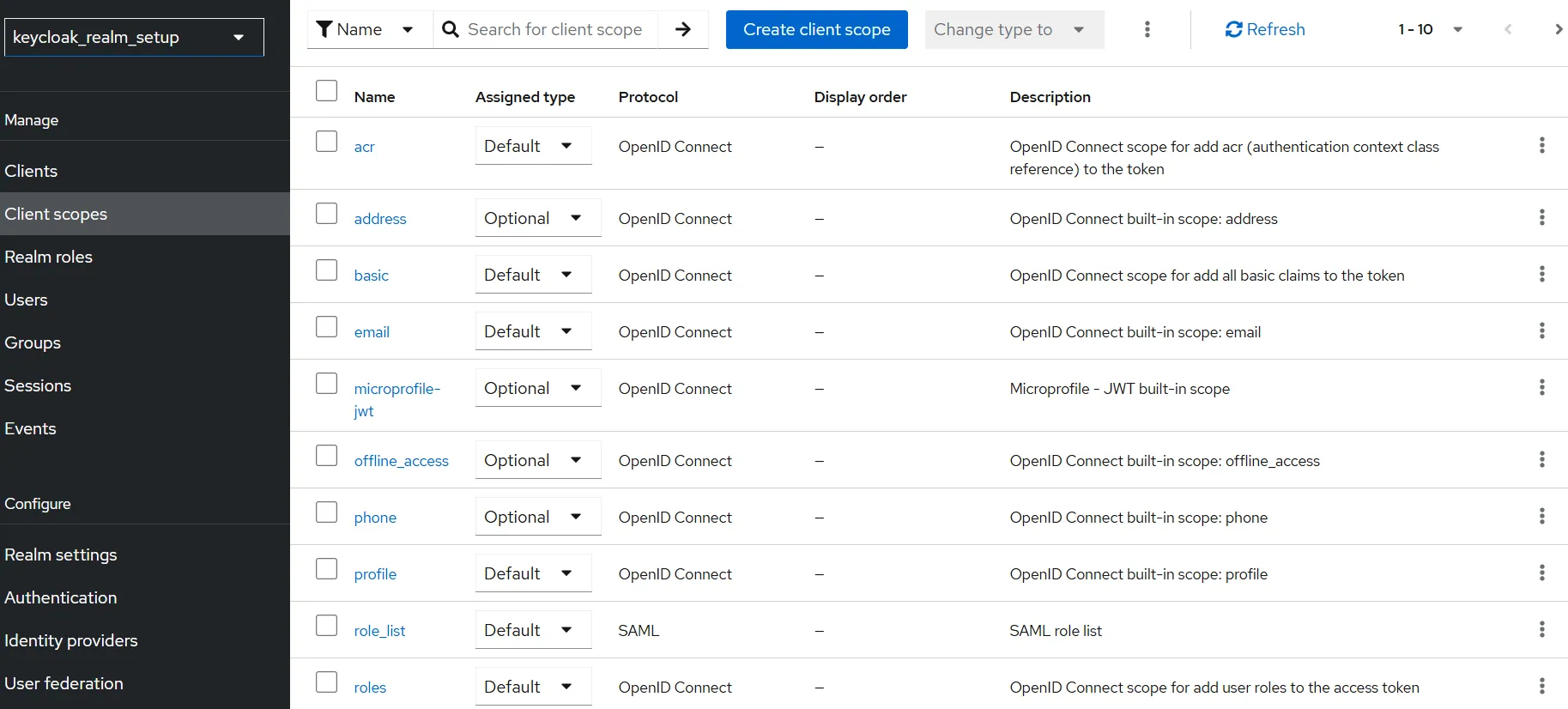
In the left-hand navigation menu, click on Client scopes.
-
From the list of client scopes, click on roles.
-
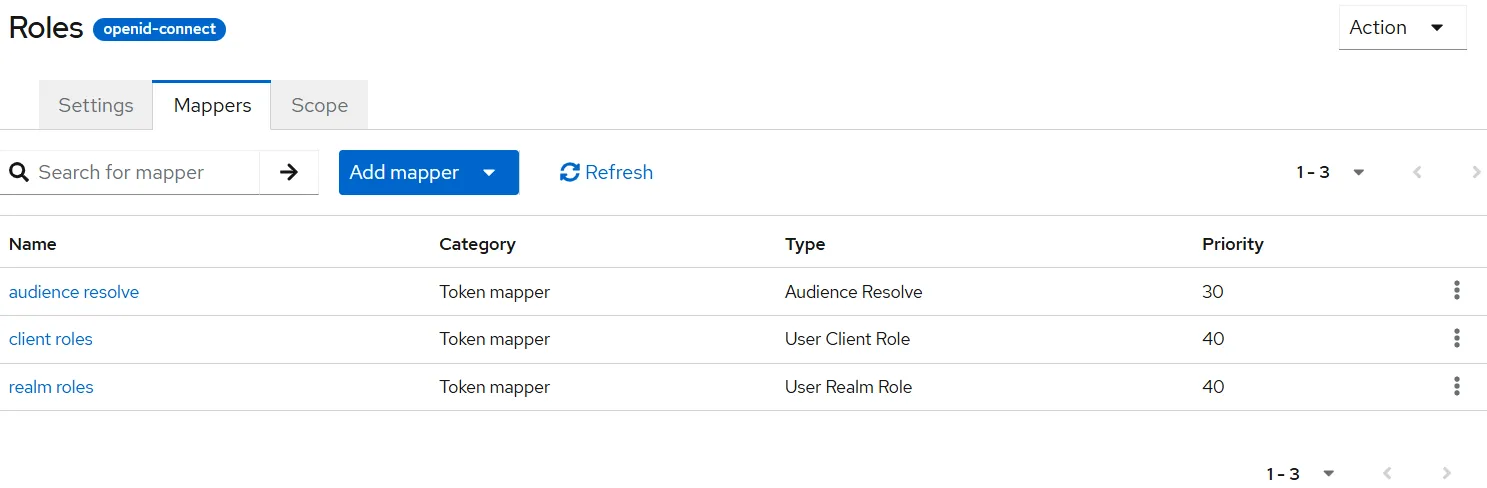
Navigate to the Mappers tab.
-
From the list of mappers, click on realm roles.
-
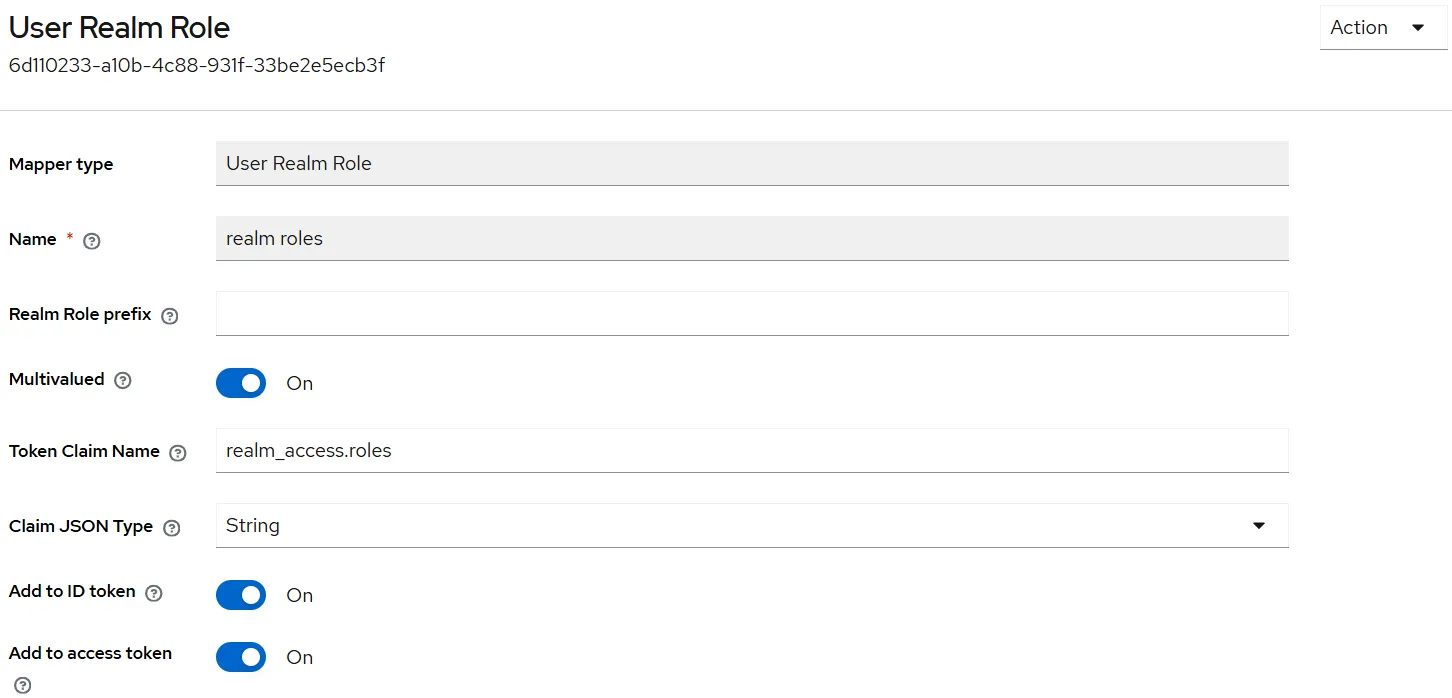
On the User Realm Role mapper settings page, ensure the following toggles are switched On:
-
Multivalued
-
Add to ID token
-
Add to access token
-
-
Click Save to apply the changes.
2. Create a Realm Role
-
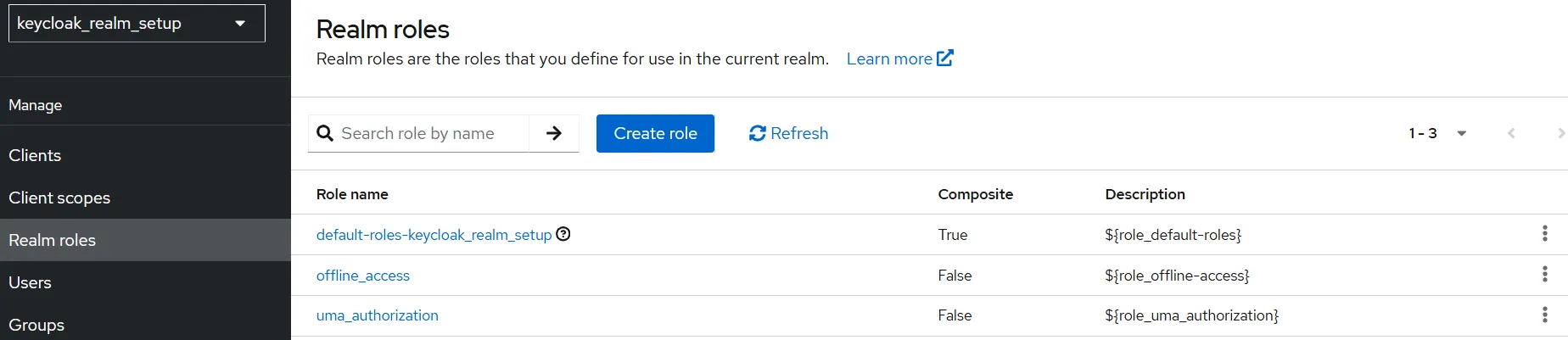
In the left-hand navigation menu, click on Realm roles.
-
Click the Create role button.
-
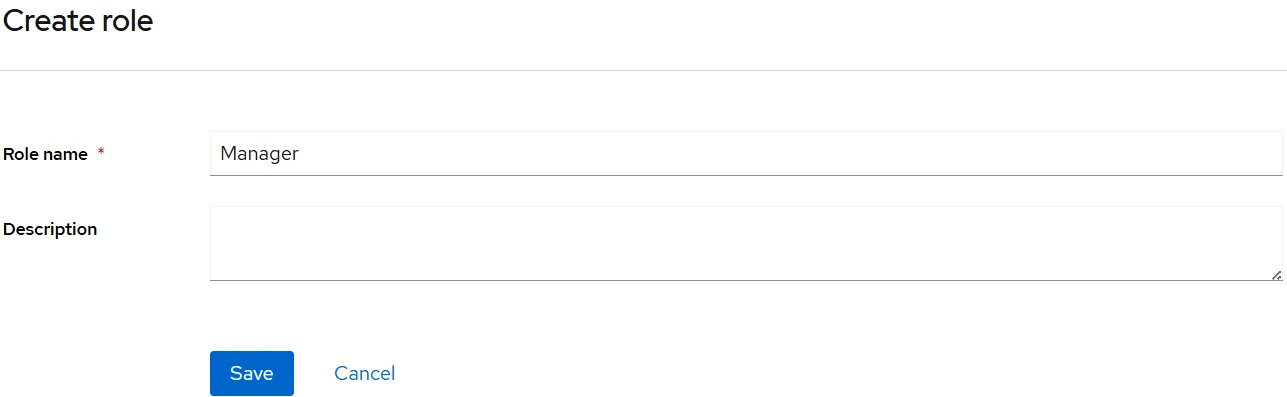
On the Create role page, enter Manager in the Role name field.
-
Click Save.
3. Assign Role to User
-
In the left-hand navigation menu, click on Users.
-
From the user list, click on the user you created (e.g., user.alpha01).

-
Navigate to the Role mapping tab.
-
Click the Assign role button.

-
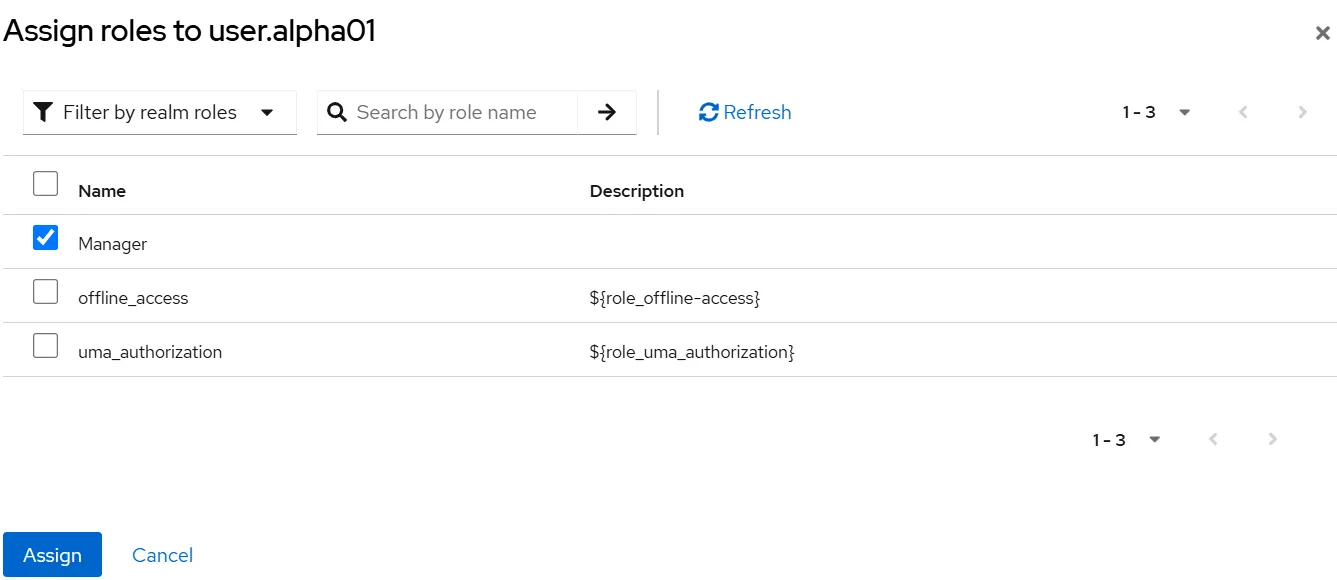
In the filter dropdown, select Filter by realm roles.
-
Select the Manager role from the list by checking the box next to it.
-
Click on the Assign button to confirm the assignment.
4. Create Role in AIV
Before verifying the role mapping, ensure that a role with the exact same name exists in AIV.
-
Ensure you are logged into your AIV application as a user with Universal Auth access.
-
Open the Hamburger menu (three horizontal lines) in the top-left corner.
-
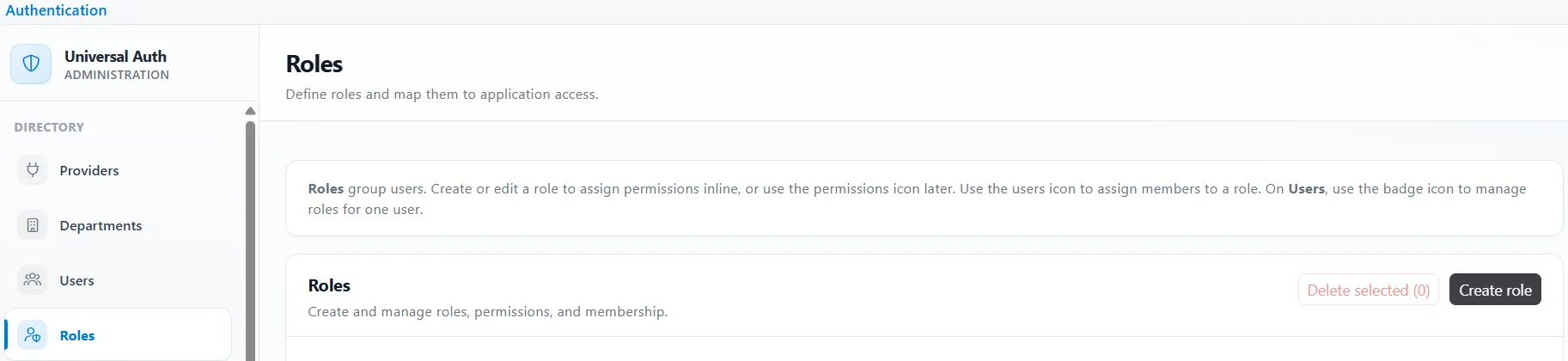
Expand the Administration section, click on Authentication, and then click on Roles.
-
Click on the Create role button.
-
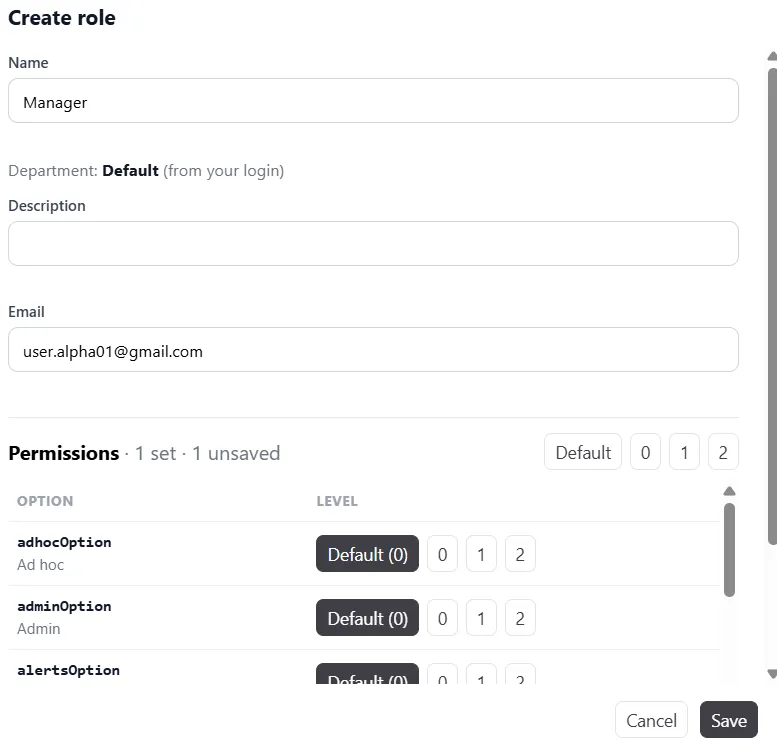
In the Name field, enter Manager to match the role created in Keycloak.
-
Provide any necessary permissions or descriptions, and click Save.
5. Verify Role in AIV
-
Log out of your AIV application.
-
Log in again using the Keycloak provider.
-
Upon logging in, the Manager role assigned in Keycloak will be automatically mapped to the user in AIV.
-
Open the Hamburger menu, expand the Administration section, click on Authentication, and then click on Roles.
-
In the Roles list, locate the Manager role and click on the Assign users icon next to it.
-
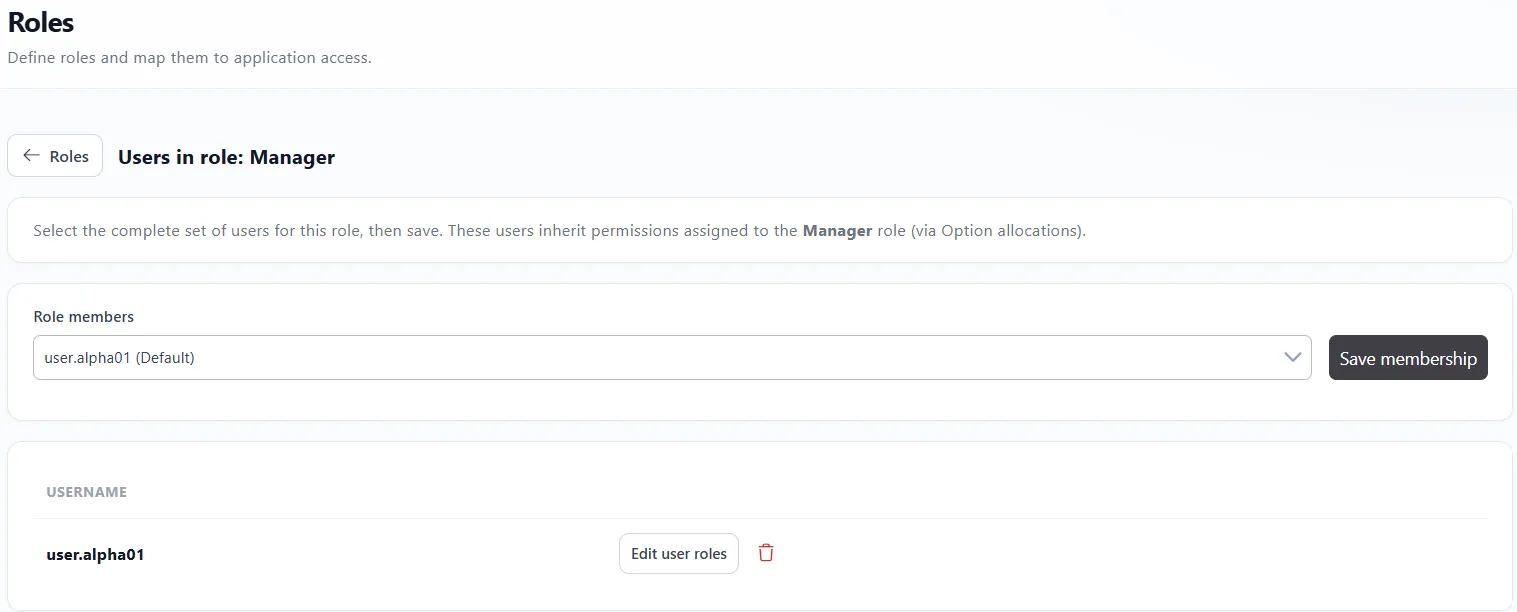
On the Users in role: Manager screen, you will be able to see that your logged-in user is successfully assigned to the Manager role.