GitHub OAuth2
Follow these steps to configure GitHub authentication in your AIV application:
1. Configure OAuth2 Application in GitHub
To complete the setup, you must create an OAuth2 application within your GitHub account:
-
Log in to your GitHub account using your username and password.
-
Navigate directly to your GitHub Developer settings.
-
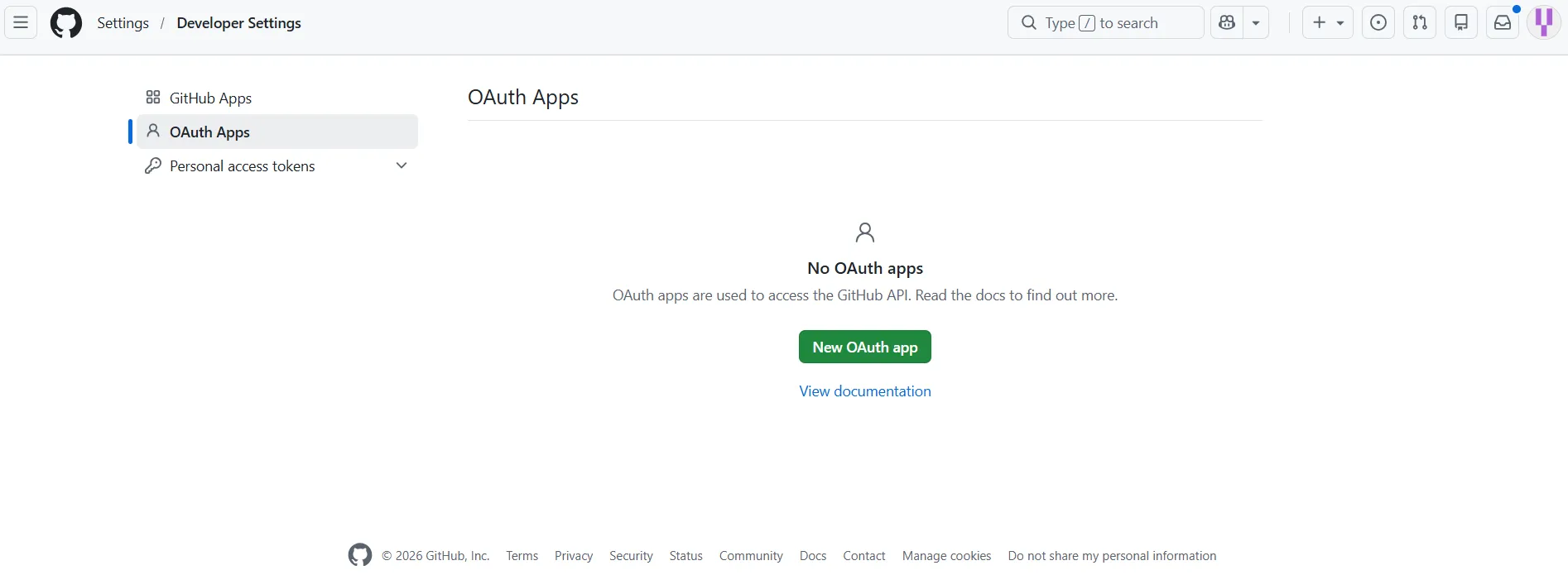
Click on the New OAuth App button to register a new application.
-
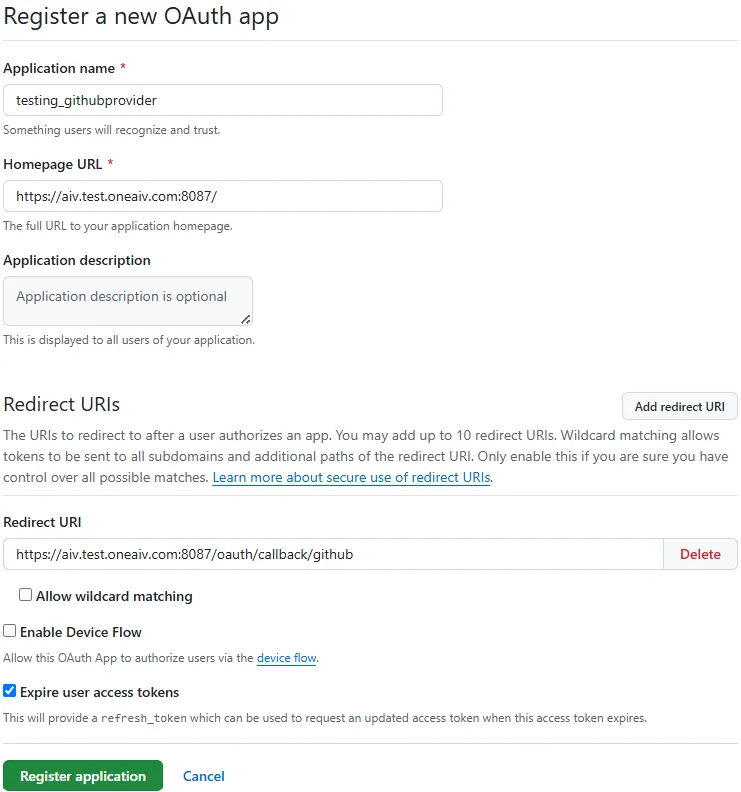
Fill in the required application details:
- Application name: Enter a name, such as
testing_githubprovider. - Homepage URL: Enter your AIV homepage URL, for example,
https://<your_domain_name>/. - Application description: (Optional) Add a description for your application.
- Authorization callback URL (or Redirect URI): Enter the callback URL for your AIV instance, such as
https://<your_domain_name>/oauth/callback/github.
- Application name: Enter a name, such as
-
Check the box for Expire user access tokens.
-
Click on the Register application button.
-
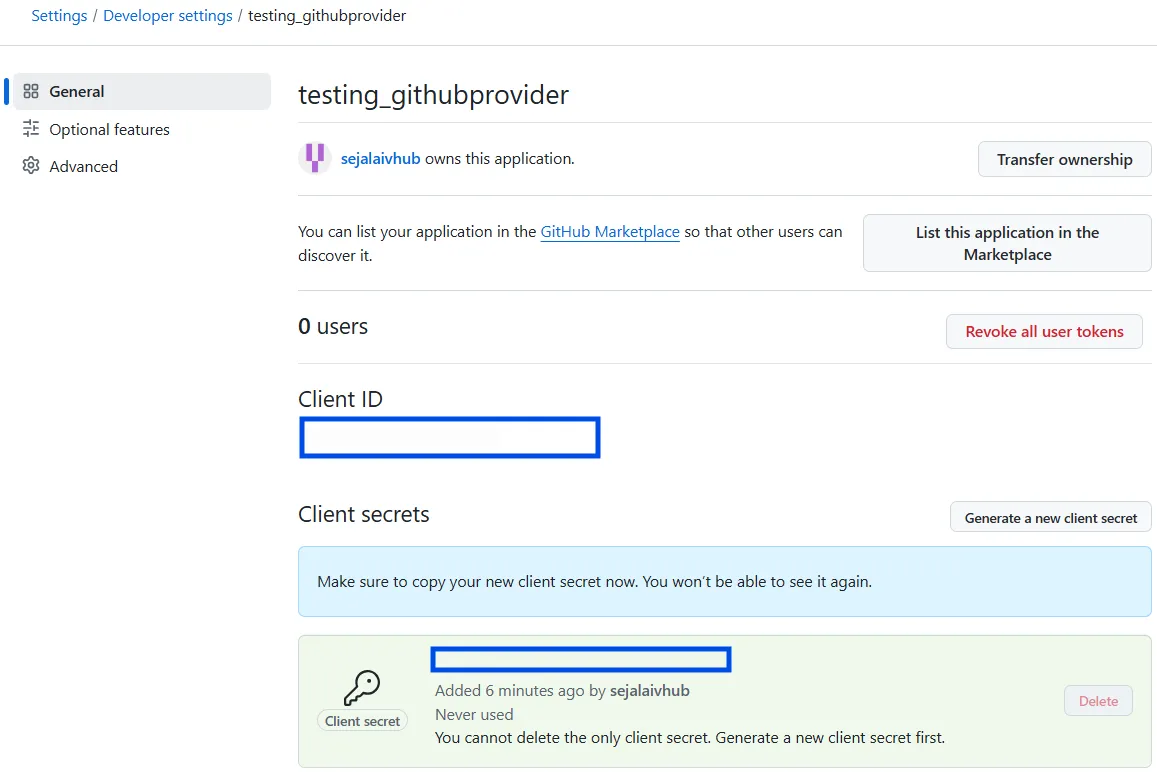
Once registered, you will be directed to the application’s page where you will see the Client ID. Copy and save this Client ID for later use.
-
Under the Client secrets section on the GitHub page, click on Generate a new client secret.
-
Copy and save the generated secret securely. You will need both the Client ID and Client Secret to configure the provider in AIV later.
2. Configure Authentication in AIV
-
Log in to your AIV application.
-
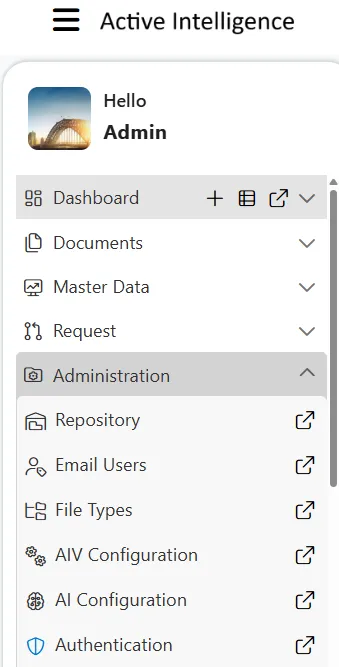
Click on the Hamburger menu (three horizontal lines) in the top-left corner to open the sidebar.
-
Expand the Administration section and click on Authentication.
-
The Universal Auth Administration page will open. From the left-hand directory menu, select Providers.
-
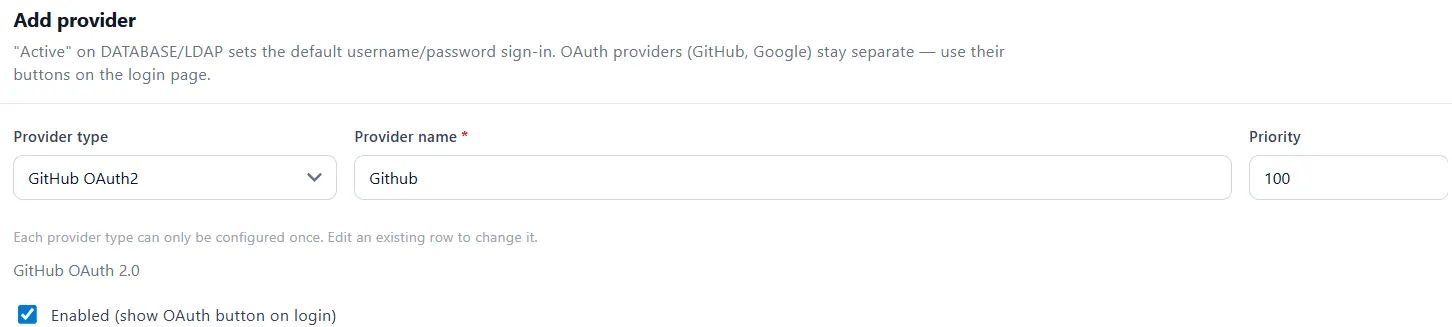
Under the Add provider section, locate the Provider type dropdown. By default, it will be set to Database (already configured).
-
Click the dropdown and select GitHub OAuth2.
-
Fill in the following details for the new provider:
-
Provider name:
Github(or your preferred name) -
Make sure to check the box for Enabled (show OAuth button on login).
-
-
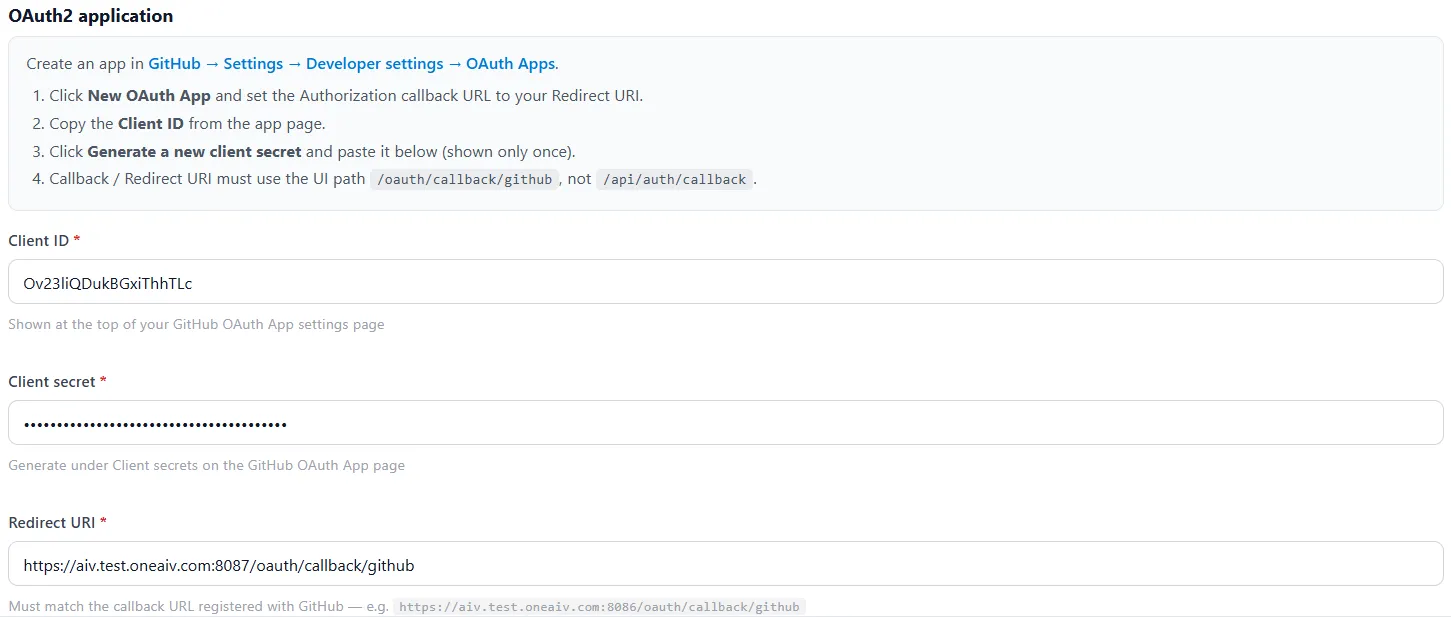
Scroll down to configure the GitHub credentials:
- Client ID: Paste the Client ID you copied from GitHub.
- How to find it: Go to your GitHub Developer settings, select your OAuth App, and copy the Client ID.
- Client secret: Paste the Client Secret you generated in GitHub.
-
How to find it: On the same GitHub page under the Client secrets section, generate and copy the secret.
-
- Client ID: Paste the Client ID you copied from GitHub.
-
Click on the Add provider button in AIV to save and complete the configuration.
-
A success popup message will appear, and you will now see your newly created GitHub authentication provider listed as Active in the Provider configuration list.

3. Test GitHub Authentication
-
Log out of your AIV application.
-
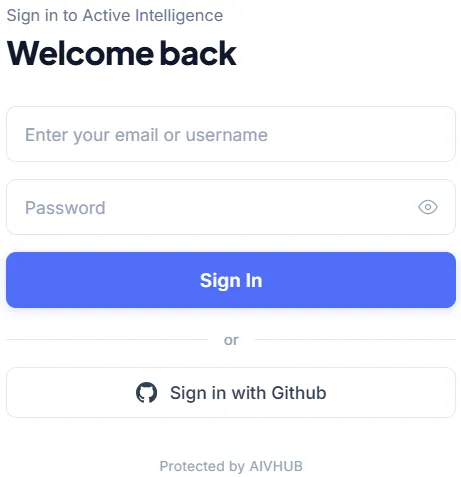
Navigate to the AIV login screen. You will now see a Sign in with Github button.
-
Click on the button to securely sign in using your GitHub account.
-
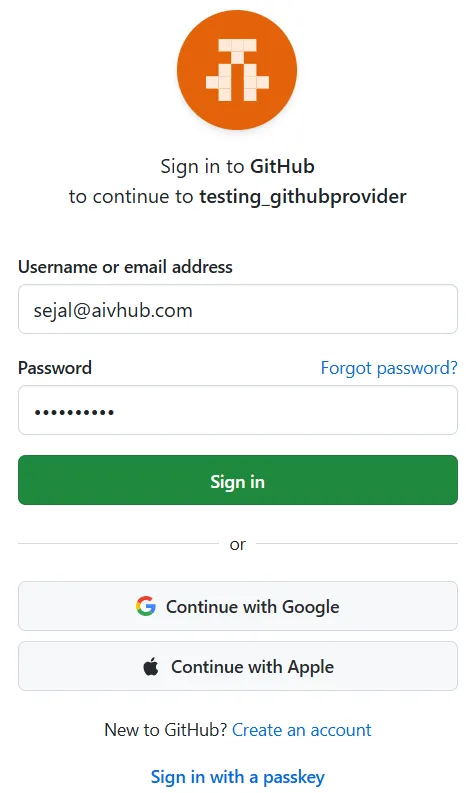
You will be redirected to the GitHub sign-in page. Enter your GitHub Username or email address and Password, then click Sign in.
-
GitHub will then send a 6-digit verification code to your registered email address or authentication device. Enter this verification code to proceed.
-
Next, you will be directed to the GitHub authorization page. Click on the green Authorize button (e.g., Authorize sejalaivhub) to grant
testing_githubprovideraccess to your GitHub account information.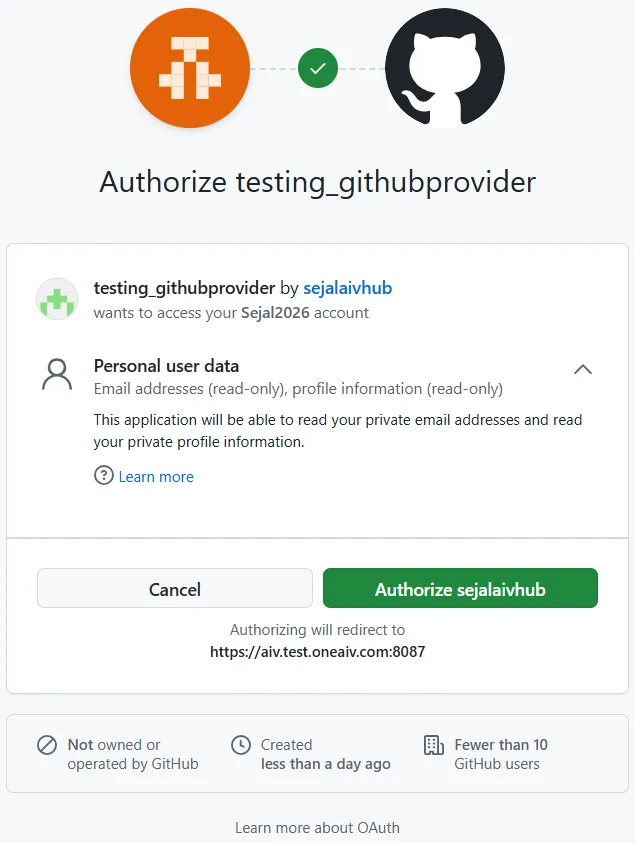
-
Upon successful authentication, you will be redirected back to the AIV dashboard.